
We're introduced a new way of communicating important updates to your client.
You can now send 'push notifications' to your client's Engager mobile app.
This is a great way of notifying clients of signing requests, forms or simply that they have a new document / post item to review. Please note this isn't the ability to send messages to your client
It helps keep their inboxes clear and as it's a push notification, they're harder to ignore meaning you'll hopefully get their attention more easily!
What is a 'push notification'
A push notification is a short, clickable message sent from an application or website to a user's device—such as a smartphone, tablet, or desktop—even when the app is not actively in use.
These messages appear as alerts, banners, or pop-ups to deliver instant updates, promotions, or reminders
Now, whenever your send your client a new file, signing request or even form, you can notify them with a Push Notification
How to send an item via 'push'
The option to use the Push Notification will only appear when you're interacting with either the file, signing request or form
Locate your client in question, then select 'files'
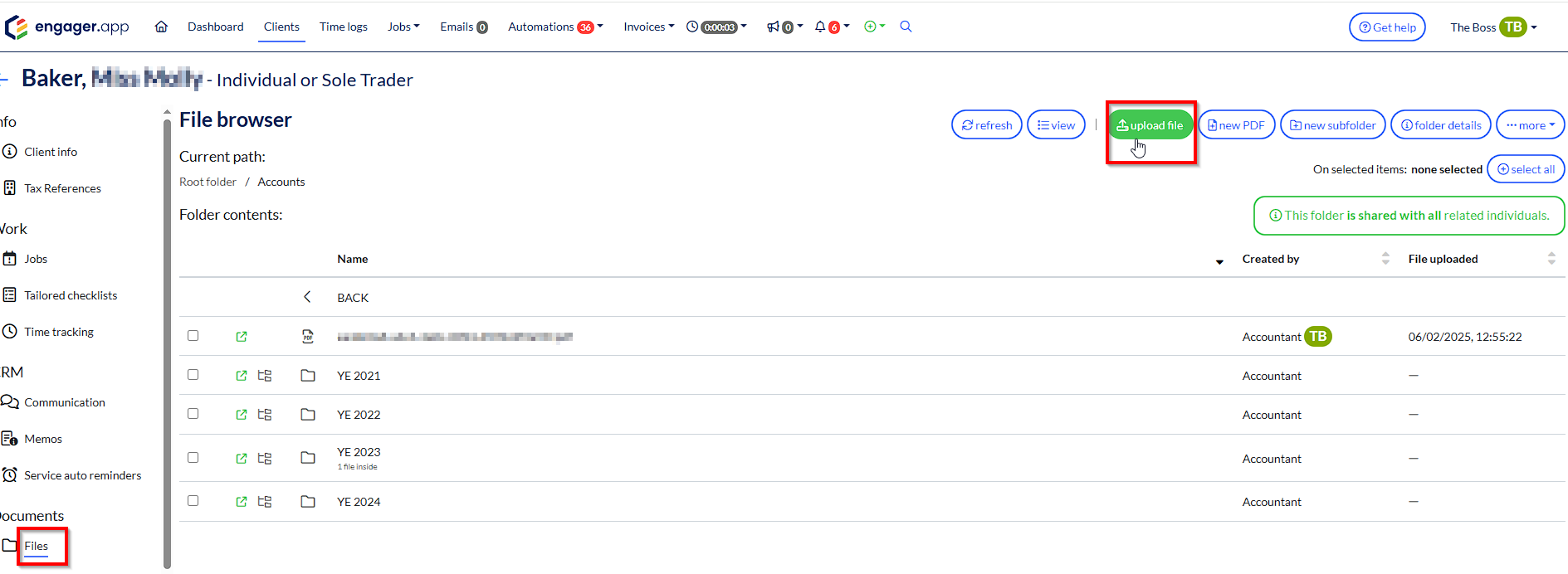
Upload File as you would normally
Start Uploading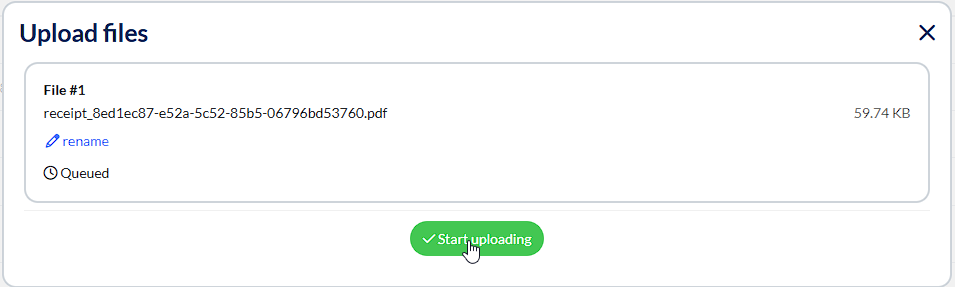
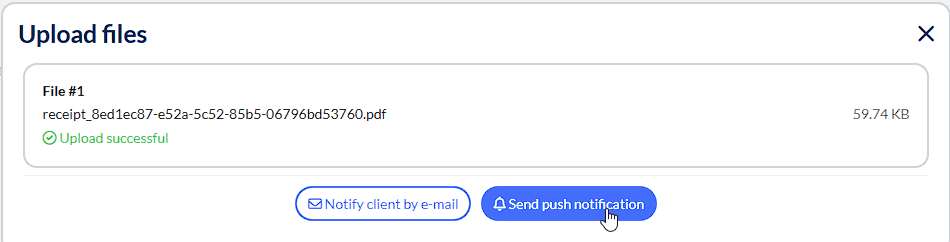
Once completed, you will now be met by 2 options - Notify client by email and Send Push Notification
Then rather helpfully, we'll display whether or not your client has installed the Engager mobile application. In this scenario, select cancel and Notify Client by Email as normal
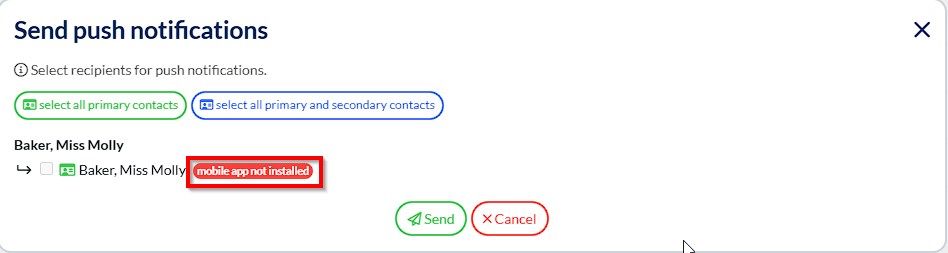
If you have the option, you can now select your clients and hit 'send'
Your client will now receive a 'push notification' to their mobile handset.
They'll receive a banner pop up at the top of their phone, like the example below
So you can now double up your signing requests, forms etc - perfect for any late filers, but also a great touch to show your client that you're meeting them on their preferred method of contact.
If you want to send a Form to a client, once you've selected your form, you can now Notify using the Bell icon under Actions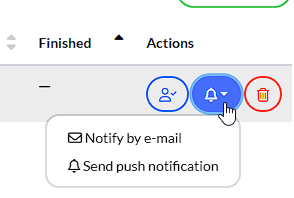

Comments
0 comments
Article is closed for comments.