
We have a handy feature that allows you to add client's company information very quickly but also accurately!
You can go to Companies House directly and pull this data into your Engager account
For more information on what the Companies House LINK does -
https://help.engager.app/hc/en-gb/articles/22925501931410-Companies-house-updates-what-we-ll-check-for-you-and-what-you-need-to-do-to-accept-the-change
https://help.engager.app/hc/en-gb/articles/22925501931410-Companies-house-updates-what-we-ll-check-for-you-and-what-you-need-to-do-to-accept-the-change
Head to Clients - New Client - Next
Click on 'import from Companies House'
Type the name or company number
Search
Select the company you would like to add
Click on Finish Import - this is going to pull through the basic info about the company, from company reg office, filing data and deadlines.
You'll then need to select the officers from the company - Select only the ones that you really need, like the Directors whom you do SATRs for:
Related Individuals and Contacts
Add
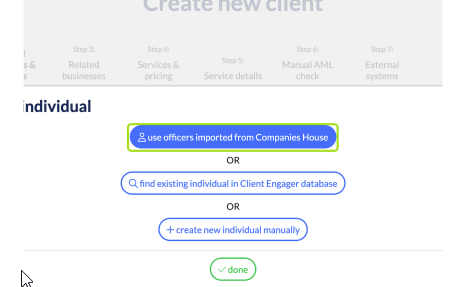
Click on use officers imported from Companies House
Click on Create New Client
Click on Create New Client
DONE
Enter an email address - please remember, that the LTD doesn't need an email, just the Directors
Complete the rest of the form as normal
Related Business - if any of your Directors have other LTDs that you act for, you can link them here - what that does, it will link them in the Directors Portal - so, 1 login for all their details which is super handy for the client.
Switching On services - now go through and select PLAY on the services that you've agreed to provide.
Click on next: Service details, enter their due dates and also you can set your INTERNAL deadlines, to get things done nice and early.
Click on save - you can always come back to these settings and update later, once you're ready to send out the client's Letter of Engagement.
For more information on complete the Letters of Engagement - https://engager.zohodesk.eu/portal/en/kb/articles/how-to-add-and-customise-document-templates-how-to-add-and-customise-document-templates-and-letters-of-engagement#h_01J5WT27DMM8XF6WGYVGKZJACT
Comments
0 comments
Article is closed for comments.