
We want all of your clients to be using the Portal to keep the flow of signing requests simple, document transfers flowing and eventually, communication can be all done within the Portal.
There will be times when you realise that your client has logged in so this guide will help you address this, client by client, or in bulk for efficiency.
Firstly, the first point that a client should be signing up to the Portal is when they agree to your LOE - the prompt appears at the bottom of their signing request
As we all know, clients will need a little push from time to time.
Inviting an individual client
When you’re on your client page, we’ve created a handy visual prompt for you to see whether a client has accessed the system - this is your client summary screen. If you see this when dealing with the client, we’re prompting you to take care of it there and then.
They’ll then be taken to your email message and you can send out from there.
Inviting multiple clients
As with all things Engager, we’re trying to help you be as efficient as possible - so once you’ve realised that you may have other clients that haven’t been invited, let’s check to see if there are any more out there.
Head to your Dashboard and look for the Widget - Client Portal Users
Ooof - I’m a bad practice manager - 82!! That’s ok, let’s take care of this asap! Select ‘82 not invited’
You can then select all in one go, or select individually. You’ll also see that some don’t have emails - that more house keeping you’ll need to take care of!
Now you’ve sent your invites, you’ll likely face the question of ‘I’ve forgotten where to login’ or ‘what’s my password’ etc
Reminding Clients of their Login
You will never know a client’s password for obviously reasons, so if they do ask for a reminder, tell them about the ‘password reset’ option that every human being should be familiar with by now - and yet, we know you’ll still get asked this question!
But first, what’s their login - it’s ever so slightly different from the URL that you log into for your Practice.
Head to Settings - Portal - General Settings
We’ve given you a handy ‘copy’ button to paste back to your client.
The URL login link will be different from your Practice by that simple word ‘portal’ added into the URL, when compared to your own which would be yours of companyname.engager.app
Yours - yourcompanyname.engager.app
Theirs - yourcompanyname.portal.engager.app
Curious to see what the client can see?
If your client struggles to login they will get an error message “Unknown fetching error -code 400”
This error either means they are using the wrong email address, it should be the email you have saved against the client record in Client Engager. Or the client hasn't accepted and signed up for the portal. You can tell if the client is signed up to the portal by going to their record in Client Engager and on the client summary you will see the below.
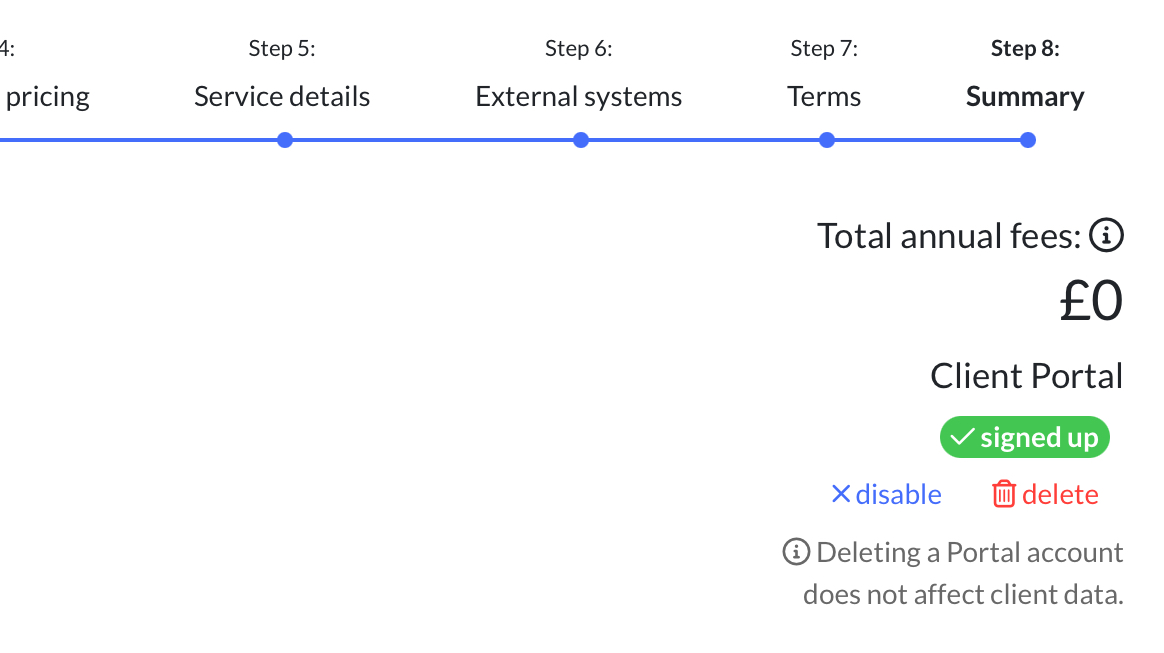
As you can see above they a re signed up so if they are using the right email and still unable to access the portal then you should delete the portal using the button in the screen shot and the reinvite them.
Comments
0 comments
Please sign in to leave a comment.