
So what is a Checklist and why use them
A Checklist is exactly what you think it is, a Checklist. It’s there for you or a member of your team to work through a process one by one, ticking off boxes methodically and without missing any critical steps.
A Checklist acts almost like a sanity check for the jobs that you need to do.
Imagine you’re filing your 37th Self Assessment for that day in January. You’re about to mark the job as complete, but the Checklist grabs you and forces you back into that Self Assessment. Maybe you’ve missed something, maybe the Client actually had some Self Employed income that year. You’ve been on auto-pilot, but the Checklist has acted as your safety net here. Phew!
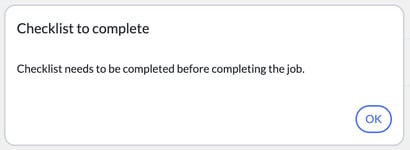
So head back into your Checklist and review:
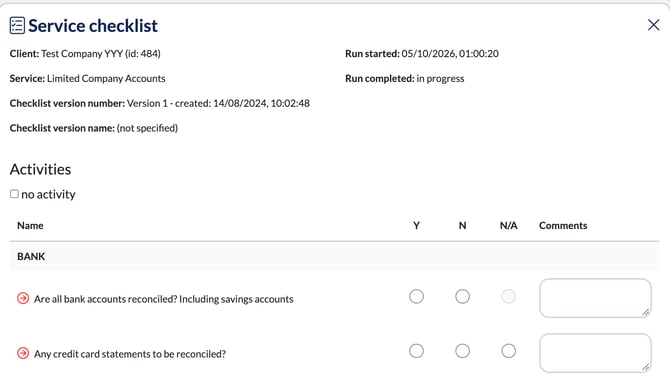
Similarly, Year End: you could have Juniors working through preparation and production on a set of accounts, and you want them to follow YOUR way of doing things. Write these down in the form of a Checklist, one by one, helping your staff member to be compliant and build confidence moving forwards.
What’s the difference between a Phase and a Checklist
Checklists act as your more granular level of control, versus a job phase.
When you complete a Phase, it can trigger an email to a client. Keeping the Year End theme going, completing a records phase could fire an email to a client to say ‘Hey, thanks for your information, we’ll aim to have the accounts completed within x weeks. We’ll let you know when they’re being reviewed’.
So Phases can trigger emails to clients, Checklists are your internal measures and controls.
Want to learn how to trigger emails from Phases? See Setting Up Status Emails.
Checklists sound great, where are they?
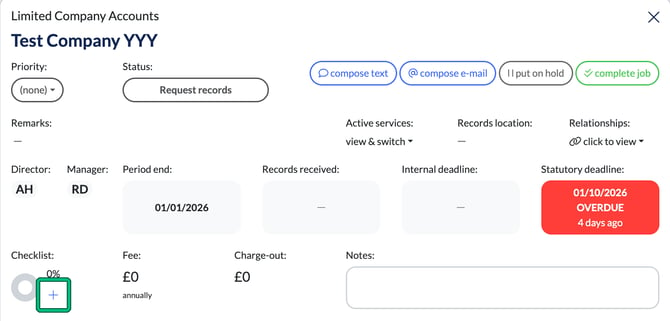
They are quite innocuous when you’re on the job itself. Open a job and you’ll find the Checklist progress ring at the bottom left of the job details. Select the + next to it to open the Service checklist and complete it.
I love Checklists, how do I make one!
Each service can have its own generic Checklist. In this example, we handle clients with US Dollar bank accounts, and I want a failsafe so that my Juniors don’t miss this as part of the preparation and reconciliation process.
- Go to Settings and, under Jobs, select Checklists.
- Find the service and select edit next to its generic checklist. If the service shows (no generic checklist defined), select create instead.

- In Edit checklist, select add point in the section you want and type your new item. Tailor the rest to your practice’s standards and processes.
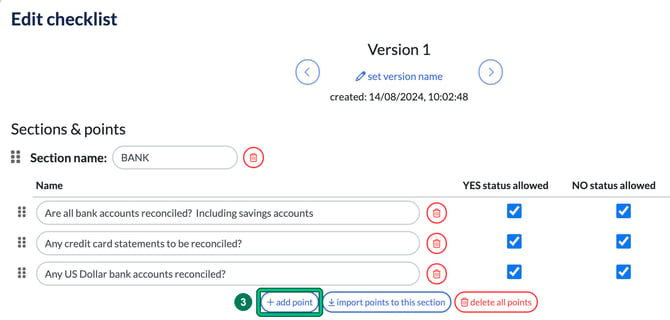
- If you have a section of a Checklist that you’d like to use on another Checklist, select import points to this section, choose the Service to take them from, then tick the points you’d like to import.
- Select Import selected.
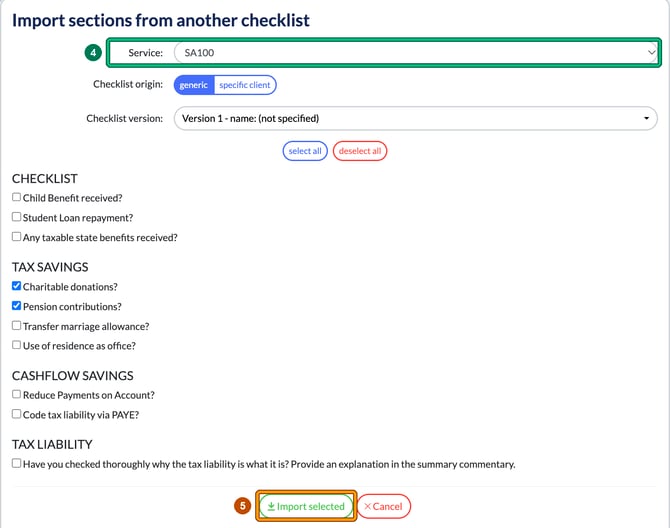
- Select Save new version from points above. Your changes are saved as a new version of the Checklist. If you select Close instead, your changes are not saved and there is no warning.
These steps also appear in 4 of 10: Streamline Processes with Effective Checklists.
Custom or Tailored Checklists
You can create custom checklists against each individual client also. Super handy where you have just one or two clients with bespoke needs, so you don't want to have to run these for 99% of your client base, just the anomaly.
You need to set this at the client level. You can't create it in Settings > Jobs > Checklists at a global level and apply it to the bespoke clients. Tailoring is possible only for enabled services with globally enabled checklists.
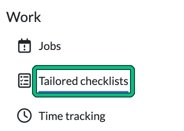
- Locate the client in question, then in the left-hand menu under Work, select Tailored checklists.
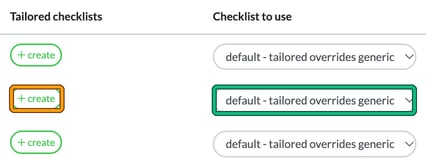
- Find the service and select create in the Tailored checklists column. Edit checklist opens with the content imported from the latest generic checklist.
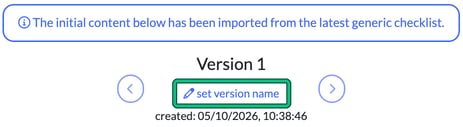
- Select set version name to name the new checklist.
- Add or remove your checks. You can use add point, add section, import points to this section and import sections, as for a generic checklist.
- Select Save new version from points above. If you select Close instead, the tailored checklist is not saved.
You don't need to change anything for the tailored checklist to supersede the generic one: by default, Checklist to use is set to default - tailored overrides generic. The other options are always generic and none - checklist disabled.
We don't currently have a duplicate button for you to apply the bespoke checklist to another similar client. Instead, when you create the other client's tailored checklist, use import points to this section or import sections and set Checklist origin to specific client to pull points from the first client's checklist.