
With identity verification now a legal requirement for directors and PSCs (since 18 November 2025), and Authorised Corporate Service Providers (ACSPs) due to file on behalf of clients from no earlier than November 2026, you’ll need to start getting ahead of your responsibilities and what you will need from your clients, in order to file your returns.
Getting ahead of this now, will help prepare you for any issues later down the line. Imagine receiving fines for not having a piece of ID!
In Engager, every contact has a built-in Companies House Personal Code field, so you can store each director’s code and report on who still needs one. If you also want to track where each client is in the verification process, you can add an optional custom field. We’ve also provided you with templated emails to start sending out to your clients when ready.
Using Xama will help make this extremely simple to do.
How to record your client’s Companies House Personal Code
We thought it would be great to have an area to store the ID Verification Codes within the Engager platform. Please note that this is on the contact record, not the LTD, for obvious reasons.
Now that Companies House have confirmed the format of the code, we’ve been able to implement this into the Engager Platform, for you to house all director codes. It saves having to build Custom Fields etc. Super handy!
- Head to the client contact.
- Select Step 1: General info.
- Navigate down to the Companies House Personal Code: field.
- Enter the code. It’s 11 characters in the format XXX-XXXX-XXXX. Please note that we’ve made it so you don’t need to worry about the hyphens or caps: Engager adds the hyphens and capital letters for you when you leave the field.
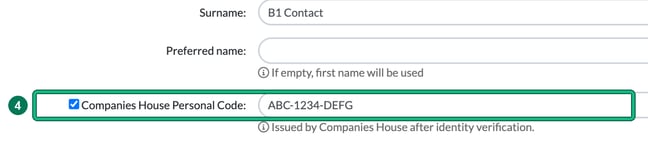
- If you’ve entered the code in an incorrect format, we’ll tell you: Code must be 11 characters (hyphens optional), e.g. XXX-XXXX-XXXX.
- Select Save at the bottom of the form.
Reporting on who has and hasn’t had their Companies House Personal Code saved in Engager
As part of your new responsibilities, you will need to know who has and hasn’t had their ID verified and confirmation saved as the code.
So now, once you’ve entered in a few personal codes on the client record, you’ll be able to see these clearly from the Clients screen.
- Head to the Clients tab.
- Select columns.
- Under General info, tick Companies House Personal Code.
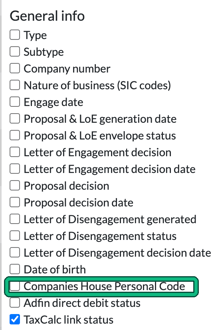
You’ll then see the code entered against your individual’s name.
If you press the heading of Companies House Personal Code, you’ll quickly be able to sort by completed and not completed, so you can then take action on those that don’t yet have a code next to them. You can also filter on it from filters > Client info > Companies House Personal Code.
Tracking verification status with a custom field (optional)
The personal code tells you who has been verified. If you’d also like to track and monitor the clients affected, and whether you have the appropriate ID documentation to then update Companies House, you can create a custom field and sort your client data with it.
- Go to Settings and, under Client data, select Custom fields.
- We need to find a home for our new field. As this is based on AML and ID, use the custom field section whose client form step is Manual AML check (if you don’t have one, create it with new section). Select + new field in that section. This opens Add field.
- Enter a Name, such as Companies House ID Verified, set Data type to Dropdown choice, then under Choice options add the 3 options Completed, Not Completed and Not Applicable (this will be for trusts / sole traders / non-LTD charities etc).
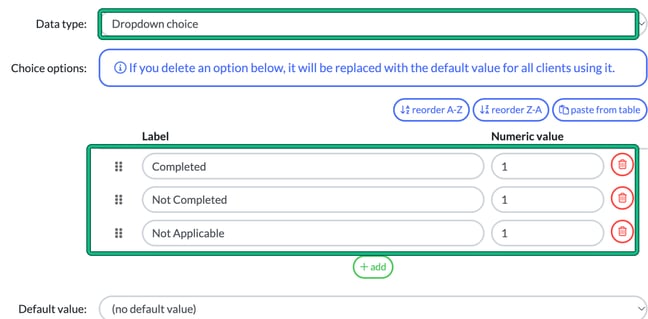
- Select Save.
To see your new field on your client list, select columns on the Clients tab and scroll down to Custom fields. Your field is listed under its section name. Tick it, and the field is now visible in your Client List.
What you’ll want to do is start an admin process of vetting your clients and filing the ID with Companies House, then marking it as ‘Completed’. This will be an internal process for you to run. Engager is here to help you manage but not file / update Companies House.
Rather than going through these one by one, we want to update the ones that aren’t relevant, by using filters and then bulk editing to save time.
Identify your clients that aren’t impacted by ACSP
Let’s clear out those that aren’t impacted by ACSP, so people like sole traders / charities (non-LTD), anybody that doesn’t actually have any filings to Companies House.
- On the Clients tab, select filters, then under Client info select Type, and choose the client types that aren’t impacted. We’ve selected the client types that we don’t feel will be impacted but please remember, these are your clients and this is a guide.
- Now that we’ve got our segment, let’s bulk update Engager to say that Companies House ID Verified is Not Applicable. Select all using the checkbox at the top of the list.
- Select bulk actions, then Edit client or service data. This opens Bulk editing.
- Under Choose entity type, choose Client. Under Choose form field, choose your new field, then under Set new value choose Not Applicable.
- Select Submit.
If you want to update these manually, locate the client in question, then in the client’s left-hand menu go to AML > Manual AML and update accordingly.
You’ll now start seeing where you need to plan your management of this moving forwards, from contacting the client, to requesting the relevant ID to doing the actual updating of ID with Companies House directly.
This will take some time to run through all of your clients.
Now that they’re taken care of, let’s look at the ones that need our attention.
Xama Users
Please note that although we link with Xama, Xama can’t push the ID into Companies House for you and we also can’t push data into Companies House. This will be a manual process of managing your clients and responsibilities.
For those of you using Xama, this will be a very straightforward process as you’ll already have the relevant ID documentation sitting on the client profile. It’s then simply a case of working through Xama clients and updating Companies House, once you’ve been registered, then updating Engager to say Companies House ID Verified: ‘Completed’.
Using the above method with filters and columns, you can further segment your client list into Xama users, cross-referencing those that have been completed already, so that you can start actioning with Companies House.
If you’ve not yet run the Xama checks, you can use this list to start these requests, so that you’re then ready to update with Companies House later on, then update in Engager.
Manual AML Checks
For those of you that are doing AML checks outside of Xama, you can still segment your data accordingly and use the templated emails to help manage your roll out. If you’re interested in speaking with Xama or seeing how it works in Engager:
Planning your client communications and roll out
Any additional request for personal ID information needs to be handled delicately and well in advance of your clients’ Companies House deadlines.
We’ve written a Short Email explaining Companies House ID Verification Changes and a Long Email explaining Companies House ID Verification Changes for you to use with your clients. Please use these as a guide, we’re ultimately not responsible for the wording or reaction to how your client reads / perceives the request.
The emails will help clients know what is needed and why. They aren’t built into Engager, so copy the one you want into a new message template under Settings > Communication > Message templates (see How to add email templates).
You can now start sending these emails out in bulk, now that you’ve done the work to segment your client lists.
Wrapping Up
Rolling out ACSP doesn’t have to be stressful. By using Engager’s features (the Companies House Personal Code field, Custom Fields, Filters, Bulk Actions and email) you’ll have everything in place to manage your obligations smoothly and efficiently.
If you need further help or templates for client communication, we’ve got you covered with pre-written email templates ready to use.