
Navigate to Settings.
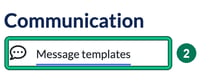
On the left menu, scroll down to the Communication section and then select Message templates.
Select + new template.

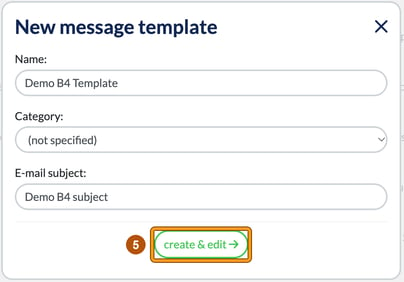
In New message template, enter a Name: for your new template. You can also choose a Category: and enter the E-mail subject: here.
Select create & edit. This creates the template straight away and opens Edit template, where you can then draft your email subject and content. Select Save when you're done.
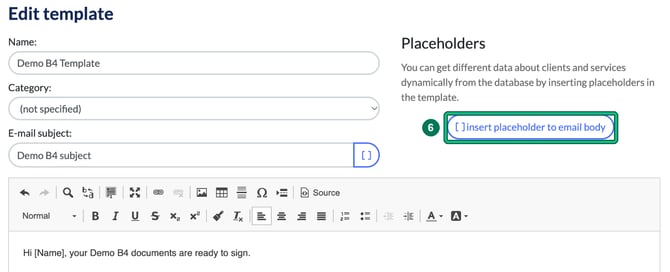
You can also use placeholders which will allow you to draft a single email which will be automatically personalised to each individual recipient. Select [ ] insert placeholder to email body to open Insert placeholder, where you can use Search placeholders: or browse the groups. The E-mail subject: field has its own [ ] button for placeholders in the subject.
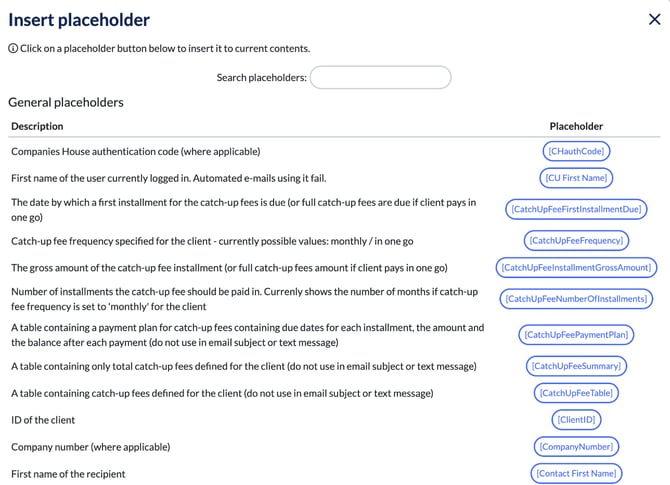
Each custom field you create will also create a placeholder field, unlocking the potential for you to build incredibly powerful automated emails and workflows. You'll find them in Insert placeholder under a group for each custom field section, named Custom fields followed by the section name.
To use your new templates moving forwards and learn more about email automations, see 8 of 10: Enhance Communication with Custom Email Templates.
Thanks for reading, have fun building!