
Do you struggle to stay on top of your AML checks for the company and personnel? Worried that these things might slip? This is where having an integration with a leading AML expert is ideal: let them do the heavy lifting so that you’re free to run your practice.
Xama is a best in class AML product that we have deep API links with to pull data into Engager and maintain a central database.
In this video we take a look at how it all works.
Xama will host all the checks and reports in one place so you won’t need to trawl through email or your system for personal documents: they’ll all be stored online with Xama.
AML checks, ID, Risk Assessments and will also check for politically exposed people.
Xama is a pay as you go service but also has a very affordable subscription model for more advanced features.
We like Xama as it’s simple to use for both you and your practice but also, your client.
Xama has a seamless mobile application so it is very user friendly. They can take pics of their documents, or if they have them saved, simply upload to Xama. We all know the pain of trying to get clients to do this, so Xama have made it as pain-free as possible!
Right, let’s get this set up in Engager.
Please note that you need to have a Xama account before we can integrate.
Setup
As Xama is a partner of ours, it’s an integration, so head on over to Settings > Integrations > Xama Technologies. Until you’ve connected, the Xama integration page tells you the feature is currently disabled.
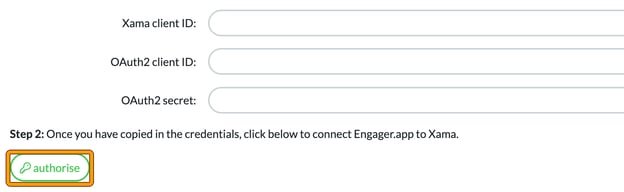
We’ll then ask you for your Xama IDs and API codes. Sounds scary, but we’ve made it super simple to obtain these. You’ll find them in Xama Hub by going to Settings (the cog icon next to your email) > Hub Apps > Open API, or simply select clicking here on the Engager page.
Log into Xama, then copy and paste the information from Xama into Xama client ID:, OAuth2 client ID: and OAuth2 secret: in Engager, and select authorise.
Voila, success!
Now that you’re linked with Xama, let’s link your client to Xama in order to run our first checks.
Using Xama
Select the client in question, then head to Step 1, which is their General Info. You’ll see some of the Integrations there.
Select ‘link with Xama client’.
The system will now search to see if there’s an existing record in your account.
If you have done this previously and it can’t be located, remove LTD / Limited and try searching again.
If it’s your first check for that client, select ‘Create new Xama Client’.
This has now created your client’s record IN your Xama account.
At this point your checks haven’t started yet.
From here you want to start the risk assessment, so select ‘new’ and then you’ll be taken into Xama.
From there, if it’s an LTD, select Company ‘Use Template’.
The Risk Assessment has now started.
With the individuals’ ID checks etc, you would simply select NEW next to the individual and then SEND.
Once Xama complete their checks, you will receive a notification in the Notifications bar at the top of your browser, similarly to the Companies House updates.
Linking Clients that are already in Xama
If you’re already using Xama for your checks, let’s get them to your Engager account.
Locate the client in question, go to General Info and select the ‘link with Xama’ button.
From here, you will want to select ‘link existing’.
Then LINK.
From here, check the details are correct, then simply select ‘Confirm’ at the bottom of the screen.
Your client is now linked.