
Pricing your Proposals and more
Setting the right price is crucial. Let’s explore how to use the pricing features in Engager to create competitive and profitable pricing strategies.
This step covers the essentials to get your pricing set up. For the full guide, including how to build pricing rules with custom fields, read Pricing Deep Dive.
For more insights to pricing metrics get this free guide Ultimate pricing Guide for Accountants and Bookkeepers www.engager.app/pg
With our pricing, you can be as creative as you like to ensure it matches your way of doing things, or, just keep it simple for ease of use. Remember, you can always override your defaults when on the individual client.
We want to accommodate all users and their preferences. Some users have a simple set up like Year End accounts is £1,000 a year, it covers everything they need. Others might have a ‘base fee’ of £1,000 but loathe having to deal with paperwork, so reflect that in your pricing when creating your proposal.
Any caveat to your base fee, can be replicated in our pricing feature. Don’t like paperwork? Increase the fee 0.5. Love working with Charities? Reduce the base fee by 0.2.
Getting your pricing set up in the system when starting out will make the task of sending out proposals on the fly a quick and enjoyable process.
Set up pricing on a service
Remember that EVERY service listed can have its own pricing structure if you need.
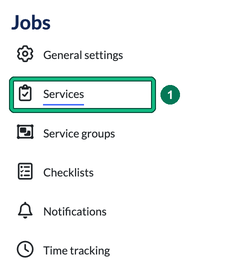
- Go to Settings and, under Jobs, select Services.
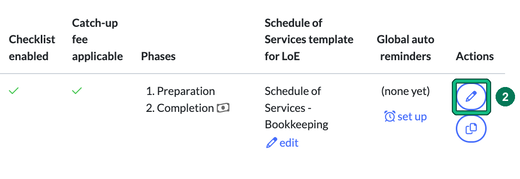
- Find the service you want to price and select the pencil icon in the Actions column. This opens Edit service.
- Scroll down to Default fee period. Is this a service that we’re billing monthly, yearly, quarterly etc? We’re telling Engager when to expect payment from our client for our services.

- For those that want to keep it simple, enter your base fee in Set the base fee to on the Wizard tab of Pricing formula for the default fee period. If you’d rather type the whole formula yourself, use the Advanced tab instead.
- For those that have the caveats to their price, let’s have some fun and start building out your exact specification. Select + add an operation.
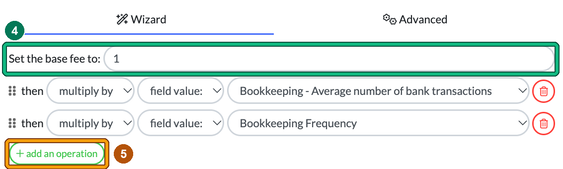
- In the new row, choose the operation (add, subtract, multiply by or divide by) and field value:, then select (select placeholder) to explore your list of options.

When your formula is ready, select Save at the bottom of Edit service. Selecting Cancel discards your changes without a warning.
You can add as many operations as you need, for example multiplying the base fee by field values such as Self Employed or Record Quality. The field values come from Settings > Client data > Custom fields, where each answer is given a value the pricing uses (see Using Custom Fields).
Want to go further?
For worked examples, setting the rules in your custom fields and a bookkeeping pricing example, read the full guide: Pricing Deep Dive.