
Bulk Actions: Update Phases and Responsibilities
Bulk Actions allow you to update multiple clients or services at once—saving time and reducing manual work.
With this feature, you can:
- Assign or reassign staff to multiple phases in one go
- Mark multiple phases as complete with a chosen completion date
When should I use this?
Bulk Actions are especially useful when:
- A team member is leaving or changing roles
- You need to reassign work across multiple clients
- You’ve recently imported clients and need to update workflows
- You regularly complete recurring work (e.g. payroll or bookkeeping)
How to use Bulk Actions
1. Select your clients
- Go to the Clients screen
- Use the checkbox next to each client to select multiple records
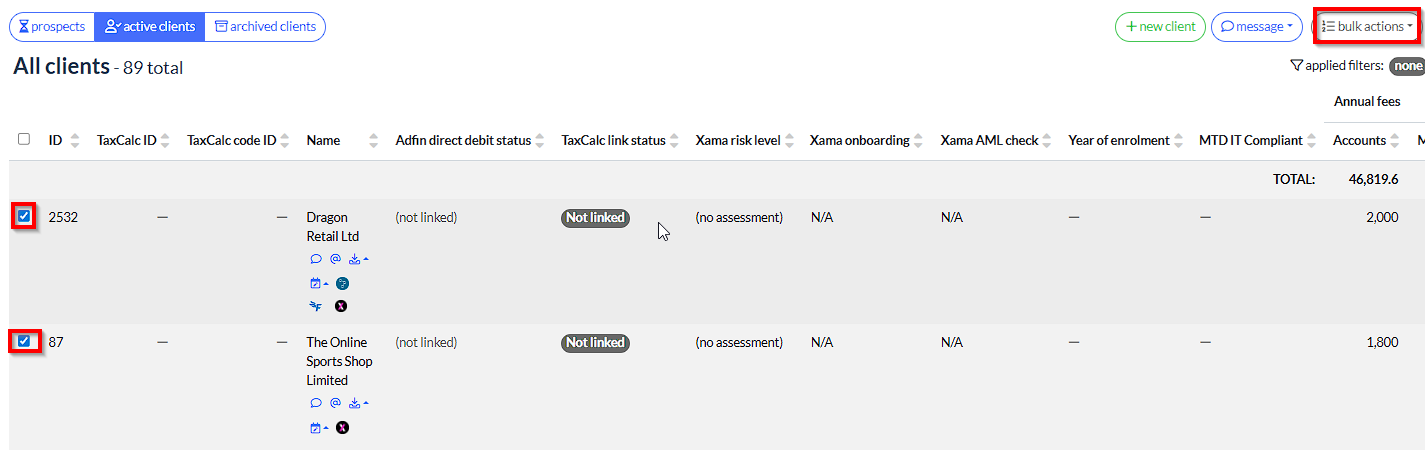
2. Open Bulk Actions
- Click Bulk Actions in the top bar
- Select Edit Client or Service Data
Reassigning Phase Responsibilities
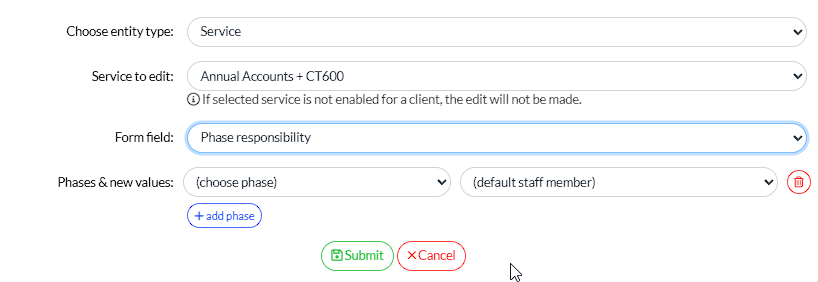
3. Choose the correct settings
- Set Entity Type to Service
- Locate the relevant service
- Select the Phase Responsibility fields you want to update
4. Update team members
- Select the new team member(s) for each phase
- You can update multiple phases at once
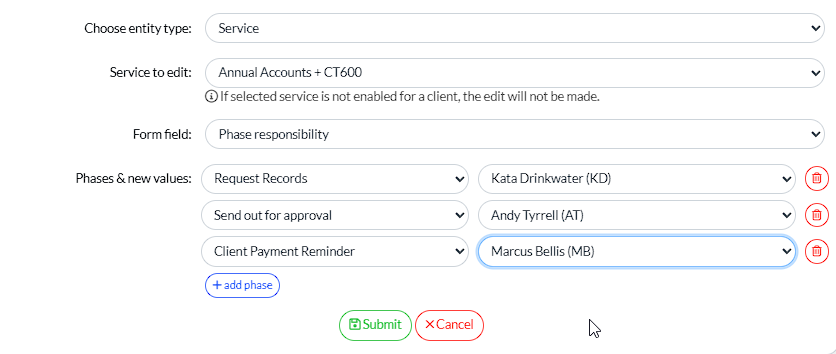
5. Submit changes
- Click Submit
✅ The new responsibilities will be saved
🔔 The assigned team member will receive a notification
Marking Multiple Phases as Complete
1. Select your clients
- From the Clients screen, select the relevant clients
💡 Tip: Use filters (e.g. Enabled Clients → Payroll) to quickly select large groups
2. Open Bulk Actions
- Click Bulk Actions
- Select Edit Client or Service Data
3. Update completion data
- Set Entity Type to Service
- Select Form Field → Phase Complete Data
- Enter the completion date
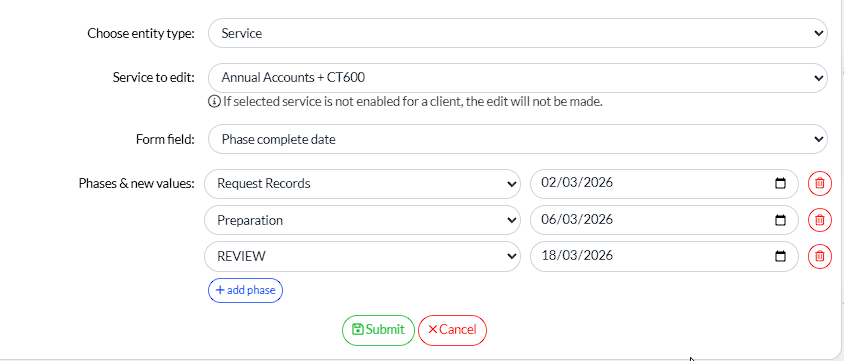
4. Submit
- Click Submit to apply changes
Summary
Bulk Actions help you:
- Save time on repetitive updates
- Reduce errors from manual changes
- Manage team changes more efficiently
Comments
0 comments
Article is closed for comments.