
Our new integration with TaxCalc makes it easier than ever to keep your client data aligned across both platforms. This first release focuses on fast, reliable client syncing, with more powerful features coming soon.
In this guide, we’ll walk you through:
- Enabling the integration
- Linking an Engager client to TaxCalc
- Creating new clients in TaxCalc directly from Engager
- How syncing works (including one-way and two-way fields)
- Reviewing and resolving data mismatches
1. Enabling the TaxCalc Integration
To get started:
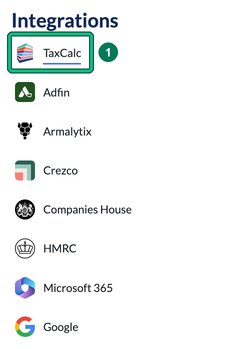
- Go to Settings in Engager and, under Integrations, select TaxCalc. This opens TaxCalc integration.
- Select Authorise.
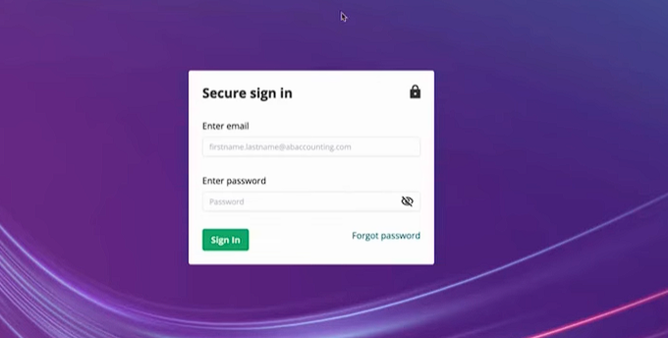
You’ll be redirected to the TaxCalc login screen. Sign in using your standard TaxCalc Admin Panel credentials (or your email login, if you normally sign in that way).
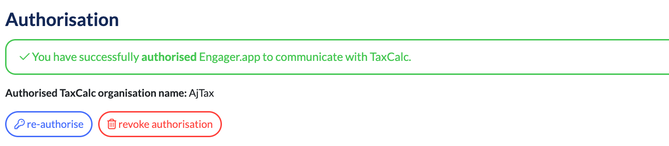
Once authenticated, you’ll be returned to Engager and the integration will be ready to use. Under Authorisation, the TaxCalc integration page confirms that you have successfully authorised Engager.app to communicate with TaxCalc and shows your Authorised TaxCalc organisation name:, with re-authorise and revoke authorisation buttons.
2. Linking an Engager Client to TaxCalc
- Open any client profile in Engager and, in Client info, go to Step 1: General info.
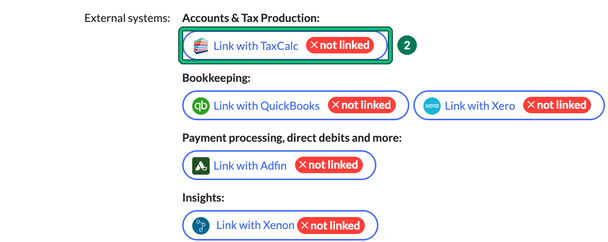
- You’ll now see a new Accounts & Tax Production: section under External systems:. Select Link with TaxCalc. Until the client is linked, it shows a red not linked badge.
- This opens Link a client from TaxCalc, and Engager searches for a matching client in TaxCalc. Client name: is filled in with the client’s name from Engager.
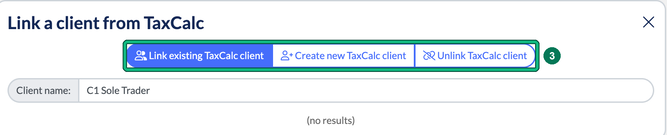
If no match is found, you can create a brand new TaxCalc client directly from Engager:
- Select the Create new TaxCalc client tab, then select confirm. The tab notes that some client details can’t yet be added or updated in TaxCalc, due to temporary technical limitations.
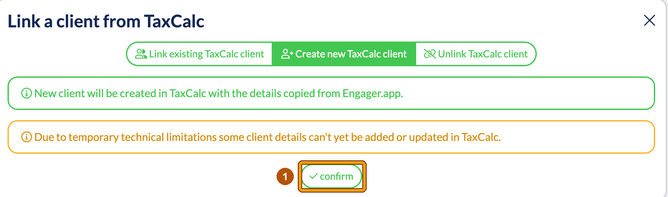
Engager will send across the details currently stored on the profile and create the client instantly in TaxCalc.
3. Viewing the Client in TaxCalc
Once created or linked, you’ll find the client immediately in your TaxCalc client list.
Any information sent from Engager, such as name, email address, contact details and more, will appear on the TaxCalc record.
4. Syncing Client Changes
The integration supports two types of syncing:
Instant one-way sync (Engager → TaxCalc)
When you update a synced field in Engager, the change is sent to TaxCalc straight away.
Important: If the client record is currently open in TaxCalc, you will need to close it before the update can be applied.

Delayed sync (TaxCalc → Engager)
Updates made in TaxCalc will sync back to Engager, but not instantly. When new data is available:
- Engager will show a New Notification:
“Client data for companyname has been changed in TaxCalc, awaiting review.” Remember, we’ll never overwrite your data without your approval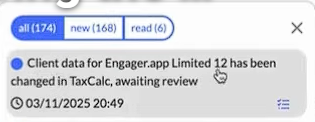
- Select this message to open a comparison window.
In your notifications summary, these are grouped under Client data was edited in TaxCalc and needs reviewing.
In the comparison window, you’ll see:
- Current values in Engager on the left hand side
- Current values in TaxCalc on the right hand side
- Any differences between the two
This allows you to review changes and ensure your records remain accurate.
5. One-way vs Two-way Fields
Some fields currently sync both ways, while others are one-way only.
Phone numbers sync both ways. When you change or clear a linked client’s phone number in Engager and save, the change is written back to TaxCalc. If TaxCalc can’t be updated, the save doesn’t go through and Engager lets you know, in the same way as for other two-way fields.
SIC codes can’t be synced back to TaxCalc yet. Any change you make to a client’s SIC codes in Engager stays in Engager, so make the same change in TaxCalc.
This is due to limitations in TaxCalc’s current API, but full two-way syncing will expand over time.
If a field is one-way only, Engager will clearly display a note such as:
“TaxCalc value won’t be updated.”
With these, it’s important to take the actions in TaxCalc to update these manually.
What’s Next?
This is just Phase 1 of our TaxCalc integration.
We’re already working closely with the TaxCalc team on deeper syncing, more two-way fields, and richer client data automation, and we’ll be sharing the roadmap with you.
If you have any questions, feel free to leave a comment or contact our support team. We’re here to help.