
What does the Agent Authorisation do?
We have provided you with a platform to request all the important agent authorisation codes so that you can speak to HMRC on behalf of your clients.
It covers letter-based agent authorisation for VAT, Corporation Tax, Self Assessment, PAYE / CIS but also…..MTD VAT and MTD IT.
Once you’ve gone through the setup process, you won’t have to go to the Government Gateway for your requests or entering of any codes, this can now all be done via Engager
What it won't do
We've been asked whether this will fetch live balances across all tax liabilities - to confirm it will fetch MTD VAT and MTD IT. This information is on a separate API / Part of API - we do have plans to build into this at a later date.
There is no API / Access to PAYE / CT / SA balances on the old system.
How to set up
As it’s an integration, we first need to head to the Integrations tab to get this set up and authorised by HMRC directly.
Settings - Integrations - HMRC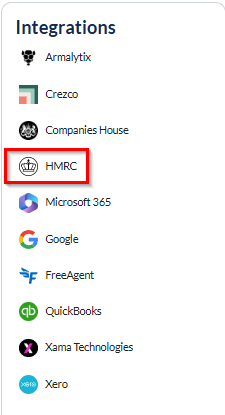
You’ll then be presented with screens below
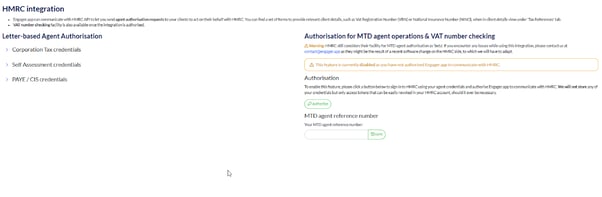
Let’s start with Authorisation for MTD Agent Operations and VAT Number Checking
Step 1 - Select authorise’ which will then take you to the Government Gateway to grant access. Remember to make a note of your agent references as well
THERE MUST NOT BE ANY SPACES IN THE AGENT ID YOU ADD!!
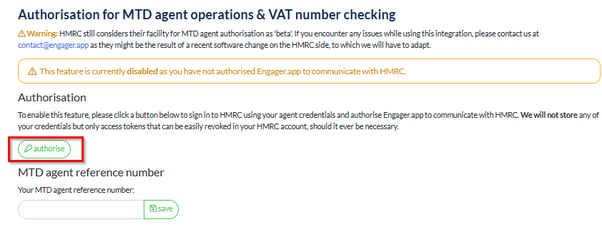
THERE MUST NOT BE ANY SPACES IN THE AGENT ID YOU ADD!!
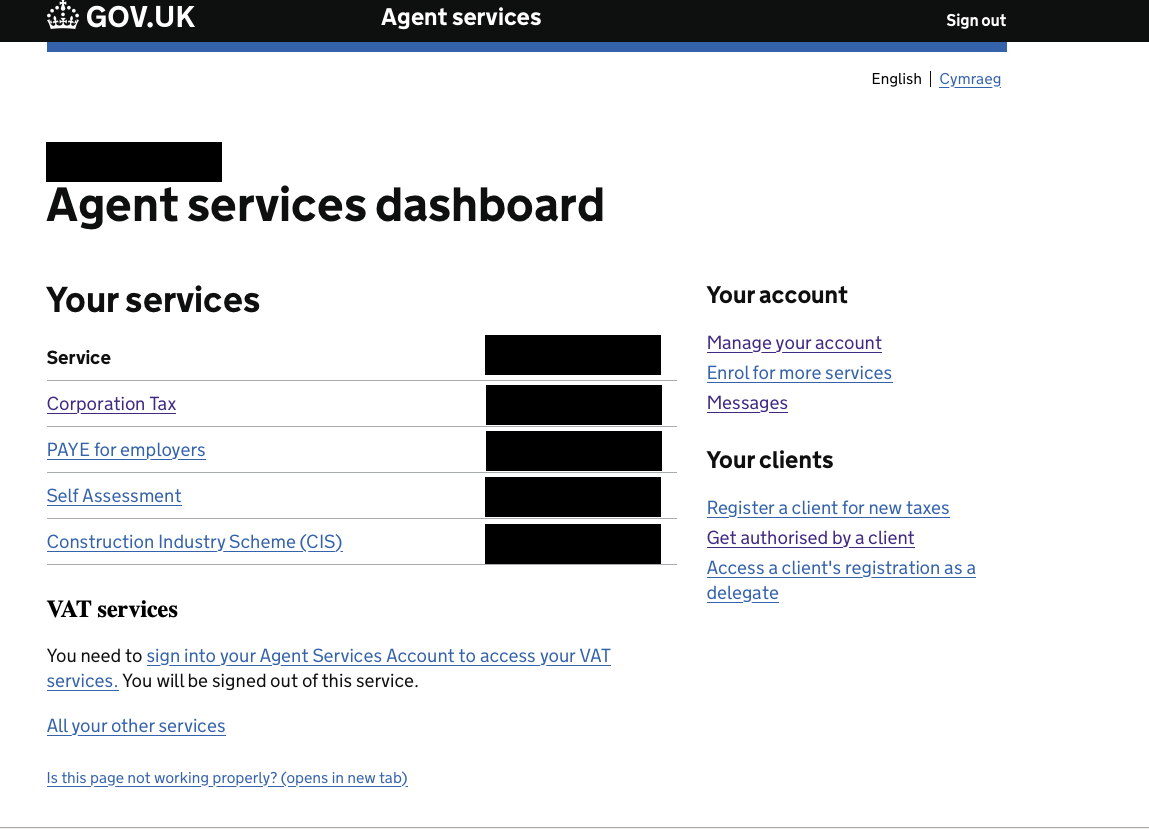
If you're struggling to find your Agent codes, these are the screens that you're looking for on the Government Gateway - Here you'll find your agent reference codes.
Log in to your digital agent account at HMRC, https://www.gov.uk/guidance/sign-in-to-your-agent-services-account
The Agent reference you need is in the black box area in the image below.
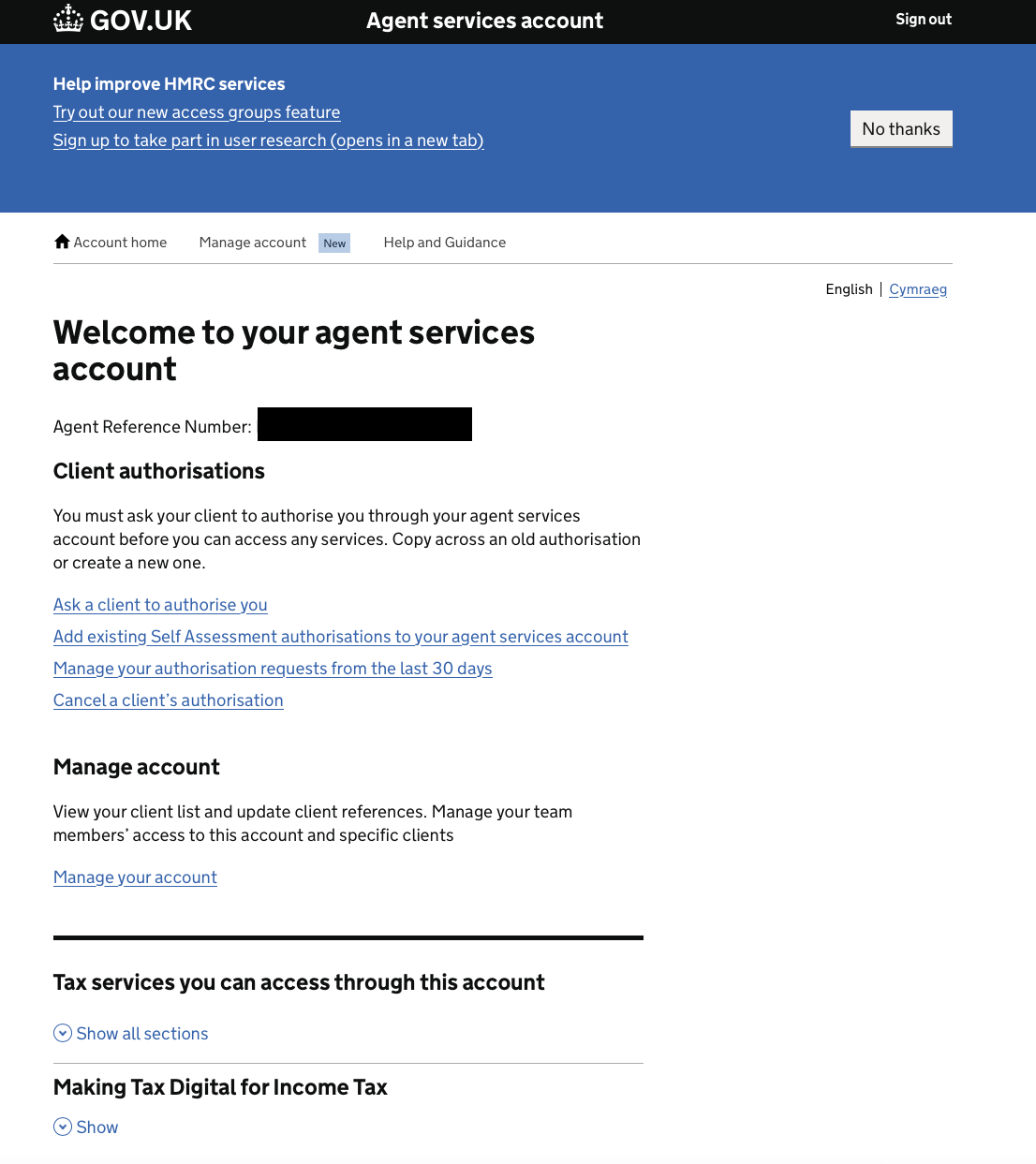
Step 2 - Enter the reference number and save.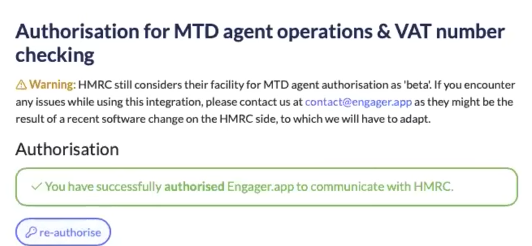
That’s it, you’ve synced and authorised your Government Gateway with Engager.
Now, let’s take care of the Letter-based Agent Authorisation
Step 1 - Expand all of the chevrons for Corp Tax, Self Assessment and PAYE / CIS
If you have all the IDs under one GG, then it makes it eaier, but NEVER EVER copy and paste as there could be rogue gaps / spaces / hyphens
If you have different credentials for each tax liability, you can still use our service.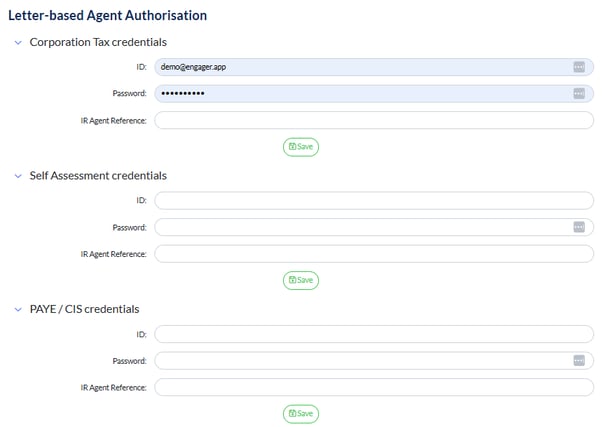
To find the IR Agent Reference's log in to your agent service account, https://online.hmrc.gov.uk/ and they are listed in the screen shot next to each tax type in the black box area
Step 2 - Complete these as normal and save.
Now that you’ve completed the set-up for your credentials and linked to the Government Gateway, let’s start authorising clients.
Authorising your Clients
Locate a client and open up ‘tax references’ - this is where we’ll house all the credentials and authorisation updates. 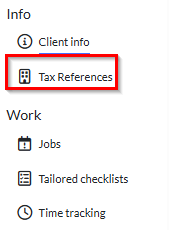
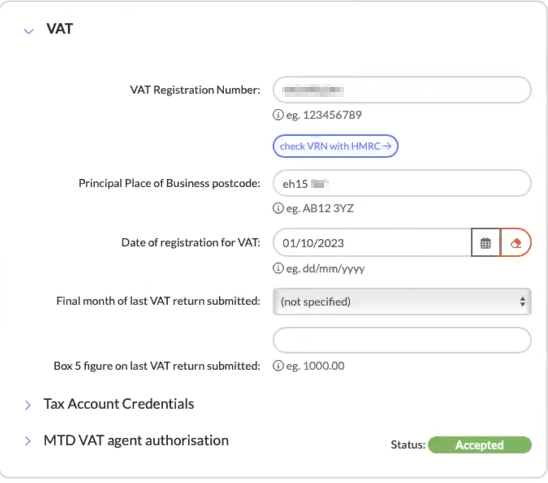
With the VAT section, you’ll note that there sits the MTD VAT Agent Authorisation - this is where you can request your codes.
You will need to complete the VAT details first as usual then hit ‘submit’
MTD Authorisations
What’s the process for MTD auth
Simply complete the VAT information in the form, including VAT Number, date of Registration etc and you press submit.
Next steps - Generates a link and email to your client.
Client grants authorisation
Success.
Yes, it's that simple!
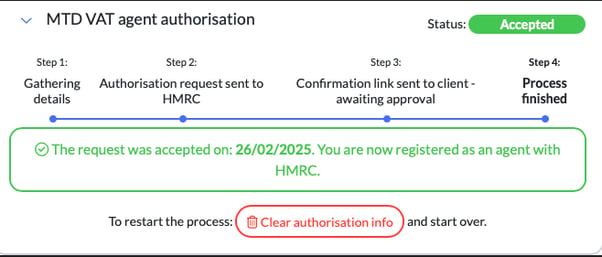
And this is how it looks once completed
Letter based
Let’s start the process of requesting letter-based authorisation for our clients.
You’ll see the first button to press will be ‘Request authorisation code from HMRC’
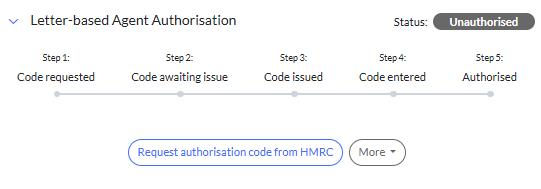
Once selected, this then starts the process with HMRC. The great thing about our system here is that you will not have to continually check the Government Gateway for updates - you can track it all here and we’re checking with them every 2 hours - leaving you to relax and carry on with your day-to-day activities.
Throughout the process, you’ll have a number of handy options available to you, to help keep the process moving along swiftly.
Our obvious favourite here, is reminder your clients to send in the code!
Select ‘More’ and then ‘Send email reminder to the client’
You’ll then be presented with the Compose Email screen, with the HMRC Agent Authorisation Reminder template ready to go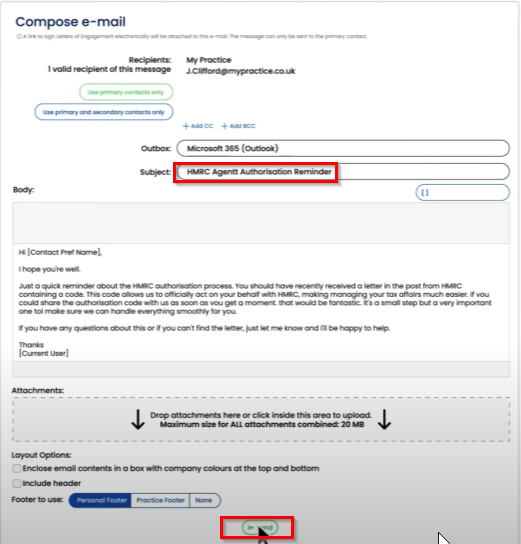
The message simply informs the client that they should have received a letter in the post with the code, and that they need to email it into you. Please note that it needs to be emailed to you for now, as there are no options for the client to do this via their Portal.
Other options available will be:
- Abandon authorisation process entirely
- Request the code to be re-issued (super handy knowing HMRC and Clients)
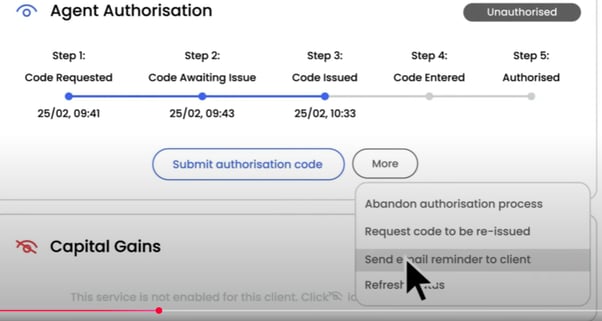
Once you have received the code back from your client, you will have 3 attempts to get this accepted before HMRC lock the code for security reasons so please be careful when entering
To do this, select ‘Submit Authorisation Code’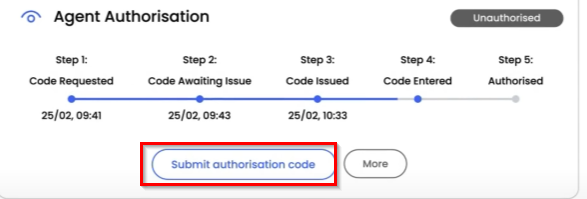
Then enter the code.
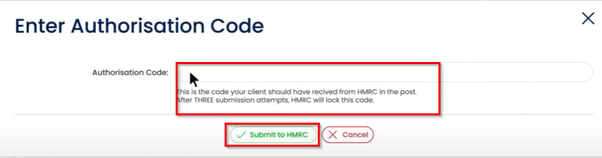
Once accepted, you’ll get a gloriously satisfying green ‘Authorised’ bar to let you know that the process has been a success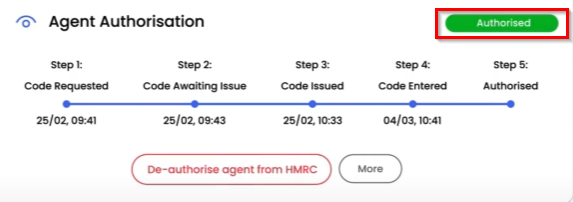
You can also now De-authorise agent from HMRC too, now that the process has been completed - simply select the red button.
Already Authorised
If you’re already authorised for Agent Authorisation, you can simply select ‘More’ and then ‘Manually mark agent as Authorised’. You’ll be prompted to enter the date that you were authorised
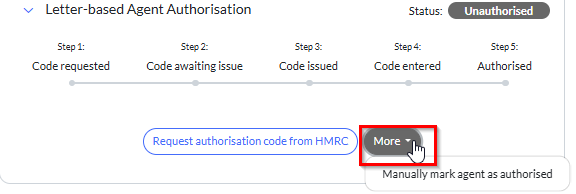
Managing Agent Authorisations within Engager
Dashboard
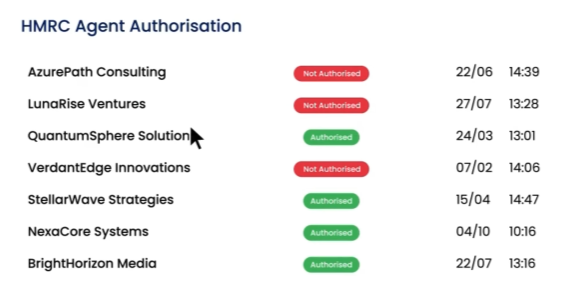
To help track all of the requests, we’ve created 2 new widgets on your Dashboard to help
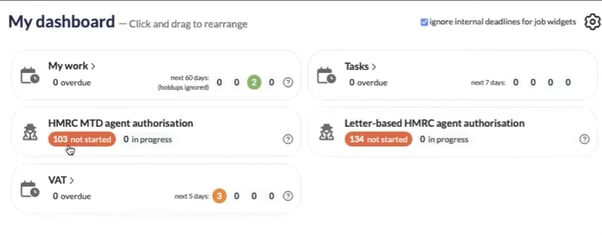
Letter-based HMRC Agent Authorisation and MTD widgets, will help you keep track of where you are with the requests, broken down by client,tax liability, who created the requested and when
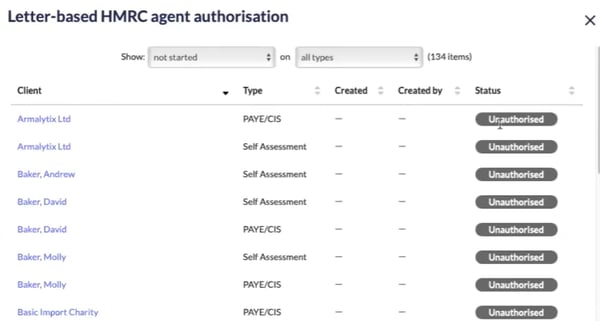
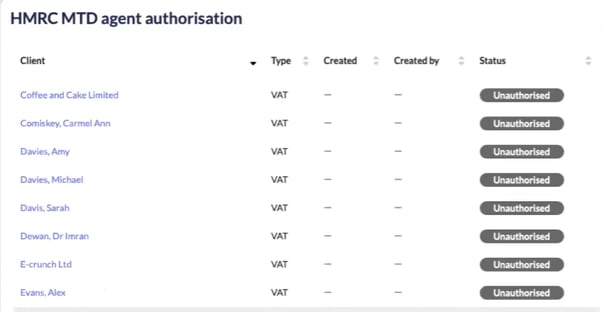
Ready to bulk update your Agent Authorisation Status for MTD VAT and MTD IT?
https://help.engager.app/hc/en-gb/articles/25470813722514-How-to-download-HMRC-client-data-for-agent-64-8-and-bulk-update-within-Engager
64-8 Error message
'The user that is signed in cannot access this authorisation request. Their details do not match the agent business that created the authorisation request'
We're seeing many people have this message appear - essentially, there could be a rogue gap somewhere in a reference, credential, post code etc - please do not COPY AND PASTE and codes etc
There should be no spaces in the agent reference its the LLLLNNNNNNN, it can not have spaces before in or after
Removing spaces has cleared 99% of error message