
We know that being able to see in-depth data quickly and visually is key in helping make informed decisions, and gives a general overview of what's the latest when looking at your work.
So we've introduced a handy 'progress bar' to help visually show you where you are with your progression through your Phases. We've already got something to help show you the percentage of your checklists completed, but not everybody uses checklists, so we felt we could do a bit more to visually 'punch up' where you are with your work.
Please note the Progress Bar is only available for those of you using the 'Kanban' view. There are no plans to roll this out to 'list' users. If you're not using Kanban already, please read Master your Deadlines and Jobs and consider switching.
Turning on the Progress Bar
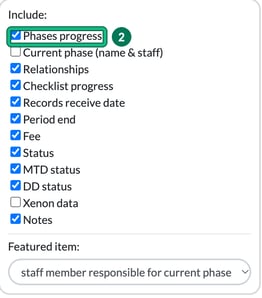
- Simply head to Jobs and then open card layout in the toolbar. From here, you can start to bulk out the 'job card' with more data. We prefer to have most of these ticked: it's an overview card, so should ideally show you core items of the work at hand.
- Under Include:, tick Phases progress.
And there you go: your Job Cards will now show you a visual blue bar as to how close you are to completing your work, along with a handy completion % based on the phases completed.
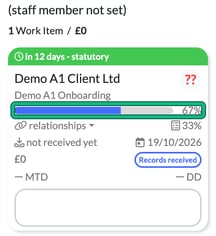
Checklist progress is a separate option. It adds a small checklist icon with the percentage of the checklist completed (in the example above, 33%), not the blue bar.
This should help you realise where you are with your jobs at hand, more quickly than having to break down your filters and then group by Job Status etc.
Showing the current phase
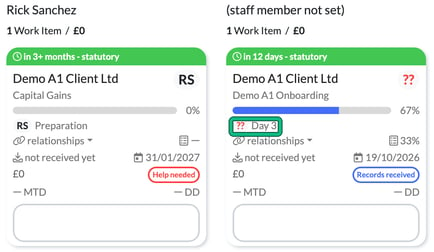
To draw your eye to the actual phase that you're currently on, also tick Current phase (name & staff) in card layout. This adds a line under the bar such as "JS Filing": JS is the staff member, and Filing is the Phase that the work is currently on. If no staff member is set for the phase, you'll see "??" instead.
Inside a Job Card, the Phases table shows each phase as completed (with the date and time) or not completed.
We're hoping that when you're looking at your data quickly, this will be extremely useful.