
We never want you to miss a deadline, we want you to be working months ahead of any statutory deadline, so let us help you bullet-proof your practice, by mastering deadlines or JOBS as we refer to them.
We’re big fans of the Kanban view, versus the traditional list view, but everybody is different so we give you the choice to use whichever view works best for you and your staff.
‘Kanban’ is ideal for more visual users as the ‘kanban’ system means to use visual cues to prompt actions needed to keep a process flowing, so for accountancy, this system is ideal.
You can change your Job view once you’ve selected Jobs from your top bar: select switch to list in the toolbar. In list view the same button reads switch to Kanban.

In Kanban view, you can really bring key information to life. The top of each card tells you how long you’ve got until the statutory deadline (for example “in 3+ months - statutory”), coloured by how urgent it is, and the card shows the phases progress, checklist progress, whether the records have been received, the period end, the fee and the status. If you’ve got the records, what are you waiting for? Best crack on and start producing the accounts!
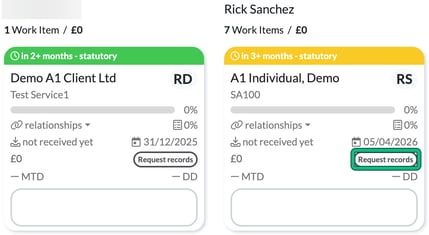
If you’ve already done the work and not updated the card, simply select the status on the card (for example Request records) and update the status accordingly, for example to Records received.
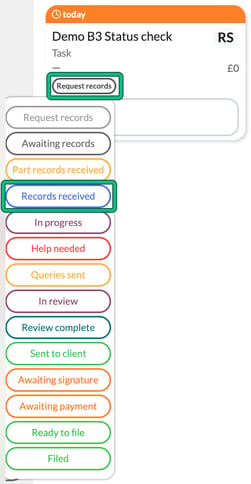
You don’t have to enter the card itself, you can do this from a top level view.
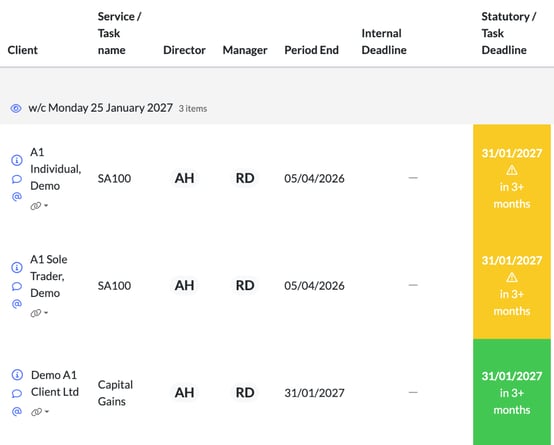
Compare the same information in the LIST VIEW and you’ll see it is less informative.
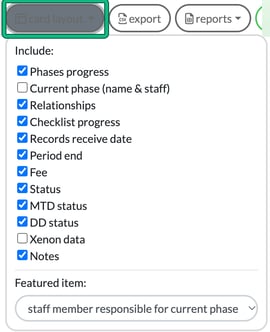
If you want to customise what you see within the Kanban card, you can by selecting card layout. Tick the items to include and choose the Featured item:. The more info the better! (In list view, card layout is replaced by columns.)
We’re big fans of Kanban so if you’re new to it, give it a little time and you won’t look back!
Right, enough about Kanban: show me how to manage my deadlines!
This is where our views and especially, Groupings, become very handy. Let’s start by going directly to our Jobs by selecting Jobs from the top bar, then All job types.
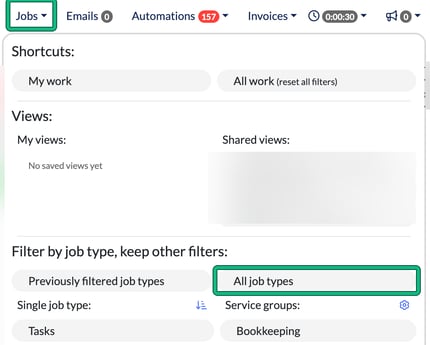
There’s so much data that will be made available to you here, so try not to get overwhelmed. Get comfortable with the settings instead.
Group by: is a favourite of people as you can see the Jobs and job cards by priority, director, manager, staff member, department, job type, status, week, due period or due state.
Grouping by staff member is an excellent way to see where perhaps somebody is overloaded with work, in comparison to their team members. You could also catch some work that has been sat with a colleague who’s on holiday! Each person gets their own column, with their number of work items and total fee under their name. Grouping by staff is just one way to get a fantastic overview of the Jobs and what work is currently on.
If I saw that members of the team were drowning while others had a lighter load, then I’d ask the others whether they can chip in and share the workload.
It could be that they’re just well ahead of the game, but Engager is giving you the tools to have visibility to take steps to keep everything running smoothly. We’ve given you visual cues to help you make informed decisions here.
Grouping by week is a great way to get the beginning of your week off to a flying start. If one week is lovely and quiet and the next few look pretty hellish, move some work around to balance out your jobs at hand. You get the picture.
When to take immediate action: RED, being such a powerful colour, is there to draw your eye to the items that need immediate attention.
The good news here is that if the RED bar is on the lower portion of the card, you’ve missed your INTERNAL deadline, not the statutory one. The top bar is labelled “statutory” and the bottom bar “internal”. Still not ideal, but at least you know that you’re not going to be covering your client’s penalty notices.
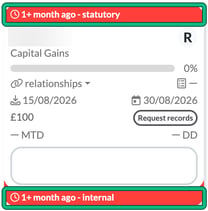
This is a great example of how we’re giving you visual cues as to what’s going on, what the hold ups are and the status of EVERY piece of work your practice currently has on.
Say a Self Assessment has stalled and you’re outside your internal SLA, indicated by the bottom red bar. There’s a visual cue for that too: somebody’s stuck, and they can set the status to Help needed to show that they need support to keep the job moving forwards. If you enter into that card, the team member should have left a note / tagged a Senior in for support.
We’re here to help everything you’re working on keep moving forwards, so that you’re not fire fighting, but you’re ahead of your internal and statutory deadlines. Staff are happy with their workloads, there are no blind spots here!
Top Tip: Self Assessment Season
We’ve all been there, we’ve all worked extra hours over Christmas and January to get through Self Assessment madness.
Sometimes it can be a bit of a blur and it can be difficult to remain on top of this and know what status the returns are all at. Are they stuck in Review? Do we need more information?
Use Status: in the filters (with Job types: set to your Self Assessment service) to really find out what stage they’re at. So if you’re sitting there on 31st January thinking everything is done, check through your statuses.
If you catch any that are with the client to approve (Sent to client), get on the phone to chase / provide advice and ensure that these are filed before the deadline.
Spend time with the Jobs page, you’ll find that you can filter to the most important items very quickly and then sort them with Order by: (priority, deadline, record receive date, period end or Xenon health score). If you want to work to the statutory deadlines only, tick ignore internal deadlines under Adjustments. Find what works for you and your firm: the options made available to help with this are endless.
Common Questions
Why aren’t my clients appearing on the Jobs?
Check your filters and view. It could be that you’re stuck on a certain job type or staff member, or that you’re only looking a few weeks ahead. Reset this with Jobs > All work (reset all filters), or extend the Deadline before or equal to: date, and you’ll find the client appears.
This still isn’t working
OK, head to your client, check that the service is enabled in Step 5: Services & pricing, and that there are dates complete in Step 6: Service details. If both are fine, get in touch at contact@engager.app.
