All accountants will need to provide one-off services from time to time, could be accounts / trial balances for a mortgage application for a client as an example or even some one-off advisory work before your client makes an important decision.
These are still services and you will still want to track these in your Engager account. You will need to decide whether the one-off job is significant enough to warrant a Letter of Engagement for the service, or whether you'll simply just provide the service.
This is where you will either call this a Service or simply create this as a Task. Something small like an address change with Companies House could be a task (use + create task on your Jobs page).
Within Engager, you have the ability to create as many services as you wish (Settings > Jobs > Services > + add custom service), and you can mark these Internal also, with Internal only: on the service. Services marked as 'Internal only' are not included in LoE or fee tables sent to a client.
If you need to have an action that requires Engagement letters / fees, then please read Adding new, Custom Services in Engager to get this up and running.
My One-Off job isn't appearing on my Jobs
We receive this question regularly and it usually stems from the set up / activation on the client's record.
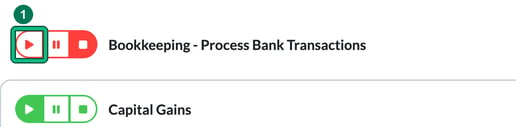
- First thing to check is that the One-Off Job has actually been turned on. Locate the client and, in Step 5: Services & pricing, hit the play button to switch it on. A service that's switched off shows in red; once it's on, it shows in green.
- The next thing to check is Step 6: Service details. If no dates are entered, then Engager won't know what to populate on your Jobs / Dashboard. So review your settings and ensure that the appropriate dates are entered. If you save without them, Engager warns you with Incomplete client data (“There are due dates not set for: …”).
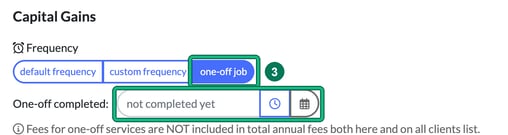
- Remember to mark this as a one-off job under Frequency so that the system knows not to create another Job for the next occasion. When you select one-off job, leave One-off completed: BLANK (it shows “not completed yet”). If you enter a date, then the system will not add a Job card for you. Note that fees for one-off services are NOT included in total annual fees, both on the client and on the all clients list.
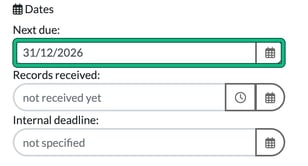
- I've entered the end of the year in Next due: under Dates as my target date to get this one-off job completed. Enter the date for what you've agreed with your client as the delivery date. Then why not add an Internal Deadline date, so that you're ahead of the deadline (see Internal Deadlines).
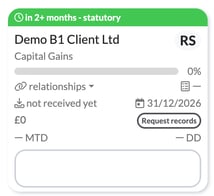
Now we've set our One-Off job correctly, this is how you should see it on your Jobs page.