
There will be times when the services listed in your account don’t quite suit your needs. We try and add in plenty to get you started, but there will be times when you want to add your own custom service.
But before you start adding in custom services, have you gone through step 3? We’d recommend working through this step before creating bespoke services.
Add a custom service
- Go to Settings and, under Jobs, select Services. Select + add custom service at the top right, under Name filter. This opens New service.

- From here, you can start building your bespoke service: give it a Full name, set its pricing under Default fee period and Pricing formula, choose a Default frequency, and build your workflow under Phases.
- Select Save at the bottom of New service.
Example: consultations
A good example of using a custom service could be something like Consultations. They might be one-off events, but you want to use the service to send a Letter of Engagement to a client. Choose the template under Schedule of Services template for LoE, and it will be added to Letters of Engagement when the service is enabled for a client. You would also look to use the phases so that you’re not missing any of your steps when you’re providing this work.
If you find that you’re actually doing monthly consultations for people, create a new service called ‘Monthly Consultations’. When you type the Full name, Engager fills in the Short name with its initials and the Description for documents with the name followed by “service”.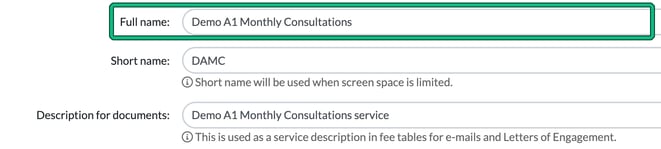
Then, under Default frequency, set Deadline occurs every to 0 years, 1 month and 0 days. This ensures that it appears on your deadlines and dashboard every month moving forwards.
If you leave all three fields at zero, set a custom frequency on the client form instead, or mark the service as one-off if it doesn’t repeat.
Make it your own
So get creative and use custom services as you see fit. Create phases to keep your workflow on track, trigger touch-point emails to customers when you complete phases with Template for an e-mail to send on completing the phase, and assign review work to your most senior accountants under Responsibilities. This is where you’re telling Engager about you, your service and how it all works. We’ll pick up the rest.