
To help build up a history of a client we can log calls and meetings in Engager.
In this video, we take you through the feature.
Log a meeting or call
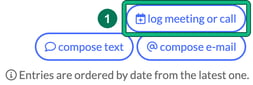
- Open the client and go to Communication. Select log meeting or call at the top right, above compose text and compose e-mail.
- In New meeting or call, fill in the details:
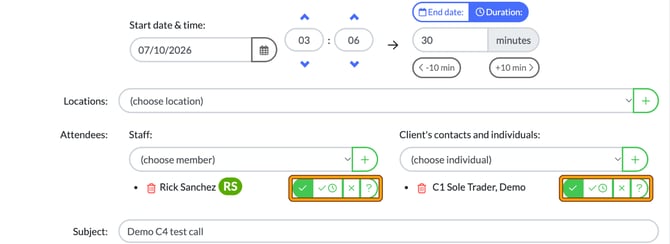
- Start date & time: the date, hour and minute.
- End date: or Duration: switch between the two. Duration defaults to 30 minutes, and -10 min and +10 min adjust it.
- Locations: choose a location, or select + to add one.
- Attendees: add people under Staff: and Client's contacts and individuals: to record who was on the call or meeting (for example 4 staff and 2 contacts), so you can track who attended. Adding attendees doesn't send a notification to anyone. Each attendee has a set of status buttons beside their name.
- Subject: and Description:.
- Select Save.
The meeting or call appears in the client's communication timeline, under its month, with its start and end times and the staff and client attendees. Use show details, edit or delete to view, change or remove it.
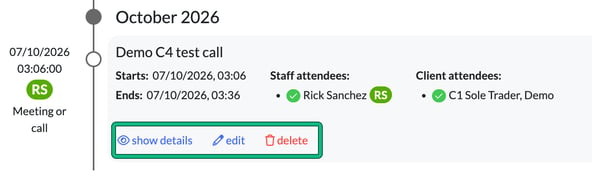
Entries are ordered by date, latest first. To see only meetings and calls, tick Meetings or calls in the filters; you can also filter meetings by location, staff attendee or client attendee.
If you dial a client from Engager, you can log the call in the same way. See How to use 'Click-to-dial'.