
Within Engager you can click phone numbers in order to dial using your preferred app. By doing so, it'll also give you the option to log the call against the client's communication record.
Here's a short video that shows you exactly how it works:
How click-to-dial works
- Navigate to the client list, or a client or contact profile. Phone numbers show as links in the Mobile column of the client list, and under General info on the client's summary.
- Select a phone number.
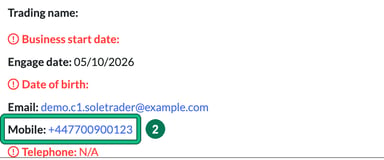
- Your preferred app will open and start dialling. Your computer decides which app this is; on a Mac it's FaceTime unless you change it (see below).
- A Log a call pop-up opens within Engager, asking Do you want to log this call against the client? Select Yes to log it, or No to skip.
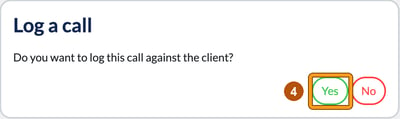
Selecting Yes opens the client's Communication page with New meeting or call already filled in: it starts now, lasts 30 minutes, and lists you and the client as attendees. For more on what you can record, see Logging meetings and calls.
How to change preferred phoning method on Mac
If you'd like to change the preferred method of calling from FaceTime to another app on a Mac, you can do so by:
- Navigate to the FaceTime app.
- Select FaceTime from the Mac menu bar.
- Select Settings.
- Navigate to Default for calls.
- Select your preference.