
Introducing Proposal+
Proposal+ is Engager’s brand-new way to create, send, and manage client proposals and engagement letters, all in one streamlined process.
It’s designed to help you:
- Build professional, branded proposals in minutes
- Combine proposals and engagement letters into a single client experience
- Simplify document management, approvals, and version control
- Deliver a smoother, more modern signing journey for your clients
Where to Find Proposals in Engager
You’ll find Proposals once you’ve selected your client first: in the left-hand menu under Documents, select Proposal, LoE & LoD.
This replaces the old “Letters of Engagement and Disengagement” section.
From here, you can:
- Create new proposals, engagement letters, and disengagement letters
- Send documents for client’s e-signature
- Track signing progress and statuses
- Edit or void documents as needed
How Proposal+ Works
Proposal+ brings together all your client-facing documents into a single envelope.
An envelope can include:
- Proposal: outlining your services, pricing, and value
- Letter of Engagement (LOE): confirming the terms of service
- Disengagement Letter (LOD): used when services end
Each envelope keeps all related documents and signing activity neatly together.
Creating a Proposal+
To create your first Proposal+:
- Go to your client record, then Documents > Proposal, LoE & LoD.
- Click + Create new (or Create your first document if the client has no documents yet). This opens Create new from template.
- Choose one of the following options:
- Proposal with separate Letters of Engagement
- Letters of Engagement
- Letter of Disengagement
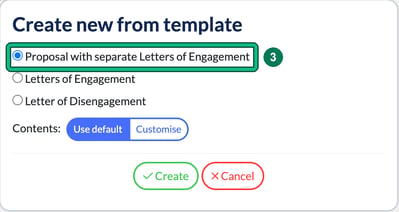
- Leave Contents: on Use default, or choose Customise to customise the content: edit text, include any pricing caveats you have. Select Create. You’ll see “Generating your document...” for a few seconds, then a Disclaimer: select OK.
- Review the generated documents and click Finalise & Send.

- Decide on the direct debit setup step for this client (if you’re not with Adfin, read Getting Started with Adfin Payments in Engager for more info): Use default, Mandatory, Optional or Not offered. Choose an option and select Save and proceed.
Your client will receive an email with a secure link to review and sign everything digitally.
Customising Your Proposal Design
You can make your proposals look and feel like your brand.
Go to Settings > Document design > Proposal.
Here you can:
- Choose one of six base templates with change base template: Original, Digital, Traditional, Futuristic, Friendly or Modern
- Add your firm’s logo and colour scheme
- Adjust headers, backgrounds, and layout
- Apply a consistent style across proposals and engagement letters
- Copy your existing design directly from your LoE with copy design from
Tip: Try the “Futuristic” template for a clean, modern look.
If you’re unsure on how to use the Document Designer tool, read Document Designer: Customising Your Documents.
Editing Proposal Templates
To adjust your proposal content (e.g. wording, placeholders, layout), go to Settings > Document content > Document templates and look for the Proposal category.
We’ve broken the proposal document into four handy sections: Proposal - section 1 - Intro, Proposal - section 2 - Pricing, Proposal - section 3 - Catch-up fees and Proposal - section 4 - Outro.
Here, you can:
- Edit section titles and descriptions using the pencil (edit) button in the Actions column on the right-hand side
- Insert or resize images
- Use formatting tools for headings, lists, and spacing
- Save and reuse your preferred layout across future proposals
Customising Client Signing Pages
You can now fully control what your clients see when signing.
Go to Settings > Portal > Signing pages.
From here, you can:
- Customise messages for proposal acceptance and engagement letters: Proposal Introduction Message, Engagement Letter Intro (After Proposal Approval), Engagement Letter Intro (Sent Without Proposal) and Disengagement Letter Message, each with insert placeholder
- Set your brand colours with Top banner colours and Background colours (add custom colour or add colours from practice logo). The signing page shows your practice logo
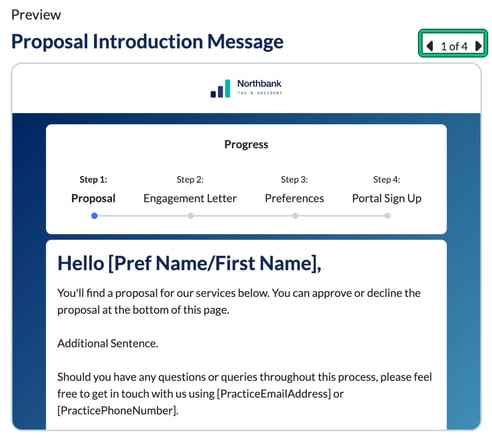
- Preview exactly what your client will see before sending
- Every edit you make will appear on the right-hand side to help you preview the documents
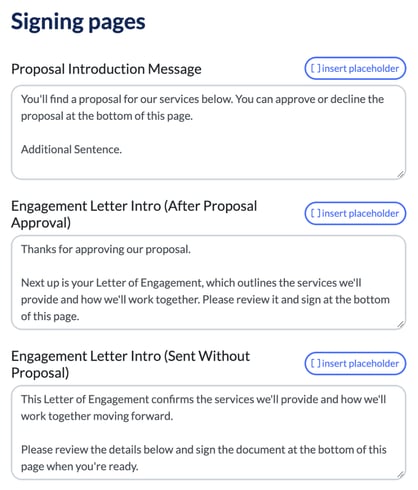
All edits appear instantly in the live preview on the right-hand side. Remember, there’s an ARROW to move from pages 1-4. Select Save when you’re done.
Editing Draft Proposals
You can now edit a proposal or engagement letter any time before it’s sent: select Edit on the document’s card in the envelope.
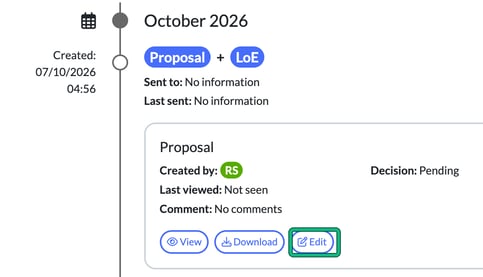
This means you can:
- Update client or service details
- Refresh pricing or terms
- Automatically regenerate the updated PDF
Coming soon: selective refresh for sections like updated service schedules.
The Client Experience
When your client receives your Proposal+:
- They’ll open a single branded link.
- The signing page will guide them through each step: proposal, engagement letter, and any additional forms.
- Clients can approve, sign, reject and leave comments if rejected.
The new signing page includes:
- A clear progress bar
- Your custom branding
- Instant feedback when documents are signed
If the client closes the browser mid-way, they can use the same link to resume where they left off.
Managing Proposals & LOEs
Select your Proposal & LoE dashboard widget to open the full list. You’ll see:
- Client name, Director and Manager
- Status: use Show: to filter by Draft, Link Copied, Finalised, Sent, Viewed, Active or Declined
- Date sent and status date
- Who signed or rejected it
- Whether a proposal is included
- Annualised service value
- Export to CSV
From the envelope on the client, you can also:
- Manually mark a document as accepted or declined (Accept manually or Decline manually)
- Add manual acceptance dates
- Void outdated proposals with Mark as void (only drafts can be deleted)
All history remains visible for audit and compliance.
Using the Viewed filter will now allow your team to chase prospects, knowing they’ve viewed your proposal / LoE, to help ensure tighter control on the deal.
Why You’ll Love Proposal+
- All-in-one proposal and engagement workflow
- Beautiful, branded client signing experience
- Easy to edit, reuse, and manage documents
- Full visibility of proposal and engagement activity
- Less admin, more client impact