
Introduction: What is Adfin and how can it help your business?
Adfin is a powerful payment collection tool now integrated into Engager. It allows you to collect client payments through Direct Debit, credit card, debit card, or open banking, giving you more control and predictability over your cash flow.
By enabling Adfin, you can:
- Automate payment collection with Direct Debits linked to client engagements.
- Reduce time spent chasing payments: clients sign up at the point of engagement.
- Minimise risk of late or missed payments: you control when and how payments are taken.
- See everything in one place: manage and monitor payment status directly within Engager.
Whether you're onboarding a new client or updating an existing agreement, Adfin helps simplify how you get paid, so you spend less time on admin and more time growing your business.
How to Set Up and Use Adfin in Engager (Step-by-Step)
Step 1: Connect Adfin to your Engager account
Before you authorise Engager to communicate with Adfin, you need to register for Adfin’s services at adfin.com.
- In Engager, go to Settings.
- Under Integrations, select Adfin.
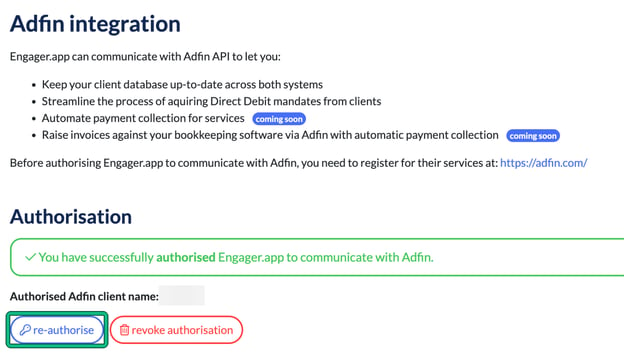
- Click authorise (or re-authorise if already connected).
- Log into your Adfin account when prompted. Please use your email and password for this stage. It's a fresh authorisation, do not log in using 'Google' or 'Xero'.
- You’ll be returned to Engager once authorisation is complete. The page then shows that you have successfully authorised Engager.app to communicate with Adfin.
Step 2: Choose how client names appear in Adfin
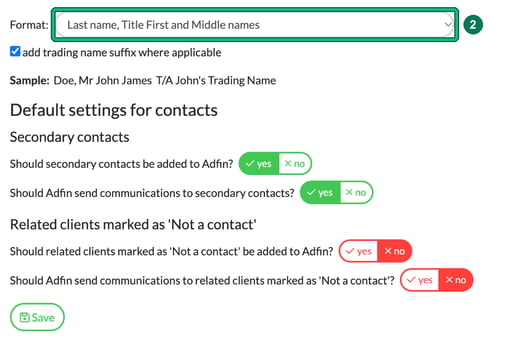
- Under Individual or Sole Trader client name, choose a Format: either Last name, Title First and Middle names or Title First and Middle names followed by Last name.
- Decide if you want to include a trading name by ticking add trading name suffix where applicable. The Sample: shows the result, for example “Doe, Mr John James T/A John's Trading Name”.
- Under Default settings for contacts, choose yes or no for each question:
- Secondary contacts: Should secondary contacts be added to Adfin? and Should Adfin send communications to secondary contacts?
- Related clients marked as 'Not a contact': Should related clients marked as 'Not a contact' be added to Adfin? and Should Adfin send communications to related clients marked as 'Not a contact'?
- Click Save.
If you change the name format later, go to each client linked to Adfin and save them for the name to be updated.
Step 3: Set your Direct Debit preferences
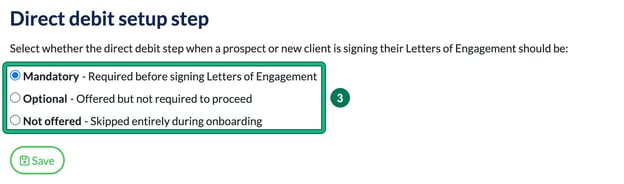
- Under Direct debit setup step, choose the default behaviour when a prospect or new client is signing their Letter of Engagement, then select Save:
- Mandatory (client must set up a Direct Debit before signing),
- Optional (offered but not required to proceed), or
- Not offered (skipped entirely during onboarding).
- You can override this setting for individual letters later.
- (Optional) Use Remove data under Stored Adfin data at the bottom of the page to delete all Adfin data from Engager if needed. This is usually only done if you stop using Adfin and have already revoked the authorisation.
Step 4: Link a client to Adfin
- Go to your client’s record in Engager and edit their Client info.
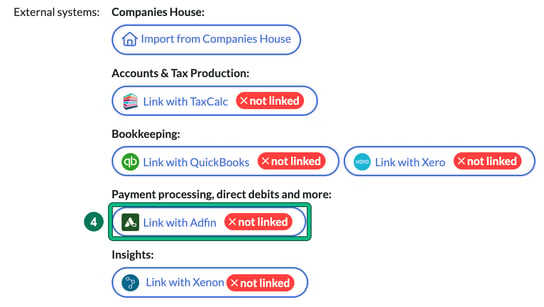
- Under Step 1: General info, find External systems: and, under Payment processing, direct debits and more:, click Link with Adfin. A client that isn’t linked shows a red not linked badge. You’ll also find Link with Adfin on Step 8: External systems.
- If the client isn’t found, create a new record and click Confirm and Save.
Step 5: Send a Letter of Engagement with Direct Debit
- Generate the letter of engagement as usual.
- Click Send.
- Choose to use the default Direct Debit setting or select a different one for this client.
- The client will receive an email to review and sign the letter.
Step 6: What the client sees
- The client opens the email and clicks Review and Sign.
- After signing their name, they’ll be prompted to set up a Direct Debit.
- The setup page asks for:
- Business account name
- Account number and sort code
- Email address
- Confirmation of mandate terms
- Once completed, the Direct Debit is marked as active, and they can approve the engagement.
Step 7: Manage Direct Debit requests
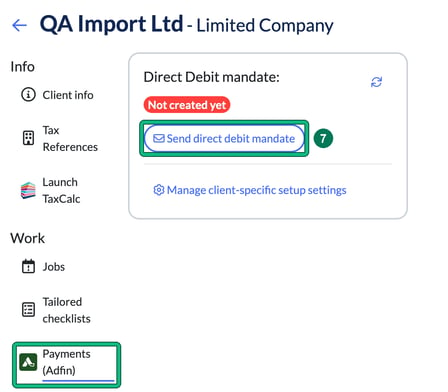
Once a client is linked, their record has Payments (Adfin) in the left-hand menu. It shows the Direct Debit mandate: status, with Manage client-specific setup settings below. You can also:
- Send Direct Debit requests separately (outside of a Letter of Engagement) with Send direct debit mandate.
- Cancel a Direct Debit from the client record.
- Track a client's Direct Debit status on their Payments (Adfin) page, or the status of all Direct Debits by filtering your client list: select filters and use Adfin direct debit status.
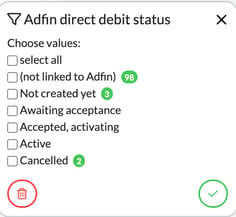
Direct Debit Statuses Explained:
- (not linked to Adfin): Client hasn’t been linked to Adfin yet.
- Not created yet: No Direct Debit request has been sent.
- Awaiting acceptance: Request sent, waiting on client to complete.
- Accepted, activating: Client accepted, bank is processing.
- Active: Direct Debit is active and ready to use.
- Cancelled: The Direct Debit has been cancelled.
Adfin Engager troubleshooting
- If you log in to Adfin using Google or Xero single sign-in, then you need to change it in the settings to log in with email and password. Adfin have not enabled the single sign-in option on link APIs.
- If you have linked Adfin to Xero or QBO, then you must link Xero or QBO in Engager for the three-way sync to work.
- If you use invoice platforms such as Sage and FreeAgent and upload invoices directly to Adfin, then the Engager integration will work fine.
- Why do I need to link Xero or QBO to Engager if it is linked to Adfin?
The reason is a little bit complicated but I’ll try explaining it. We’ve done it this way after Adfin asked us to reduce the risk of creating duplicate clients.
Whilst if you add a client to Adfin, they push it to Xero, if you add it to Xero, Adfin doesn’t pick it up immediately as they have no way of knowing if it’s a customer or supplier straightaway.
If, after adding client A directly to Xero, you added this client to Engager and tried to link with an existing client in Adfin, the client wouldn’t be there. So the natural thing to do would be to select "Create new client in Adfin”. That would create an Adfin client B that would not be linked to Xero because the Engager client is not linked to Xero; therefore, it cannot tell that client A in Xero is the same as client B being created in Adfin. All because Xero integration is not enabled in Engager. - To request a direct debit mandate as part of the LoE process, you need to add the client to Adfin and, if using QBO or Xero, to them as well: a couple of clicks when setting up the prospect or client, then press save. If you don't want to add them to Adfin and QBO or Xero at this stage, you can choose not to offer the DD mandate when the LoE is signed and send the request by email later on.
Need Help?
If you have questions or need support, our team is here to help. Contact us at contact@engager.app and we’ll be happy to assist.