
What Are Automations?
Automations are predefined tasks that Engager.app can execute on your behalf, reducing the need for manual intervention. These can range from sending routine emails to updating clients on their project status. By leveraging automations, you can ensure consistent communication, meet deadlines, and free up time for other important tasks.
This article is a short overview. For the full walkthrough, including conditions, repeat chasers and the automation queue, see Setting Up Automated Emails / Global Auto Reminders.
Watch the Webinar: Setting Up Automations
For a complete, step-by-step visual walkthrough on setting up automations in Engager.app, watch the webinar below. This video will guide you through the entire process, from creating your first automation to advanced customisations.
Step 1: Accessing Automations
Go to Settings > Jobs > Services. Each service you offer (for example, year-end accounts or self-assessment tax returns) has its own row, so find the service you want to automate.
Step 2: Setting Up an Automation
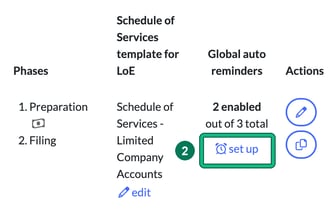
- In the service’s row, select set up under Global auto reminders. This opens Auto reminders for that service, listing its Current global auto reminders.
- Select + new to open Create auto reminder, then define the key parameters:
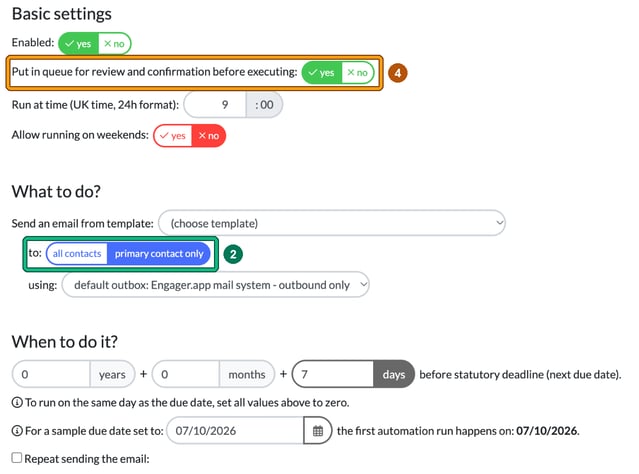
- Trigger: under When to do it?, specify when the automation should run in years, months and days before statutory deadline (next due date), for example nine months before. To run on the same day as the due date, set all the values to zero.
- Action: under What to do?, choose the template in Send an email from template:. This determines what the automation will do; the trigger sets when.
- Recipient: in to:, choose all contacts or primary contact only.
Step 3: Choosing and Creating Email Templates
- Before setting up an automation, ensure you have created the relevant email template.
- Go to Settings > Communication > Message templates to create or edit your templates.
- Use placeholders within your templates to personalise the content automatically.
Step 4: Testing and Refining
- Initially, set automations to queue emails for manual review. In Basic settings, leave Put in queue for review and confirmation before executing: set to yes, which is the default on a new reminder. Queued emails wait under Automations (in the top bar) > Queued.
- After reviewing and confirming the accuracy, you can enable full automation. Select the reminder’s pencil icon to open Edit auto reminder and change Put in queue for review and confirmation before executing: to no.