
Want to save time chasing clients to sign their Self-Assessment? With Engager’s automation feature, you can schedule reminder emails to go out automatically, personalised, timely, and linked to the client portal for easy signing.
Step 1: Create your email template
Before setting up the automation, you’ll need to create an email template (see How to add email templates). Here’s a suggested example:
Template Name: Self-Assessment Signing Request
Subject: Action Required: Please sign your Self-Assessment documents
Body:
Hi [Contact First Name],
Your Self-Assessment documents are ready to review and sign.
To avoid any delays or penalties with your filing, please sign them as soon as possible.
👉 Click here to access: [PortalAddress]
(If prompted, please use your email and password to log in.)
Let us know if you have any questions, we're here to help.
Thanks,
[PrimaryOfficer]
Use the placeholders exactly as written: [Contact First Name] is the first name of the recipient, [PortalAddress] is the web address of your Client Portal and [PrimaryOfficer] is the name and surname of a director assigned to the client.
Once created, save the template and you’re ready to set up your automation.
Step 2: Set up the automation
- Go to Settings.
- Under Jobs, select Services.
- Find your Self-Assessment service and, under Global auto reminders, select set up. This opens the auto reminders for that service.
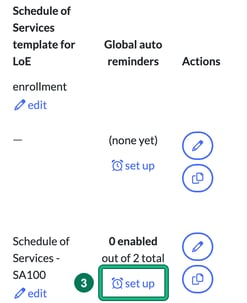
- Press + new to create a new automation.
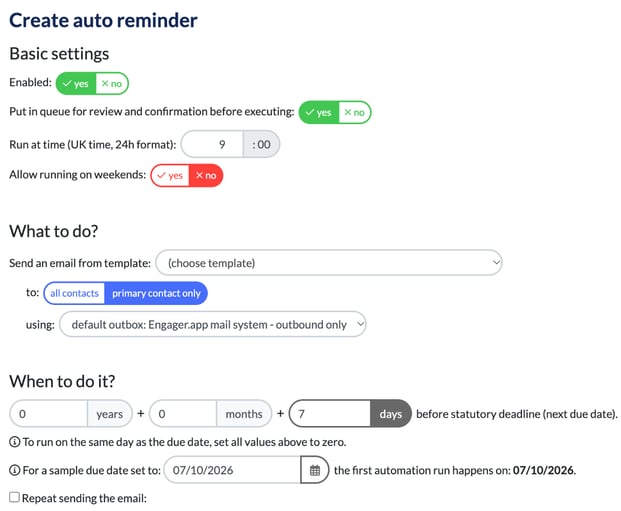
You’ll now be presented with the configuration screen, Create auto reminder.
Step 3: Configure the automation
Refer to the image above for guidance.
Basic settings:
- Enabled: Yes
- Put in queue for review and confirmation before executing: Yes (optional, if you want to approve before sending)
- Run at time (UK time, 24h format): Choose a time that works for your clients (e.g. 09:00)
- Allow running on weekends: Choose based on your policy
What to do?
- Send an email from template: Select your Self-Assessment Signing Request email template
- to: Choose primary contact only (or all contacts if needed)
- using: Select the outbox to send from: the Engager.app mail system, your own SMTP server, or a shared company Microsoft 365 (Outlook) or Gmail account. Your default outbox is listed first. Automated emails only send from shared mailboxes, never from an individual's own email address.
When to do it?
- Set the automation to trigger x days before the statutory deadline (next due date). To run on the same day as the due date, set all the values to zero.
- Optional: Tick Repeat sending the email if you'd like to send follow-ups
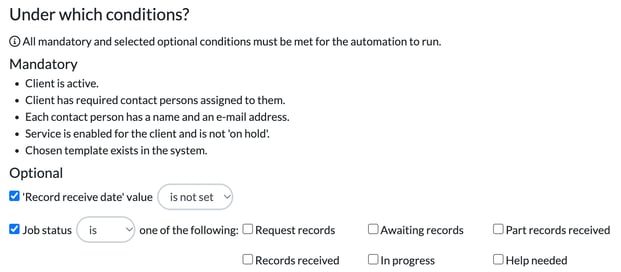
Under which conditions?
All mandatory conditions must be met for the automation to run:
- Client is active
- Client has required contact persons assigned to them
- Each contact person has a name and an email address
- Service is enabled for the client and is not on hold
- Chosen template exists in the system
You can also choose optional conditions, e.g.:
- Only send if 'Record receive date' value is not set (helps avoid chasing who have already shared their records)
- Only send if Job status is or is not one of the statuses you tick. In this case you'll most likely want to set it to is and tick Sent to client
Step 4: Save your automation
Once you're happy with your setup, click Save.
Your automated Self-Assessment signing reminder is now ready to go. It will send out at the time you've set, reducing manual chasing and keeping clients on track.
Need help? Reach out to our team at contact@engager.app