
The Engager.app Chrome extension puts Engager in your browser toolbar. From one click you can open your dashboard, clients, time logs or deals, start a quick timer or add a time log. It also reminds you to log time when you open a client.
The extension is free. You need an Engager account to use it, and it only works on Engager pages. For an overview, see the Chrome extension feature page and the announcement, or watch the video:
Install the extension
- In Google Chrome, open the Engager.app page on the Chrome Web Store.
- Select Add to Chrome.
- Chrome asks you to confirm. Select Add extension.
Chrome adds the extension and shows a message to say it's been added.

Pin it to your toolbar
Chrome hides new extensions behind its Extensions menu. Pin Engager so its icon is always one click away.
- To the right of the address bar, select the Extensions button. It looks like a jigsaw piece.
- Find Engager.app in the list.
- Select the pin icon next to it.
The Engager icon now shows in your toolbar.
Save your Engager address
The first time you open the extension, tell it which practice to open. Your Engager address is the one you sign in to, for example northside.engager.app.
- Select the Engager icon in your toolbar.
The popup opens and says Set your domain below. Until you save your address, the shortcut buttons are greyed out.
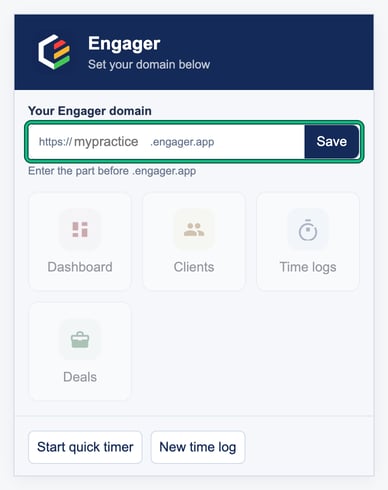
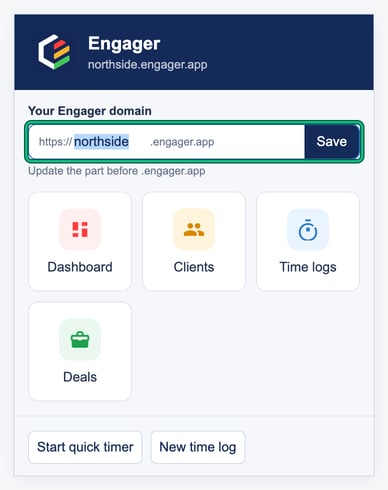
- Under Your Engager domain, type only the part before .engager.app. For example, if your address is northside.engager.app, type northside.
- Select Save.
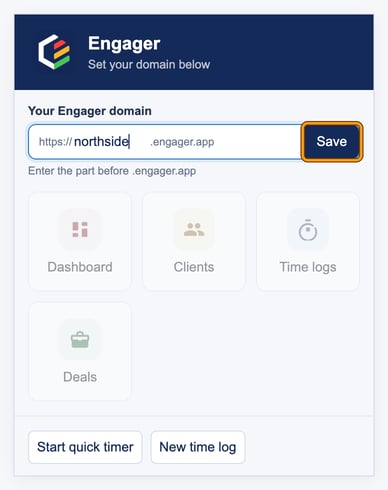
The box closes. Your address now shows at the top of the popup, under Engager, and the shortcut buttons are ready to use.
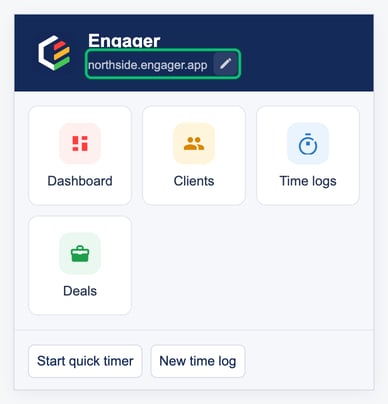
If you paste your whole address, such as https://northside.engager.app, the extension keeps only the part it needs.
Open Engager pages from the toolbar
- Select the Engager icon in your toolbar.
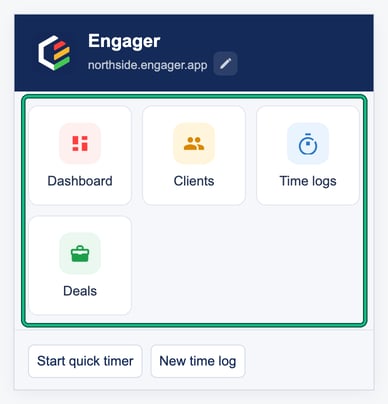
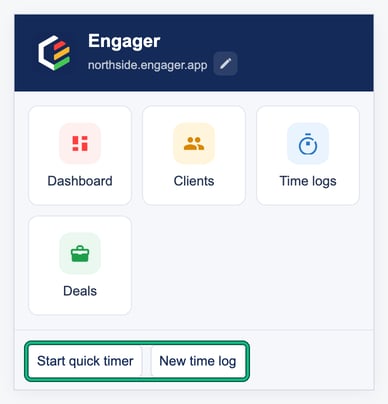
- Select Dashboard, Clients, Time logs or Deals.
That page of your Engager opens in a new tab.
Start a timer or a new time log
You need to be signed in to Engager for this to work.
- Select the Engager icon in your toolbar.
- Select Start quick timer or New time log.
The popup shows Opening Engager…. The extension switches to your open Engager tab, or opens your dashboard in a new tab if you haven't got one open. It then starts a quick timer or opens a new time log for you, just as if you'd selected it in Engager.
For more about timers and time logs, see Time Tracking Logs and Staff Costs and the time tracking feature page.
The reminder on client pages
When you open a client's overview, for example Clients > client > Overview, a dark blue box appears in the top right of the page. It says Don't forget to log time.
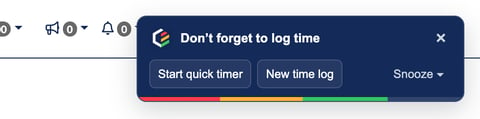
From the reminder you can:
- select Start quick timer to start a timer;
- select New time log to add a time log;
- select Snooze to pause reminders (see below);
- select the cross to close it.
The reminder closes on its own after about 5 seconds. A coloured bar along the bottom counts down. To keep it open, point at it with your mouse.
Once it's closed, it won't show again on that page until you go to another page.
Snooze reminders
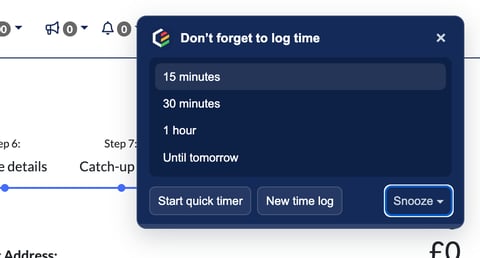
- On the reminder, select Snooze.
- Choose 15 minutes, 30 minutes, 1 hour or Until tomorrow.
Reminders stop on all client pages for that time. Until tomorrow means until midnight.
Change your saved address
- Select the Engager icon in your toolbar.
- Select the pencil icon next to your address at the top of the popup.
- Change the part before .engager.app.
- Select Save.
Your new address shows at the top of the popup.
Troubleshooting
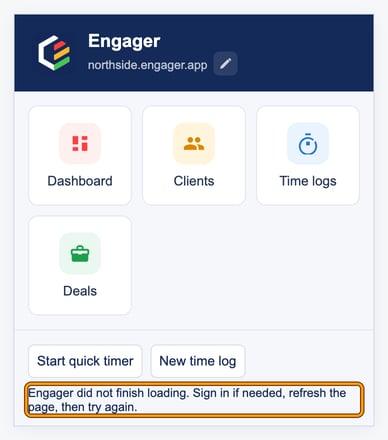
If something goes wrong when you start a timer or a time log, the Engager icon in your toolbar shows an orange !. Select the icon to see the message, which also shows in the top right of your Engager page.
| If you see | Do this |
|---|---|
| Use letters, numbers or hyphens, for example ajtax. | Check your address. Type only the part before .engager.app, with no spaces. |
| Could not save your domain. Please try again. | Select Save again. |
| Save your practice domain in the extension first so we can open its dashboard. | Save your Engager address, as shown above, then try again. |
| Engager did not finish loading. Sign in if needed, refresh the page, then try again. | Sign in to Engager, refresh the page, then try again. This usually means you weren't signed in. |
| Could not find "start new quick timer" on this page (or "new time log") | In Engager, open the timers menu once (the clock at the top of the page), then try again. |
| A time action is already opening. Please wait. | Wait a few seconds for the first one to finish. |
| Unable to open Engager. Reload the extension and try again. | Close and reopen Chrome, then try again. |
The orange ! clears the next time you use Start quick timer or New time log.
Remove the extension
Right-click the Engager icon in your toolbar and select Remove from Chrome.
FAQs
Does it cost anything?
No. The extension is free. You need an Engager account to use it.
Does it collect my data?
No. The developer has said on the Chrome Web Store that it won't collect or use your data. It only keeps two things in your browser: your Engager address and any snooze you've set.
Can I turn the reminder off?
Not permanently. You can snooze it for up to the end of the day with Until tomorrow.
Do my colleagues need it too?
Yes, if they want to use it. Each person adds it to their own Chrome and saves their Engager address.
Which browsers does it work in?
Google Chrome.