
Within Engager, you can create a plethora of amazing, custom services that are tailored to your company and your exacting workflows.
The Custom Service feature is especially useful for Payroll runs. Whether you run weekly, 4 weekly or monthly, you’ll need a custom service to help support and manage this moving forwards.
Let’s start with adding in 4 Weekly Payroll.
Create the 4 Weekly Payroll service
- All custom services are built via Settings > Jobs > Services.
- Then select + add custom service. This opens New service.
- You will need to run through all of your standard options at the beginning here. Do you need this visible to your client, or is it more of an internal service? Typically you would charge for this, so make sure Internal only: is no. Services marked as Internal only are not included in LoE or fee tables sent to a client.

- Then you’ll need to name your shiny new service in Full name:. Short name: fills in from the full name as you type, so check it.
- Then complete the most important items here, like the frequency to be 28 days to account for 4 weekly: in Default frequency:, set Deadline occurs every: to 28 days. If you want an internal deadline set automatically, enable Automatic internal deadline and choose how many days before the statutory deadline it falls.
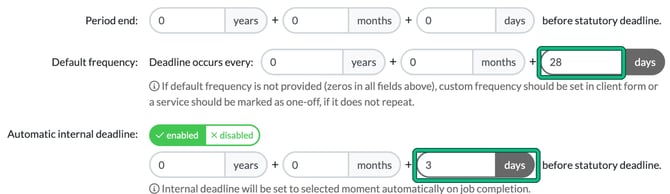
- Then complete your step by step process by using Phases and assigning responsibilities to the relevant team member. Use + add phase here to add each one, and give every phase a name, or you'll see "Each phase needs to have a name" when you save. If you’ve not set up workflows and phases before, read Workflows, Phases and Checklists.
Switch it on for your client
Now that you’re happy with the Service, we need to switch this on for your clients.
- Locate your client, then head to Step 5, Services & pricing. Your new service will likely be at the bottom of the page. Switch it on with the green play button.
- Once switched on, we then need to set our first deadline.
So to keep things very simple, I’ve created an example to show that a client wants to get their staff paid on the 28th of the month. This is an example; your rolling 4 weekly payroll set up will be different to this.
- In Step 6, Service details, I’ve set my deadline in Next due: to be the 28th. You’ll also note that the frequency will show 28 days, so we’re confident that this Job will now repeat every 28 days in line with what we need.
- I’ve also set an Internal deadline: to make sure that I’ve done the work ahead of time, so I’ve collected the info back from my client, prepared the payrolls and sent for approval with the client, ahead of time. If the service has an automatic internal deadline, the field stays empty until you select set from auto internal deadline rule.
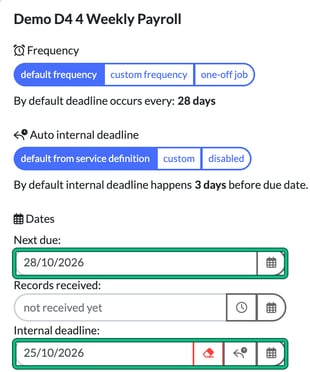
Again, this is just an example and many of you will have different settings here.
You can now see that my new Job is on my board, with the Statutory deadline at the top, and an Internal Deadline at the bottom.
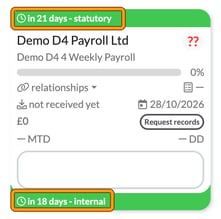
When you complete the job, the next one is created 28 days later.