
Engager Pipeline is a new feature designed to help accountants & bookkeepers record, track and process more deals when attracting new business.
Please note, this feature is currently available to all customers free of charge. Later this year, we intend to add even more Pipeline functionality and at this point it will become an optional add-on.
The Deals board
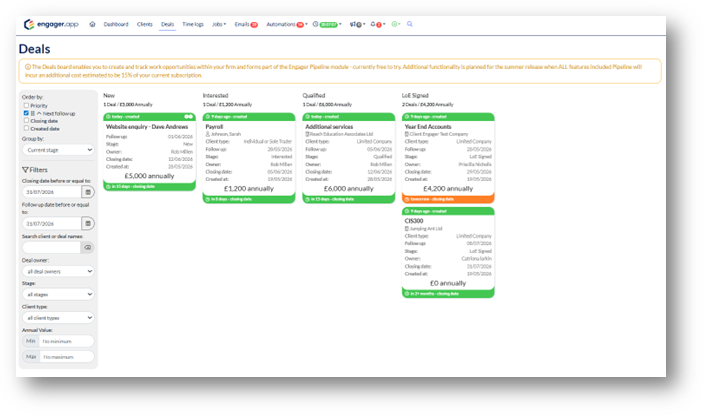
Accessed by clicking Deals in the heading of the app. The focal point for Engager Pipeline is the Deals board; a kanban style overview of all deals that are being processed or recently won or lost.
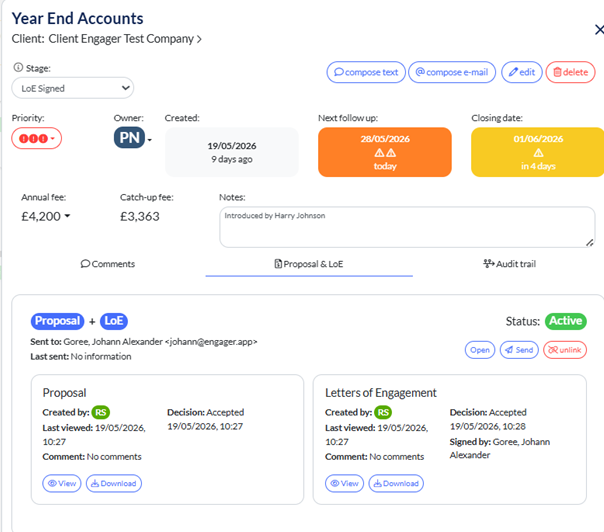
Click on a deal to see full details, add comments, edit details, chase colleagues, send a text message or email.
Adding a new deal
New deals can be added straight from the Deals board, from any individual client profile using the Deals page (accessed from the left navigation panel) or from the Quick actions menu.
Fill in as many details as you can to help you and your colleagues to progress the deal.
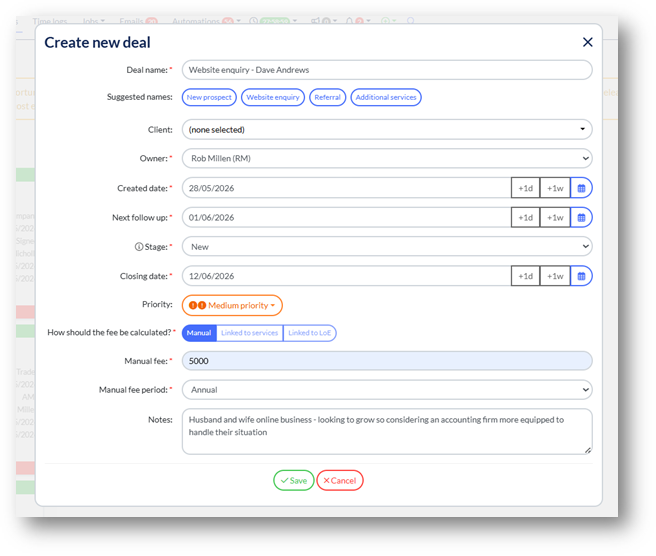
How should the fee be calculated?
This field (4th from the bottom) can be set to one of the following:
- Manual – you can enter the agreed fee manually, either annual or monthly
- Linked to services – if/when you configure the services for this prospect or client, this option will feed the fees in automatically based on the services defined
- Linked to LoE - if/when you generate a Letter of Engagement for this prospect or client, this option will feed the fees in automatically based on the content of the letter
Filtering and view configuration
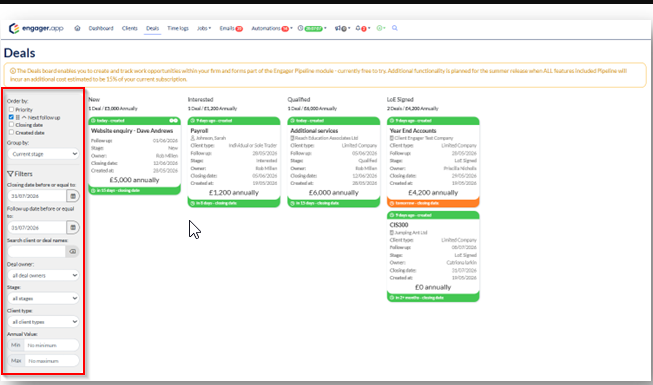
As with the Jobs Board, various sorting and filtering options are available in the left hand panel.
Accessing deals from the dashboard
As you’d expect, deals are mentioned on the dashboard.
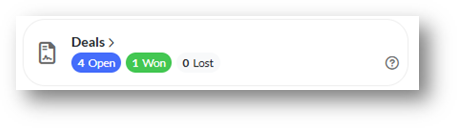
You can see a quick overview of the current deals in play and jump into the Deals board from here.
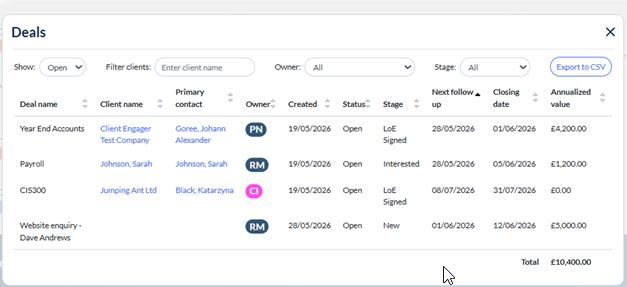
Clicking on a specific deal category like Open, will provide a pop-up summary that can then be filtered, sorted or exported to CSV.
Customisation options
Under the settings menu, you will find Deal stages:
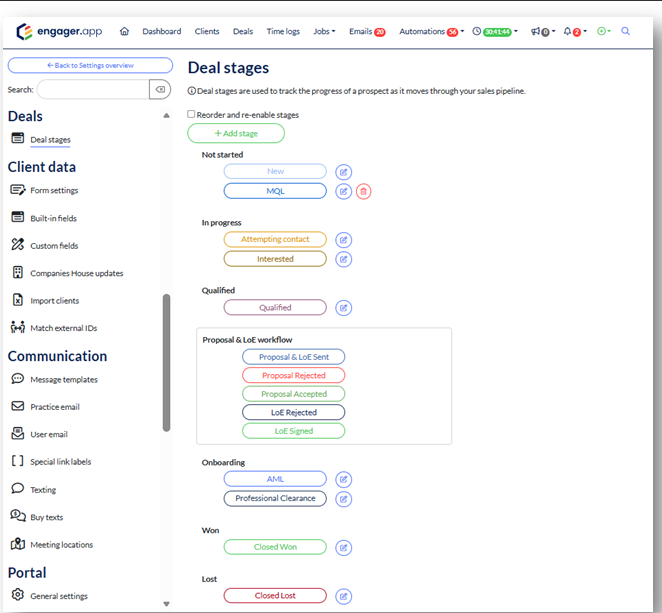
From here you can customise your deals workflow by adding, removing or editing phases within each of the predefined categories. This gives you control of the number of phases within your deals pipeline so as to make it as simple or as sophisticated as you like.
You’ll notice that the Proposal & LoE workflow is boxed off. This is to ensure the workflow in this area is aligned to the automation that already exists.
Use the tick box at the top to change the order of any phases and to see hidden phases if you need to reactivate them.