
MTD has arrived and there's no avoiding it now! But don't worry, we're here to help you manage the process effectively and keep you as compliant and organised as we possibly can!
Following our practical guidance and steps, you'll be up and running in next to no time, while also gaining confidence on the subject.
Please be aware that in Engager, we are not filing any MTD IT related items, we're here to help you manage your responsibilities / reporting / communication strategies.
Categorising and Reporting on your MTD Clients
First up, we need to start tracking and recording who is going to be affected by MTD and which tax year they will be affected from.
You'll want to see and report on this, so we need to start building some sections and custom fields to track.
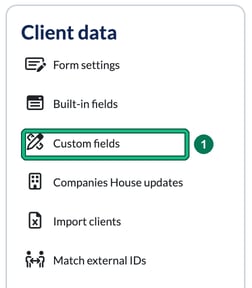
- Go to Settings and, under Client data, select Custom fields.
- As MTD is brand new, we need a new section to start building out our information and capture. At the very bottom of the page, select + new section.

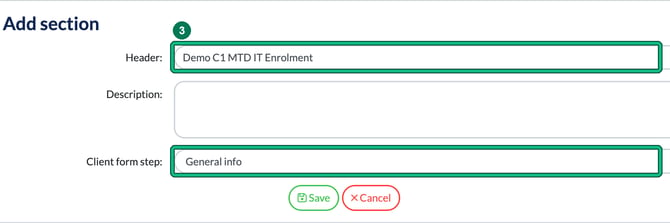
- In Add section, label the new section as something MTD related and memorable in Header:, like MTD IT Enrolment, set Client form step: to General info and select Save.
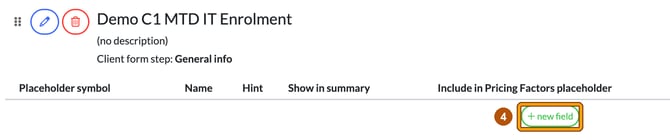
- Now select + new field under your new section. This opens Add field.
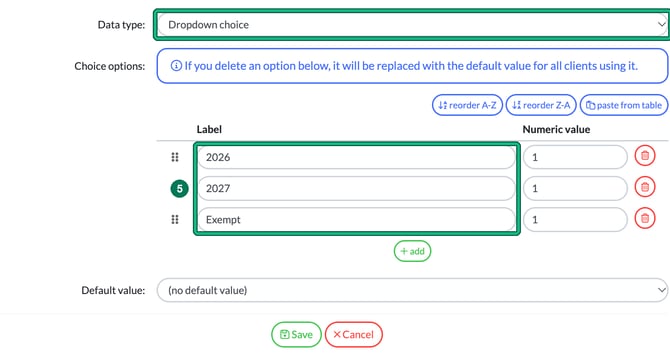
- We'll track Year of Enrolment first and you should make it relatively easy to use. Enter Year of Enrolment as the Name:, set Data type: to Dropdown choice and, under Choice options:, enter the years or exempt as each Label (select + add for each new row). Feel free to mirror this example, then select Save.
Once saved, we need another new field in the same section, also using Dropdown choice for Data type, for example MTD IT Compliant with the options Yes and No.
Remember, if they're using a software like Freeagent / QBO etc, they may already be compliant.
We're building this out so when in the Clients tab, we can easily filter and sort to then SEND BULK EMAILS to this subset, with information about their responsibilities and also your services to them relating to MTD IT moving forwards (pricing / responsibilities as an example).
By doing the work now with the report, it means you're not bulk sending potentially worrying information to people that it's not relevant to, creating panic.
It's also worth creating an MTD Status field with MTD N/A, MTD 2026 and MTD 2027, again using Dropdown choice as the Data type.
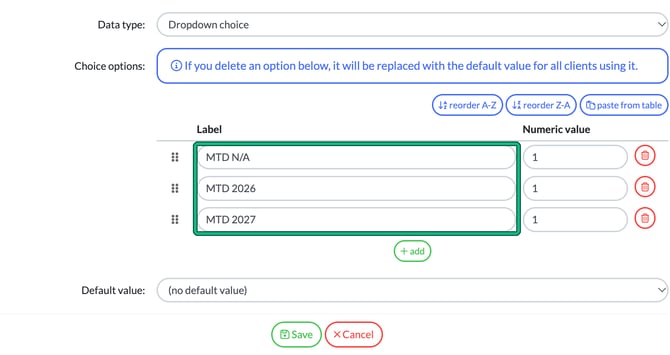
So, what you want to start doing is looking through your clients, working out which ones need attention first, so your Sole Traders or your Landlords, then looking back at the tax return HMRC uses for each stage: 2024/25 for 2026, 2025/26 for 2027 and 2026/27 for 2028.
Remember, HMRC uses the return sent in the previous tax year, so review each year’s returns once they’re filed (the 2025/26 returns are due by 31/01/2027)
Work through your client lists, look at their incomes and then determine whether MTD IT kicks in for the 2026, 2027 or 2028 tax year or if they're actually exempt.
2026 Threshold is £50,000 and remember, it's TURNOVER
2027 Threshold is £30,000
2028 Threshold is £20,000
The example fields below use 2026 and 2027; add 2028 (or MTD 2028) as a choice if you’re tracking that stage too.
Assess each one individually, then you can record the outcomes using your newly created fields. To do this, open the client record and go to Step 1: General info. Your new section and fields appear under their own heading at the end of the step, after Additional info.

You will need to run through your sole traders / landlords and assess whether they're affected by MTD due to turnover, decide which year and then determine whether they're using software that keeps them MTD compliant.
That's the exercise and you record these results in Engager.
Contact Strategy
What we'll do is explain how to get your first MTD email templates into Engager, you can then add in Johann's full series after.
Now, in the Client List, I want to focus on only my sole traders that are impacted by MTD for 2026.
- In Clients, open the filters menu and, under Custom fields, select your MTD Status field. In Choose values:, tick MTD 2026, then select the green tick to apply the filter.

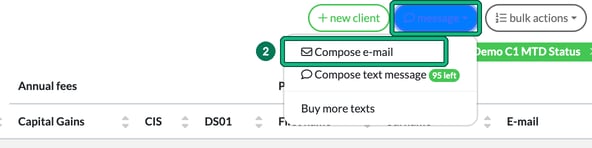
- We've now segmented right down to those impacted first, so let's email them using the bulk email tool. Select all using the checkbox in the list header, then select message and Compose e-mail.
Creating your new MTD Service
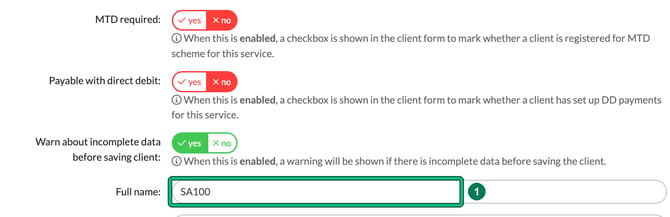
We should also review the SA100 service and rename accordingly.
- Go to Settings and, under Jobs, select Services. Select the pencil icon in the Actions column for SA100 to open Edit service, and change Full name: to Annual Income Tax Return.
Remember, this is for the tax years ahead, so only do this exercise once you've completed 23/24 SA100s.
To account for the quarterly updates that will be due, we need to create a CUSTOM Service.
- In Services, select + add custom service at the top right. This opens New service.

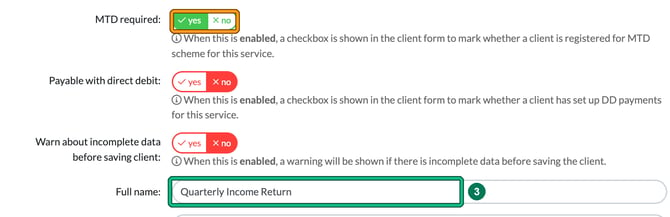
- Name the Service Quarterly Income Return in Full name:. You'll also see MTD required: on this form; see MTD settings in Engager below.
- Then you can enter in your fees and billing info. So these are quarterly updates so would you charge per update or would you, like most people no doubt, total up the 4 updates, then split cost over 12 months, for those on monthly billing. Choose your Default fee period: and enter your fee in Set the base fee to: on the Wizard tab.
£50 x 4 quarters is £200, split over 12 months as monthly billing is the client's preference, you'd have £16.67 per month.
Then enter the end periods and frequency: Period end: and Default frequency:, where Deadline occurs every: 3 months.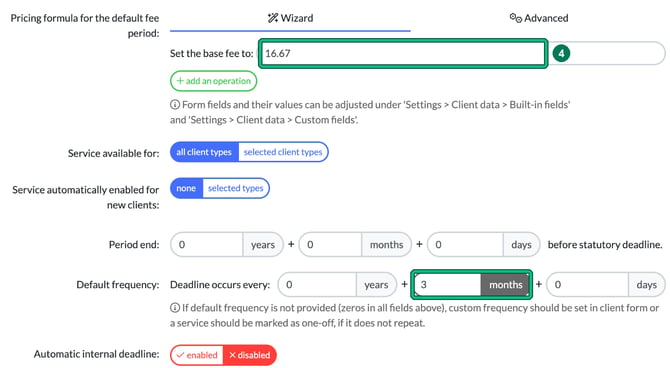
Then start adding in your Phases as to how you plan to manage the creating and filing for these new quarterly updates, using + add phase here in the Phases section. Start thinking about your ideal workflows here.
- Now let's get these switched on for our affected clients. On the client form, go to Step 5: Services & pricing and select the play button for the service. It turns green and shows Fee period, Suggested fee, Selected fee and Annual fee.

- Then set the client's next quarterly update deadline (for example 07/11/2026, the deadline for the update period ending 5 October 2026): in Step 6: Service details, find the service and enter the date in Next due: under Dates, then save the client.
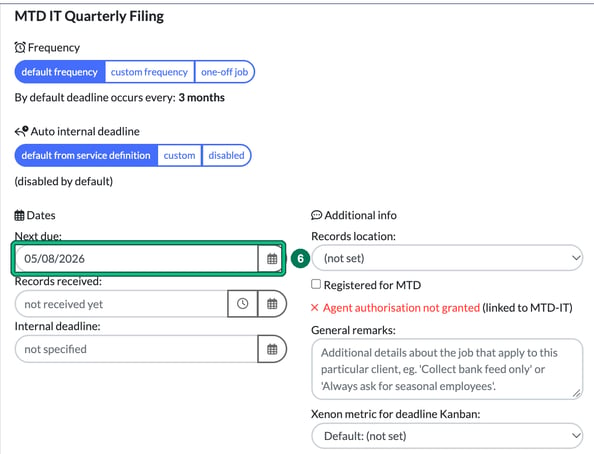
So your client's screen should have both services: the formerly called SA100, now Annual Income Tax Return, AND the quarterly update service.
MTD settings in Engager
Engager also has some built-in MTD settings. Here's where to find them:
- MTD required: is a yes / no setting on each service, in Edit service or New service under Settings > Jobs > Services. Its hint reads "When this is enabled, a checkbox is shown in the client form to mark whether a client is registered for MTD scheme for this service."
- Agent authorisation source: is on the same service form. Its options include MTD-IT.
- Registered for MTD is a checkbox on the service in the client's Step 6: Service details, under Additional info. The same area can also show an agent authorisation status, for example Agent authorisation not granted (linked to MTD-IT).
- Authorisation for MTD operations & VAT number checking is on the HMRC integration page, under Settings > Integrations > HMRC.
Templates for your communications and documents
Please note that these email templates are available here: MTD IT Email Templates.
We'll show you how to get your first templates into Engager, then you can add the rest of Johann's in one-by-one.
Let's create a new Category for our MTD related items in Message Templates.
- Go to Settings and, under Communication, select Message templates. Select edit categories, then + new category at the bottom of Edit categories. Type MTD IT Ready as the new category name and select the tick.
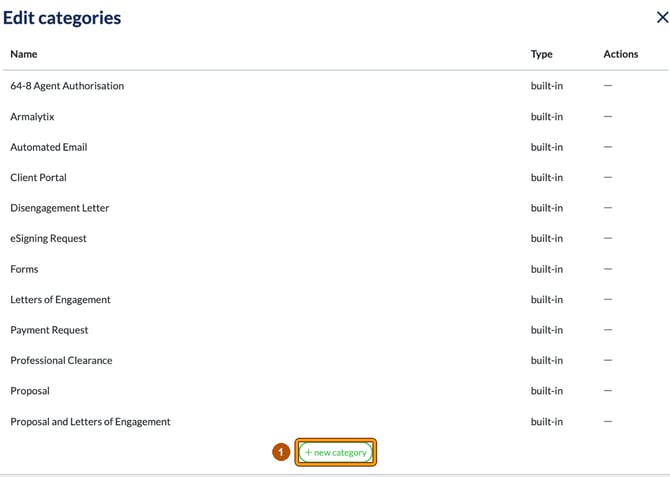
Now, we need a New Template email using + new template on Message templates. This is Johann's TEMPLATE 1.
Now, this could be your very first mention or communication to your client, so tone needs to be warm and non-panic inducing.
'Get Ready for MTD IT - Free resource and Support'
Use Johann's template if you wish and also feel free to tailor his guides that appear as hyper-links. They will be BRANDED ONPOINT ACCOUNTANCY so make sure you copy and convert into a message that looks like you for your CLIENTS.
This is a great info piece for your clients.
That's template 1. Now you can complete the next few templates using Johann's templates and then work through your client lists: information pieces, for people that are compliant, people that aren't and what they need to do.
These emails are kindly provided by Johann here: MTD IT Email Templates.
One thing you will need to do is make sure that the Custom Field placeholders line up with the email templates provided.