
Did you know that we track the Confirmation Statement (CS01) deadline in your Engager account? We do this using our connection with Companies House (CH).
Most of you will provide this as a service to your clients, and no doubt have your own process for preparing, checking and then filing the return.
At present, Engager is here to help you manage the CS01 process. We do not prepare anything for your client to approve and we don't file with CH for you.
So, what does Engager do to help manage the CS01 process? Monitor the deadline, automate email reminders, provide you a portal to send a CS01 to review and approve.
Step 1: switch on CS01
Firstly, you should switch on the CS01 as a service for your LTDs if you haven't done so already. Remember, you can do this in BULK rather than 1 by 1 which is a huge time saver. See Bulk Editing Clients.
Don't worry, when turning on in BULK you won't need to input the deadline for each one, as our link to Companies House will do this for you. The CH check happens each night at midnight and you then need to APPROVE these dates to be entered into your client's account. Go to Settings > Client data > Companies House updates and select the green tick in the Action column to approve. For more detail, see Companies House updates, what we'll check for you and what you need to do to accept the change.
That's step 1 complete: CS01s switched on, with the Statutory Deadline showing on your Jobs list.
Step 2: set an automatic internal deadline
We don't want to miss any deadlines, and as you can file 14 days before the deadline, why not use Internal Deadlines here, to help get ahead of the game.
Here we'll turn on Internal Deadlines 14 days before the Statutory Deadline, giving us 2 weeks to get the client's confirmation. Feel free to adjust to 21 days as your reminder to client would see the CS01 WILL be due / at 14 days, the CS01 IS due.
- Head to Settings > Jobs > Services, find CS01 and select edit service (the pencil in the Actions column). We're looking for the section on frequency and Internal Deadlines: under Default frequency:, set Automatic internal deadline: to enabled, enter 14 days before statutory deadline, then select Save.

The system won't retrospectively backdate this into your client's account (the internal deadline is set automatically on job completion), so we need step 3.
Step 3: set internal deadlines on existing CS01s
Using your snazzy Client View, you filter to only the clients with CS01 enabled. How handy.
- On the Clients page, open filters: and, in the Client info column, select Services > Enabled services. Locate CS01, select it and then confirm with the tick. Then select all, and select bulk actions > Edit client or service data. Then replicate this: Choose entity type: Service, Service to edit: CS01, Form field: Internal deadline - in relation to current due date, and Set new value: 14 days before due date. Select Submit.
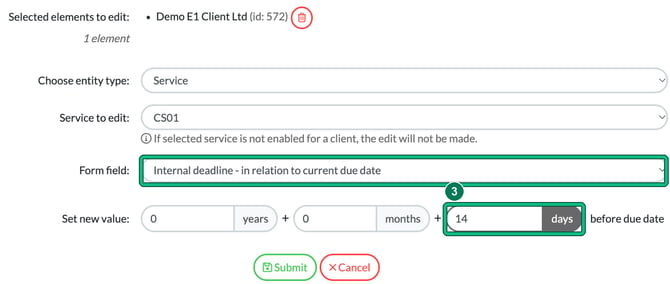
If CS01 isn't enabled for a client, the edit won't be made for that client.
Bingo, you've just now set Internal Deadlines for your CS01s, based on the actual CS01 Statutory due date.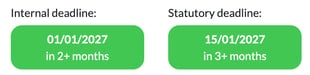
Step 4: optional
With our Global Auto Reminders, you can set to issue an email to the client about their CS01: what it is, what to expect, what it costs, what's involved from their end etc. You'll find Global auto reminders on the CS01 row in Settings > Jobs > Services.
You will need to adjust your template in line with your actions. Will you be sending them a PDF? If so, will it be via Engager to review and approve, or will it be via a Third Party like Inform Direct?
Plan your communication strategy and you can get into Engager.
As an example, you could send out a series like:
- Generic Notice: CS01 is X, it's due Y, we'll send Z for you to review and approve etc.
- If the CS01 hasn't moved on, send a reminder.
- Overdue notice: Ramifications of Strike Off. This is serious stuff etc.
Plan your comms roll out and decide if you want to use this in Engager with the Global Auto Reminders and Job Cards to track and manage your CS01s.