
Bulk editing clients is a quick way to edit a group of clients' details quickly and easily.
In this video we take a look at how it works and some use cases for the tool.
Bulk enabling clients and their services
Realistically for your LTDs, you’re going to be doing Year End, CS01, VAT and Self Assessments, so let’s get these enabled asap.
So, let’s start with the Year End service.
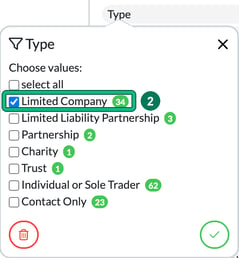
- In Clients, filter to the LTDs: select filters, then under Client info select Type.
- Tick Limited Company, then select the green tick. This filters the list to just your Limited Company clients.
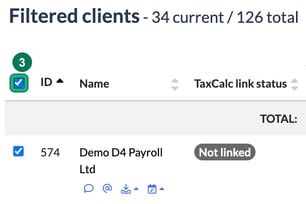
- Select ALL by ticking the checkbox in the table header, to the left of ID.
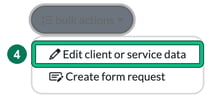
- Select bulk actions > Edit client or service data. This is going to give you access to an endless list of options.
- You’ll see your selected clients in the Bulk editing window. In Choose entity type:, select Service.
- In Service to edit:, select the service in question, so Limited Company Accounts as we’re enabling the Year End service. Note the message under it: "If selected service is not enabled for a client, the edit will not be made."

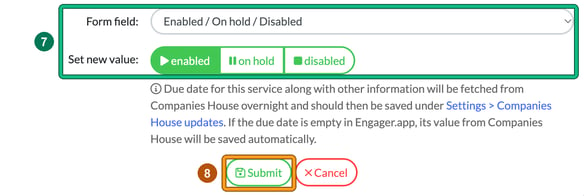
- In Form field:, select Enabled / On hold / Disabled, then set the new value to enabled.
- Select Submit and you’ve enabled this service for all the selected clients in bulk.
Congrats! You’ve now enabled all your Limited Company accounts with your Year End service.
From here, you can rest up and allow the Companies House job to run overnight and then your dates and deadlines will magically appear in your account, in the morning. The note under the field explains that the due dates are saved under Settings > Companies House updates, and if a due date is empty in Engager, its value from Companies House is saved automatically.
Bulk enabling VAT
That’s a quick and easy one, but what about VAT Returns? There are lots of differentials at play, like VAT end periods and due dates. Here, I would spend some time segmenting your clients into the VAT periods, then bulk enable the service per quarterly schedule.
But ENABLE the service first like before, with Service to edit: set to VAT. If the service isn’t enabled for a client, the edit will not be made.
So start like this: back into bulk editing, and this time the Form field: is Frequency, set to default frequency, so every 3 months.
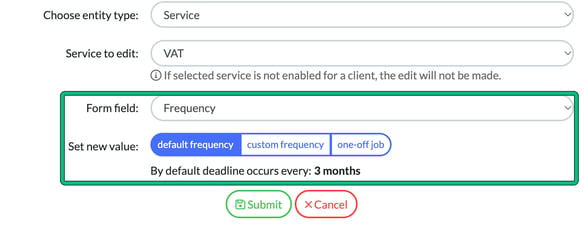
Obviously if you know they’re Yearly, don’t include them in this.
So now you’ve enabled the VAT service for these clients and explained that these clients are on the quarterly schedule. Well, what about DUE dates for it to populate your deadline?
Top tip
Be clever with your time, you don’t want to be doing this one by one, so this is where you will need to double back on yourself, check your original data set and GROUP your clients by VAT quarter ended.
Once you’ve grouped your clients by VAT frequency, from Clients, select your clients that share the same VAT schedule, so those that have Jan / April / Jul / Oct.
Once selected, go to bulk actions, set Form field: to VAT quarter ended, then choose the requisite schedule, like the example below:
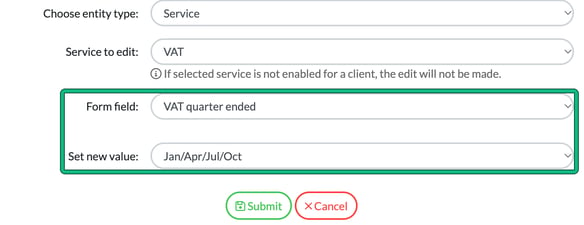
Once submitted, you’ve now updated the deadline frequency for this subset of clients that have VAT enabled. The deadlines and due dates will now start to populate your Engager account.
Spending time with the Import tool and Bulk Actions feature is going to save hours overall and make for a much smoother experience overall.
Thank you for reading!