
Do you ever find yourself getting a little lost with your progress when working through an important job for a client? You’re part way through an accounts production, the phone goes and then you have to focus there for the next hour or so. The ability to take notes is going to be a life saver.
We’ve built this into Engager along with some additional features to help go alongside.
When you’re working through your jobs, you should be in your production software AND Engager at the same time.
Take that call, then leave your note in the job card so you don’t lose your progress.
How to leave a comment
- On Jobs, select the job card to open the job window.
- Head to the bottom of the job window. On the Comments tab, select + new comment.
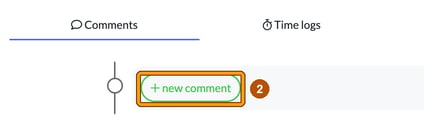
- Make your note in New comment and select Save. You’ll see “Comment saved successfully”, and the comment appears with the date, time and your initials. Then you’re free to crack on with the next pressing matter.
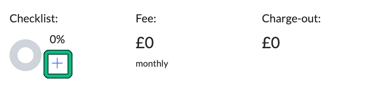
Of course, for those of you using our Checklist feature, you can also leave comments within the Checklist, which is also super handy. To access Checklists on the job, select the + next to the Checklist progress ring on the left-hand side of the job window.
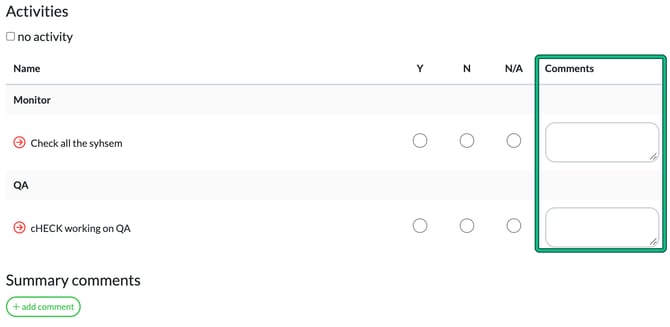
This opens the Service checklist. Enter your notes in the Comments box next to each point, or select + add comment under Summary comments.
If you’re NOT using Checklists, why not? See 4 of 10: Streamline Processes with Effective Checklists for information on how to set these up.
Now back to ‘comments’ and ‘User Mentions’.
So comments are a great way to leave a note, but what if you need to communicate internally to a team member? You could need support, you might need to chase or you’re providing them with feedback while you review their accounts production.
You don’t want to bounce around from system to system, note pad to post-it to do all of this, so keep it on the job card.
User Mentions
Need to chase a member of the team for an update? Stuck with a tricky Self Assessment and need your Tax Expert to review? This is where the power of User Notifications comes into play.
You can mention a User either by Services or Tasks.
In this example, I’ve been working through a Self Assessment and I’m stumped. I’ve marked my job card as Help needed so I know where I am with the work, then tagged the relevant team member, in this case the Boss.
- Optionally, in the job window, select Status and choose Help needed.
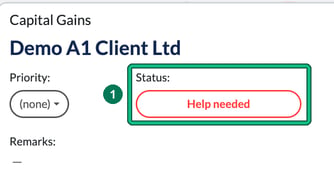
The job card on the Jobs board now shows a Help needed badge.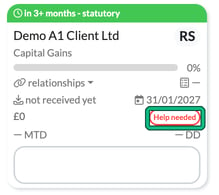
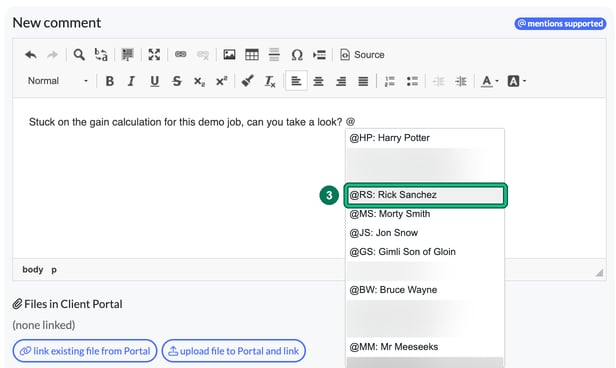
- Scroll down to the Comments tab, select + new comment and enter the issue.
- Type @ to tag the relevant team member. A list of users opens, shown as initials and full name. Choose the person by clicking their name, or with the arrow keys and Enter.
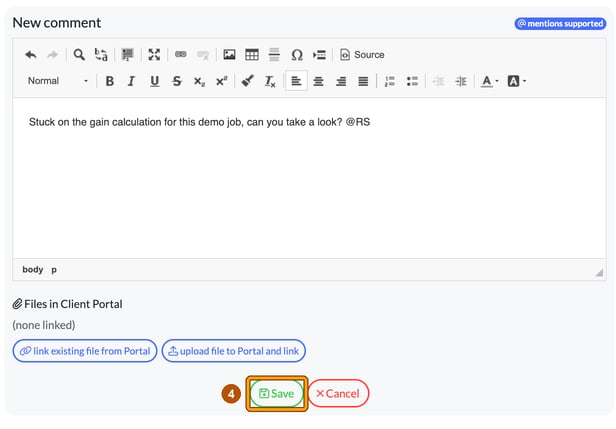
- Select Save.
The saved comment shows the person’s initials as a badge, with Mentions: underneath.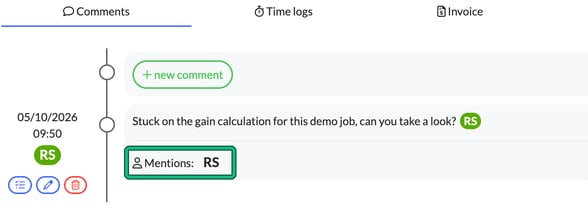
This will immediately flag to the Boss that I need help to move on.
The Boss will now have a red count on the mentions (megaphone) icon in their top bar. Selecting it opens the mentions panel, where each NEW mention is marked with a blue dot.
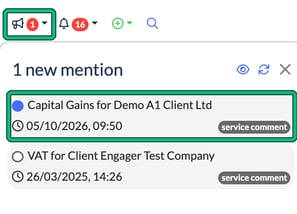
When the Boss clicks into the mention, it will take them directly to the item required for them to act accordingly, and the mention is marked as seen. If they need to come back to that mention, they can select the empty circle next to it to re-mark it as Blue again, and action it later on.