
Bulk sending emails is a great way to update your clients with important news and updates quickly and professionally.
In this video we deep dive into how you can use bulk emails and give you some use cases as well
Or if you would prefer a step by step guide, read on!
This is such a powerful feature as you can select all your clients in one go, or select a subset to provide updates directly to this set.
As an example, if there's a UK Budget update that affects LTDs only, could be that they decide to INCREASE the tax free dividend (we wish), well wouldn't it be handy to get some value added, good news out to them immediately?
Filtering Clients
First thing to do would be to use the filters to narrow down your client list to the relevant ones. Here I'm going to select LTDs only.
- Head to Clients and select filters.

- Then we're looking for Type: tick Limited Company.
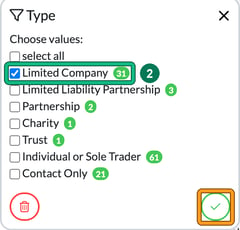
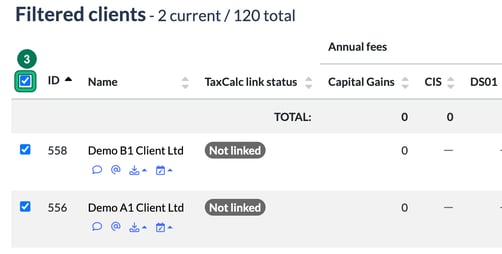
I've now segmented my clients down to just LTDs 48/198. - Now select the square next to ID to 'select all'.
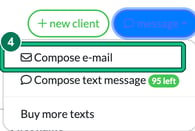
- Then we want to select message to open up email or SMS options: choose Compose e-mail or Compose text message. YES, you can bulk TEXT too! If you've not got texting active, read How to use Texts, SMS Messages.
- From here you'll see your window of options in Compose e-mail. Under Recipients: each selected client is listed with its contact, and you can choose use primary contacts only or use primary and secondary contacts.
PLEASE BE ASSURED THAT YOUR CLIENTS WILL NOT SEE EACH OTHER'S INFORMATION: ENGAGER SENDS A SEPARATE, UNIQUE EMAIL TO EACH RECIPIENT
From within the options, you could call on a template email from Template:, like a tax payment reminder, or create from scratch. If you create from scratch and are happy with the email and you want to save it / use it again, simply select + create new template from current message. God we're handy aren't we?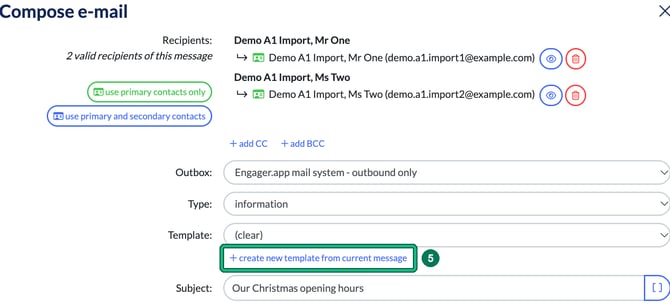
This opens New message template. Give it a Name:, choose a Category:, check the E-mail subject: and select create.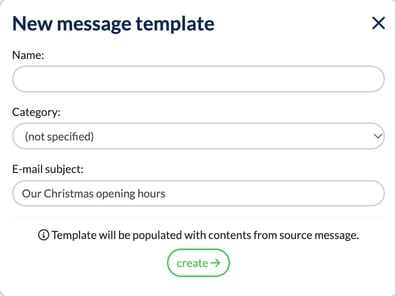
This is ideal if you've lovingly crafted an email and included some snazzy custom fields (see Using Custom Fields). You don't want to have to do this again, so save it for use again.
If you've not created your template emails, read 8 of 10: Enhance Communication with Custom Email Templates.
- Hit Send at the foot of Compose e-mail.

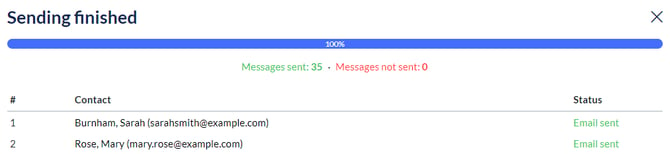
Once you've hit Send we'll even give you a progress summary of how many emails were successful, so you know you may need to call them up and check their contact info.
Not sure what to use Bulk Email for?
- Monthly newsletters
- Budget Updates
- Christmas opening hours
- Address / Practice Change of Details
- Tailored Tax advice per client type / service provided
- Regulation Changes
Prospects
Why not apply the above for your Prospects?
- Ask for feedback as to why they didn't come on board
- Service Updates: perhaps your firm now does CIC and you didn't previously
- we're giving you a powerful platform to make your own