
OK, now you’ve got your practice’s preferences and workflows up and running, now comes the biggy: the import of existing clients.
Following these steps is going to be crucial to you and getting everything firing on all cylinders. You’ve set the foundations, now let’s get your clients in and using Engager for the first time.
Quick heads up: DO NOT PANIC. If you’ve already jumped AHEAD of the 10 steps and got your automated emails set up (see Setting Up Automated Emails / Global Auto Reminders), the system will not randomly fire out 100s of email reminders to your clients once they’ve been imported.
Pre-checks (please, please, please read)
To have the smoothest possible import experience, please ensure you note the following. This is based on experiences from existing customers:
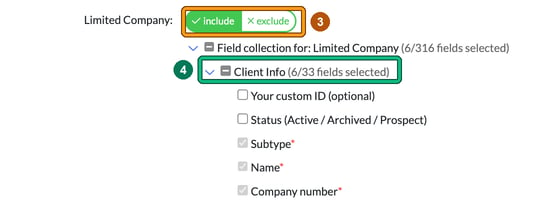
- Company number for LTDs and Charities: make sure you include this in your import. For Limited Company, the import form now treats Company number as mandatory: it’s ticked, greyed out and marked with a red asterisk, alongside Subtype and Name. If you import without the company number, the Companies House function and sync will not work.
- Duplicate emails: the system will reject use of a duplicate email. If the primary contact on the LTD is on the Individual or Sole Trader tab, this is fine, as we’ll match and link the details anyway, so it’s not an issue. The import uses the primary contact’s first name, surname and email address to detect and link clients who share a contact.
- Shared emails: it’s better to remove these and correct them once the data is in Engager. You can do this with ‘related individuals’ and ‘related businesses’. If one person is linked to several companies, keep their email the same everywhere instead. See Import FAQ: Client has only one email address but is associated with multiple companies.
- Mirror image, the biggie: do not import your data if you have skipped the getting started guide!
The simplest way to think of the import is that your Engager account must match your previous system. We don’t know the name of your checklists or what’s included, we don’t know your staff or what steps you’re currently on in your Year End stage. We might not even have a home (field) for your new data to land, so don’t do it. Don’t jump ahead, as you’ll be frustrated when things don’t go smoothly. - Import order: if you’re unable to import all clients at once, the import page recommends starting with the clients listed on the ‘Individual or Sole Trader’ sheet, then proceeding with the other client types afterwards, so that contact links are established correctly.
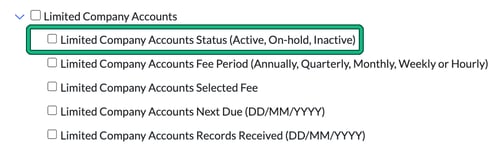
- Status Active! Do you want to turn your services ON when importing? Of course you do! So make sure you include each service’s status field when you create your import file. Look for Status under Service Details, for example Limited Company Accounts Status (Active, On-hold, Inactive).
Ready?
We’ve created a client list for you to use as a template. It shows exactly what we’re looking for and what CAN actually be imported, so let’s begin.
We’ve expanded on what can now be imported, so you’ll see that you can now bring through services, custom fields and built-in dropdown options, super handy! You can also supply your own custom client ID; otherwise a Client ID is assigned automatically.
The import only creates new records. To change clients that are already in Engager, use Bulk Update instead.
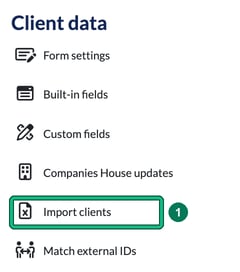
- Go to Settings and, under Client data, select Import clients. This opens Import clients from an Excel file.
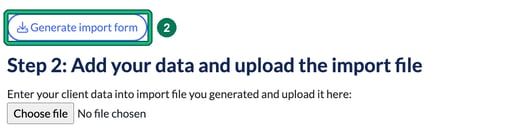
- Under Step 1: Generate your import file, select Generate import form.
- In Import File Creation, set each client type you want to import to include. Every type (Limited Company, Individual or Sole Trader, Partnership, Limited Liability Partnership, Charity and Trust) is set to exclude by default.
- Start selecting which fields are important to you to move over into Engager. Top tip: expand the chevrons to include more data. If you select the chevrons, you’ll see even more detail that will be included in your Excel sheet to import. Fields marked with a red asterisk (*) are mandatory in the import file.
- Select Generate. Your import file downloads straight away.

- Enter your client data into the import file. The file has a sheet for each client type, for example Individual or Sole Trader, and column headers for mandatory fields are written in red, for example First Name and Surname for Individual or Sole Trader. The Status (Active / Archived / Prospect) column has a handy drop-down, and only those three values are accepted. Widen the columns if the headers look cut off.

Then, under Step 2: Add your data and upload the import file, select Choose file and choose your file.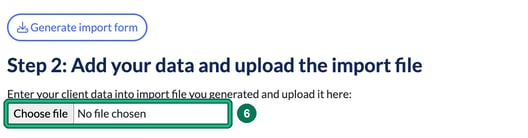
Check and save your import
Engager reads your file as soon as you choose it; there’s no separate upload button.
- Under Step 3: Review data to import, check for the Success notice, which tells you your data is valid. A table for each sheet shows the clients about to be created. Check them over.
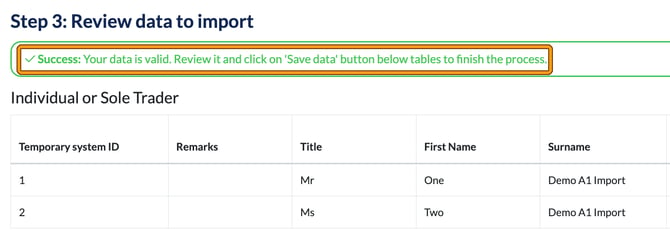
- When you’re happy, select Save data under Step 4: Save data to create the client records. You’ll see Data imported successfully. Select Browse clients to see your new clients in the Clients list.
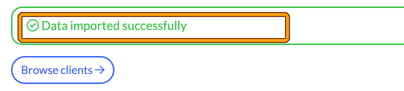
A client imported without any service details has no active services. The import doesn’t add the default services that are switched on automatically when you add a client by hand, so include each service’s status in your file or enable services in bulk, as below.
Please note that we are mirroring your Engager account set-up at this stage, so if you have a vast number of fields, phases and jobs assigned and so on, it’s all going to appear in your import form ready to be updated.
We’ve worked on the import tool so that you can import your clients, the custom fields, the workflows, the service details and deadlines, everything for you to hit the ground running with your new Engager account.
So spend a bit of time with the import tool, as it will save hours overall and make for a much smoother experience.
If you miss any services off the import, don’t worry, you can turn these on with the Bulk Edit tool.
Vital information before importing
- Ensure that the company number is included on the import, otherwise you will need to manually sync your records to Companies House.
Bulk enabling
Realistically for your LTDs, you’re going to be doing Year End, CS01, VAT and Self Assessments, so let’s get these enabled asap.
So, let’s start with the Year End service.
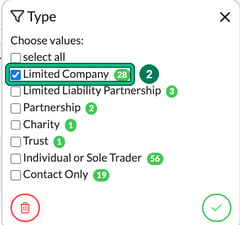
- Go to Clients, select filters and, under Client info, select Type.
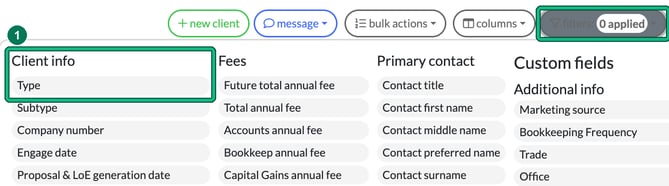
- Tick Limited Company and apply with the tick button. This will filter just your Limited Company clients.
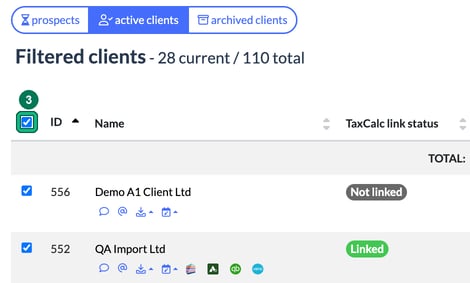
- Select all the filtered clients with the checkbox at the top of the list.
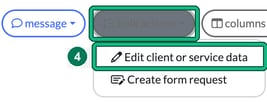
- Select bulk actions > Edit client or service data. This is going to give you access to an endless list of options.
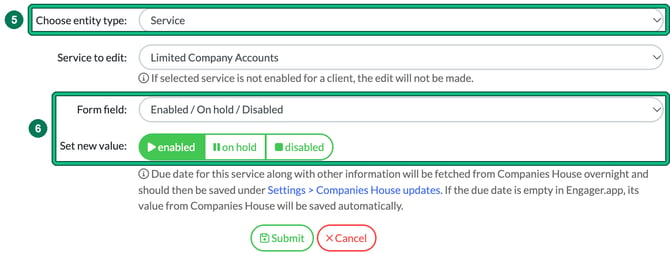
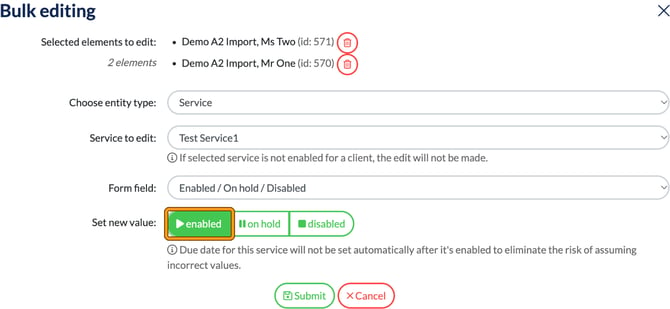
- In Bulk editing, you’ll see your selected clients. Set Choose entity type: to Service, then in Service to edit: select the service in question, so Limited Company Accounts, as we’re enabling the Year End service.
- Set Form field: to Enabled / On hold / Disabled, then set Set new value: to enabled. The note under Service to edit: says the edit will not be made if the service is not enabled for a client, but that doesn’t apply here: switching a service on works for clients who don’t have it yet, including newly imported clients.
- Select Submit. When the progress bar reaches 100%, you’ll see how many edits worked, for example Successful edits: 2 and Failures: 0, with a Success status for each client. You’ve enabled this service for all the selected clients in bulk.
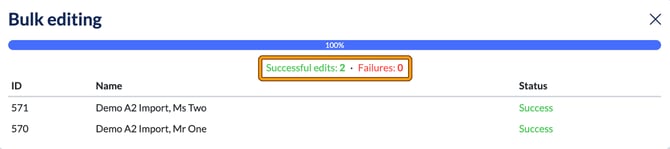
Congrats! You’ve now enabled all your Limited Company accounts with your Year End service.
Set the due dates afterwards
Enabling a service doesn’t set its due date, so the client’s Next due date shows not set until you add one. When you choose enabled, the form may show this note: “Due date for this service will not be set automatically after it’s enabled to eliminate the risk of assuming incorrect values.”
For Limited Company Accounts, the Companies House job runs overnight. The due date for this service, along with other information, is fetched from Companies House overnight and should then be saved under Settings > Companies House updates. If the due date is empty in Engager, its value from Companies House is saved automatically.
Once you’ve enabled your services, check the Next due date on your clients. Where it’s still not set, set it with another bulk edit (choose the same service, then set Form field: to Due date) or on each client, so your jobs appear with the right deadlines.
Bulk enabling VAT
That’s a quick and easy one, but what about VAT Returns? There are lots of differentials at play, like VAT end periods and due dates. Here, I would spend some time segmenting your clients into their VAT periods, then bulk enable the service per quarterly schedule.
For every field other than Enabled / On hold / Disabled, if the selected service is not enabled for a client, the edit will not be made, so enable the service first.
- Enable the VAT service for your clients, as above.
- Back in Bulk editing, with VAT as the service to edit, set Form field: to Frequency and choose default frequency, so the deadline occurs every 3 months. Obviously, if you know they’re yearly, don’t include them in this.
So now you’ve enabled the VAT service for these clients and set them on the quarterly schedule, but what about due dates to populate your deadlines?
Top tip
Be clever with your time, you don’t want to be doing this one by one. This is where you will need to double back on yourself, check your original data set and GROUP your clients by VAT quarter ended.
- From Clients, select your clients that share the same VAT schedule, for example those on Jan / Apr / Jul / Oct.
- Select bulk actions > Edit client or service data, choose Service and VAT, then set Form field: to VAT quarter ended and Set new value: to the requisite schedule, such as Jan/Apr/Jul/Oct.
- Select Submit.
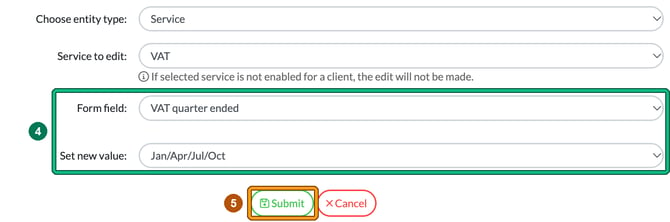
Once submitted, you’ve updated the deadline frequency for this subset of clients that have VAT enabled.
The deadlines and due dates will now start to populate your Engager account.