
Notifications and how to set them up
Notifications will let you know a variety of things to help draw your immediate attention and help you remain on track. We’re strong believers in keeping your email inbox as clear of non-critical updates as possible, so make sure you keep an eye on Notifications and User Mentions.
We’re all used to ‘bell’ icons these days. Sometimes they’re super useful, sometimes they can feel unnecessary and eventually, you ignore them!
So let’s tell Engager what we do and don’t want to be notified about.
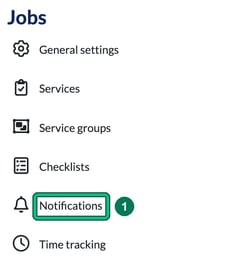
- Go to Settings and, under Jobs, select Notifications.
- First up, how long do we want to keep these Notifications hanging around for? Under Housekeeping, enter a number in Delete notifications older than that works for you. Typically 30 days could be a good amount of time to have them appear before the system removes them.
- Now for the fun bit: WHAT do you want the Notifications to tell you about, and WHOM do you want to notify? Select an event to open it.
Letters of Engagement are signed? Yes absolutely, big win for the company and now let’s fully onboard the client, get that done asap! BUT, does everybody need to know? This is where you can tailor who gets the Notification. We’ll automatically add in the director and manager for ALL Notification events, but you can untick them if you need.
To add a team member, choose them from (choose additional recipient) and select +. To remove someone you’ve added, select the trash icon next to their name.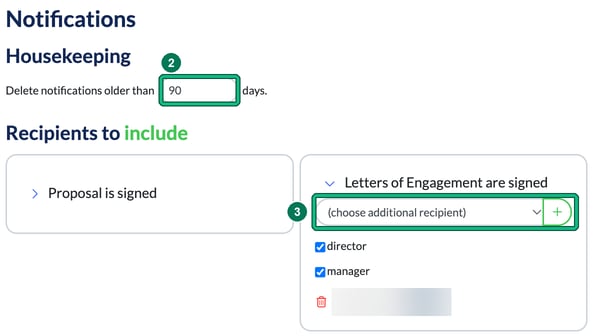
- Select Save at the bottom of the page.
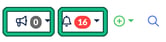
Notifications are typically system based items, so signings, documents sent out or received, or forms received. They are not you or a team member being tagged: that is a User Mention, which sits just next to your Notifications in the top bar. The megaphone shows your mentions and the bell shows your notifications.
User Mentions
Need to chase a member of the team for an update? Stuck with a tricky Self Assessment and need your Tax Expert to review? This is where the power of User Mentions comes into play.
You can mention a User either by Services or Tasks.
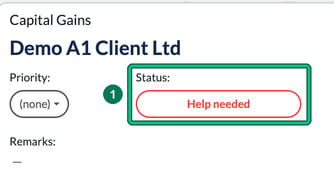
In this example, I’ve been working through a job and I’m stumped.
- Open the job and set the Status to Help needed, so I know where I am with the work.
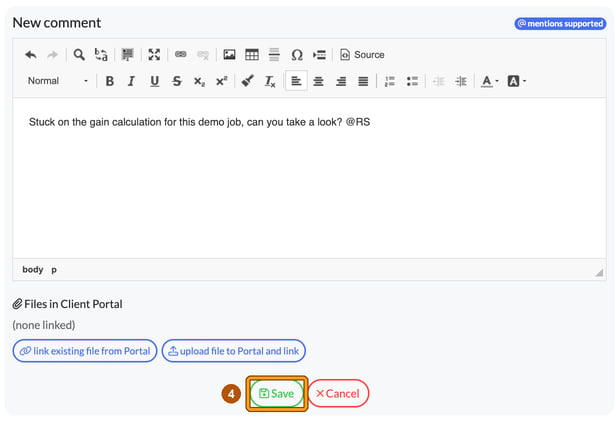
- Scroll down to Comments, select + new comment and enter the issue.

- Type @ and choose the relevant team member from the list. In this case, the Boss.

- Select Save. The comment shows who you’ve mentioned under Mentions.
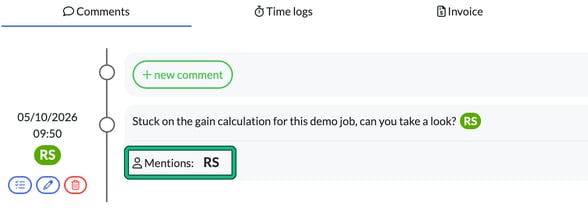
This will immediately flag to the Boss that I need help to move on.
The Boss will now have a red count on the megaphone in their top bar. Open it to see their mentions: a NEW mention has a blue dot.
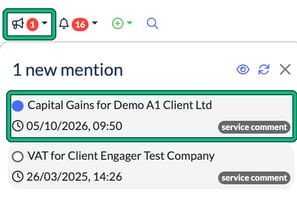
When the Boss selects the mention, it will take them directly to the item required for them to act accordingly. If they need to come back to that Mention, they can select its circle to mark it as new again, and action it later on.
Custom fields
Custom fields let you extend the client form with your own fields. Numeric and choice fields can also be used in Pricing Assistant formulas for your services.
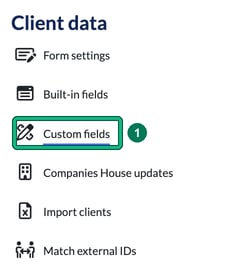
- Go to Settings and, under Client data, select Custom fields.
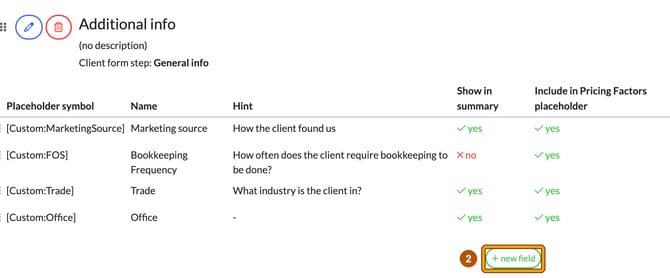
- Fields are grouped into sections, and each section shows the Client form step it appears on. Select + new field at the foot of the section you want. This opens Add field.
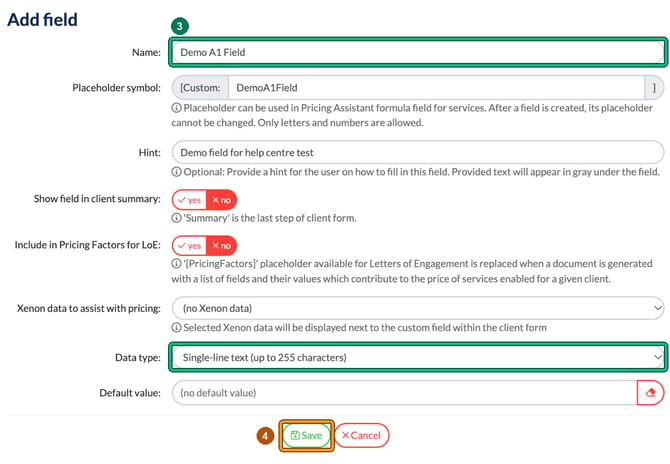
- Enter a Name. The Placeholder symbol fills itself in from the name, and it can’t be changed once the field is created. Add a Hint if you like (it shows in grey under the field) and choose the Data type.
- Select Save.
The new field now shows on the client form step its section is linked to, with your hint underneath.

Take care when deleting a custom field: all the client data held in that field is deleted with it.
For the full list of data types and more on using fields in pricing, see Using Custom Fields.
Forms
Forms let you collect information from your clients. Clients fill them out in the Client Portal, and only when you request a published form from them.
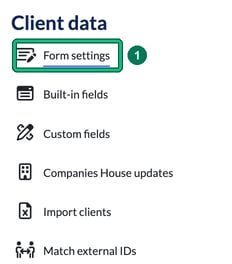
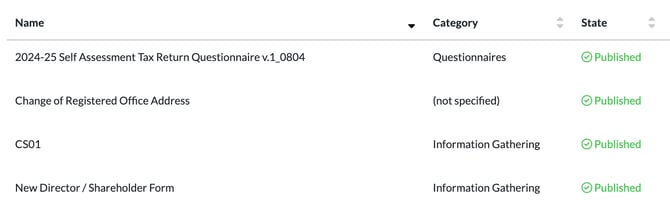
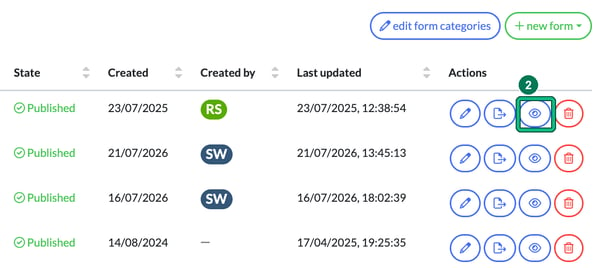
- Go to Settings and, under Client data, select Form settings. You’ll see each form with its category and whether it’s Published or Draft. Only published forms can be requested.
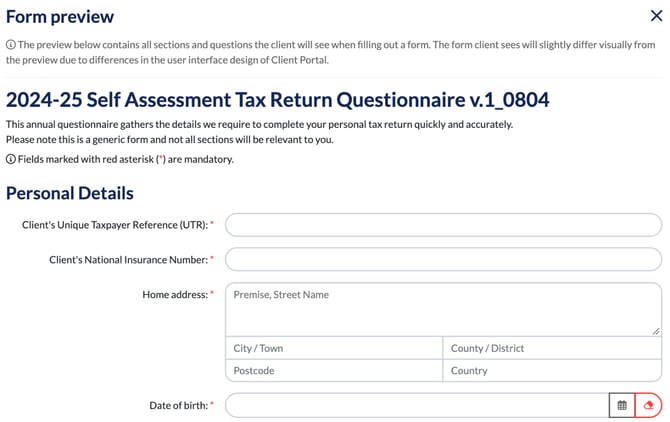
- Select the eye icon (preview form) to see every section and question the client will see. To build your own form, select + new form and choose new from scratch, new from existing form or import from file.
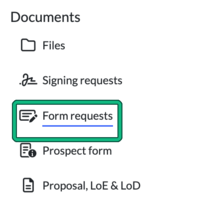
- To request a form, open the client and, under Documents, select Form requests, then + new request.
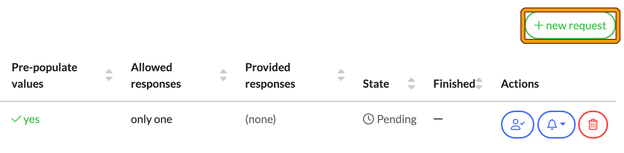
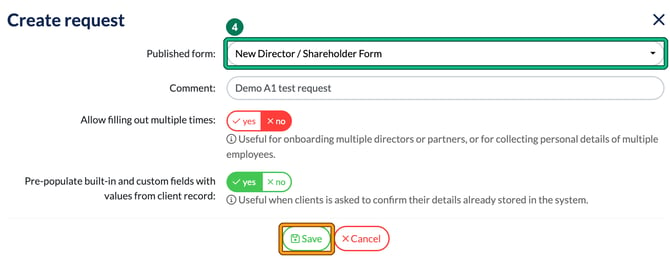
- Choose the Published form, add a Comment if you like, and choose whether to Allow filling out multiple times and Pre-populate built-in and custom fields with values from client record. Select Save.
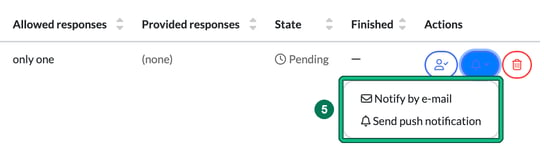
- Saving the request doesn’t tell the client. To let them know, select the bell icon (notify client) in the request’s Actions and choose Notify by e-mail or Send push notification.
Client finishes and submits a form request is one of the Notifications events above, so you can choose who hears about it.
To send a form to many clients at once, and for more on building forms, see How To Use Forms.