
What is a service and how does it affect my Dashboard
A service is anything from looking after a firm’s Year End accounts to registering somebody for VAT; it’s a service that you provide to your client throughout as part of your service. Some of these services will be on your Letters of Engagement, others can be an internal service and so you can keep these off of your engagement letters and use these to populate deadlines instead.
When starting out, we recommend picking 3 or 4 of your most commonly used services and getting to know the system defaults and behaviours. Get comfortable and set your defaults, change what you need to and you’ll get a feel for how it pieces together.
Set up your first service
This example uses Limited Company Accounts: what you’d charge for a standard YE set of accounts, when you want them done by, and who does the work.
- Go to Settings and, under Jobs, select Services.
- Find Limited Company Accounts in the list and select the pencil icon in the Actions column. This opens Edit service, with all the items that can be edited.

- Scroll down to Pricing formula for the default fee period and enter your firm’s standard price in Set the base fee to.

There’s a number of ways in which you can tailor your pricing to be in line with your firm's practices. This is explored in great detail in Pricing Deep Dive. For now, we’re keeping things simple so you get comfortable with the system and how it behaves. These are your defaults and will populate the relevant services throughout the system. - Set an internal deadline. When do you want to get these accounts filed by? We never want to be working until the 11th hour on a deadline day, and we’d always recommend getting your services squared away well ahead of any statutory deadline. Below Default frequency, set Automatic internal deadline to enabled and enter how long before the statutory deadline you want the work done. For example, to get everything completed 4 months ahead of the filing due date, enter 4 in months. This will create Deadlines on your Dashboard.
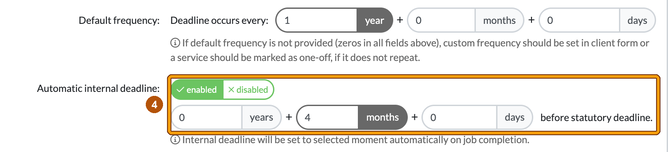
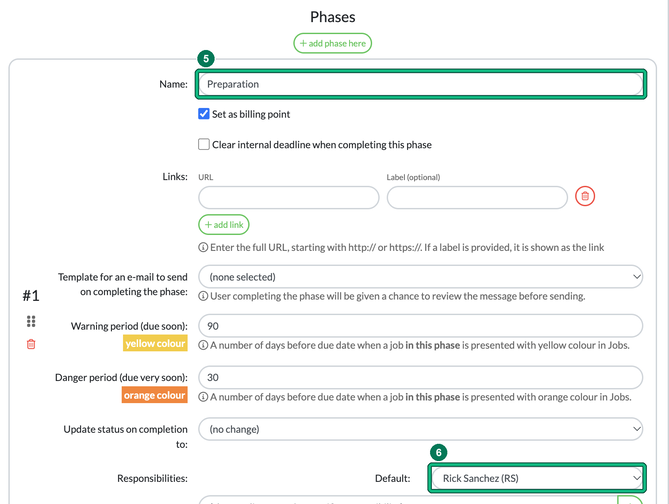
The Engager software will always use dates taken from Companies House for your statutory deadlines, so you won’t need to set these per client. - Under Phases, name each phase of your workflow, and use add phase here to add more. The defaults will be relatively basic, so preparation then filing. In your firm, you’re likely to have ‘send request for records’, ‘YE Production’, ‘YE review’, ‘Send for review’ and so on. Everybody’s workflow is going to be different and completed by different team members, so tell the system. You can be as detailed or as straightforward here as needed.
- For each phase, choose who carries it out under Responsibilities. If a phase should email the client when it is completed, choose a Template for an e-mail to send on completing the phase.
- Select Save at the bottom of Edit service.
So you’ve now created your basic defaults for your first service, pricing, internal deadlines and part of your workflow. Now you have the basic knowledge to go and build out a few more of your essential services.
Use your Dashboard
A dashboard gives you and your staff a clear view of your tasks, appointments and upcoming deadlines. This is all about having an overview of your services and work so that you can make informed decisions as to what you need to complete as priority.
- Rearrange your widgets by clicking and dragging them while holding down the left mouse button.
- Select a widget to go directly to the work behind it. For example, the Proposal & LoE widget shows how many Letters of Engagement are unsigned. Select the unsigned LoE count to open the list and take action to get your prospective customers on board.
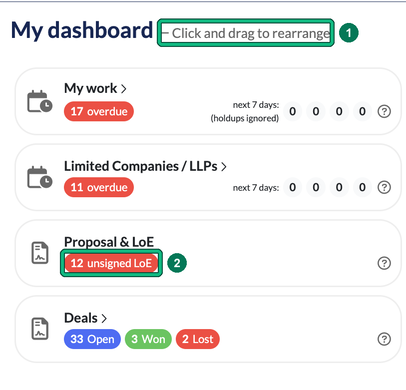
If your Dashboard shows red overdue counts, there are items that need immediate attention. It could be genuine issues that have meant you haven’t filed Limited Company accounts, or realistically, perhaps it’s a job card that hasn’t been marked as Completed, meaning it will remain as overdue. Either way, it’s a great way to stay on top of your company services and deadlines with a bit of internal housekeeping.