
Integrate Engager with your favourite apps for a seamless workflow. Discover how to connect with other tools, set up each client for success, and manage data in bulk.
Integrations
You'll find all of these under Settings > Integrations. The Integrations card also lists TaxCalc, Adfin, Companies House, HMRC, FreeAgent and Xenon Connect.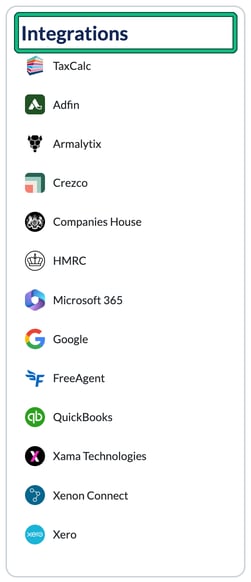
QuickBooks / Xero: link Engager with the bookkeeping platform you use within your own practice in order to sync client and contact details, as well as pull invoice information into Engager.
Xero charges third parties to use its API, so the Xero integration carries a small bolt-on fee. You'll see the details on the Xero page in Settings > Integrations.
Xama Technologies: we link with a best-in-class AML software to allow you to perform digital AML checks and AML onboarding within just a few clicks.
Crezco: generate payment request links and monitor the status of them all within Engager.
Armalytix: thanks to this integration, requesting bank statements for a specific period in PDF format has never been easier.
Google / Microsoft 365: link your choice of email provider in order to completely synchronise all inbound and outbound email. You can even link email directly to client profiles and tasks. This allows all staff in your practice to see useful information in the right places. For more information on how to do this, see How to integrate and manage your emails in Engager, for Gmail and Microsoft365 / Outlook (M365).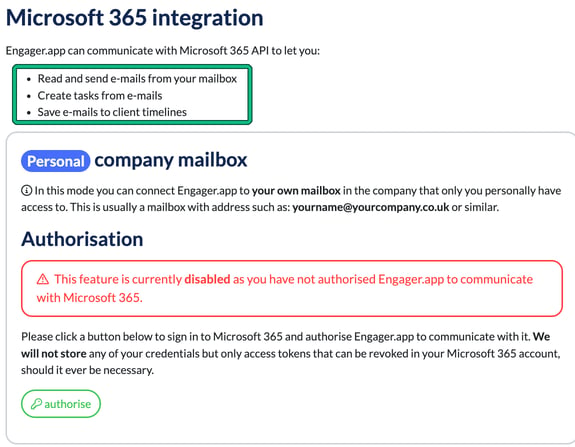
Set up your clients
Now it's time to set up each client. You can do this one by one, by navigating to a client profile and then going through each individual step. Alternatively, you can use bulk actions on the Clients list, which would speed the process up significantly.
Bulk edit client information and services: Bulk Editing Clients
That's it, now you have all of the resources we think you'll need to get set up and started with Engager.