
When you’re getting set up in Engager, we highly recommend adding your departments and staff into the system. You may want to restrict access to certain things and so we’ve provided you with features to change all personnel permissions.
Prefer to watch a video tutorial?
Before we start to tailor permissions per staff member, let’s create a Department - please note you don’t have to do this, especially if it’s perhaps yourself and one other in the company. Departments are a great way to track time and cost - so as an example, you could have a department for ‘Outsourcing / Sub-Contractors’
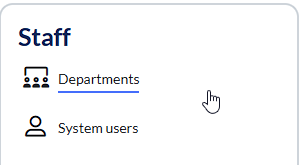
Let’s head to Settings - Staff - Departments
Name your Department
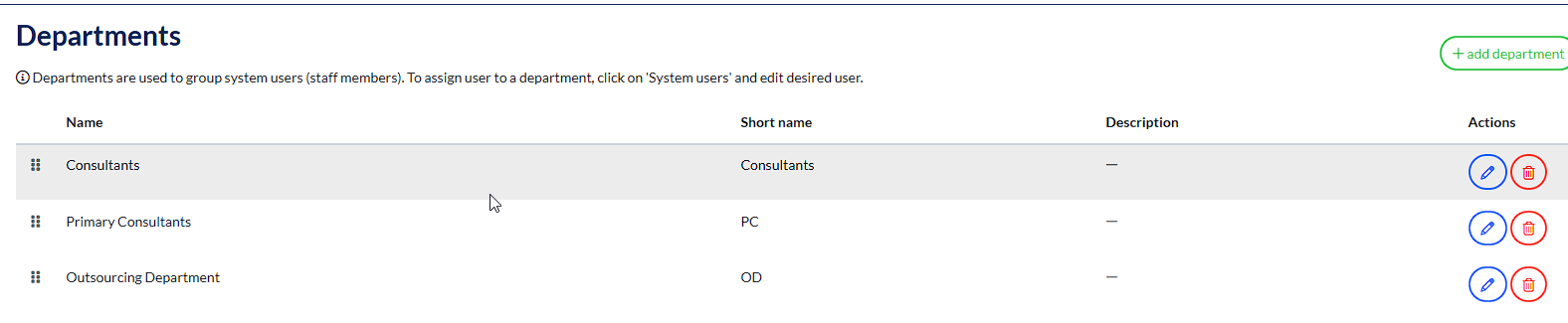
Now we’ve created our Outsourcing Department, let’s add our staff members. Settings - Staff - System Users - Add New User

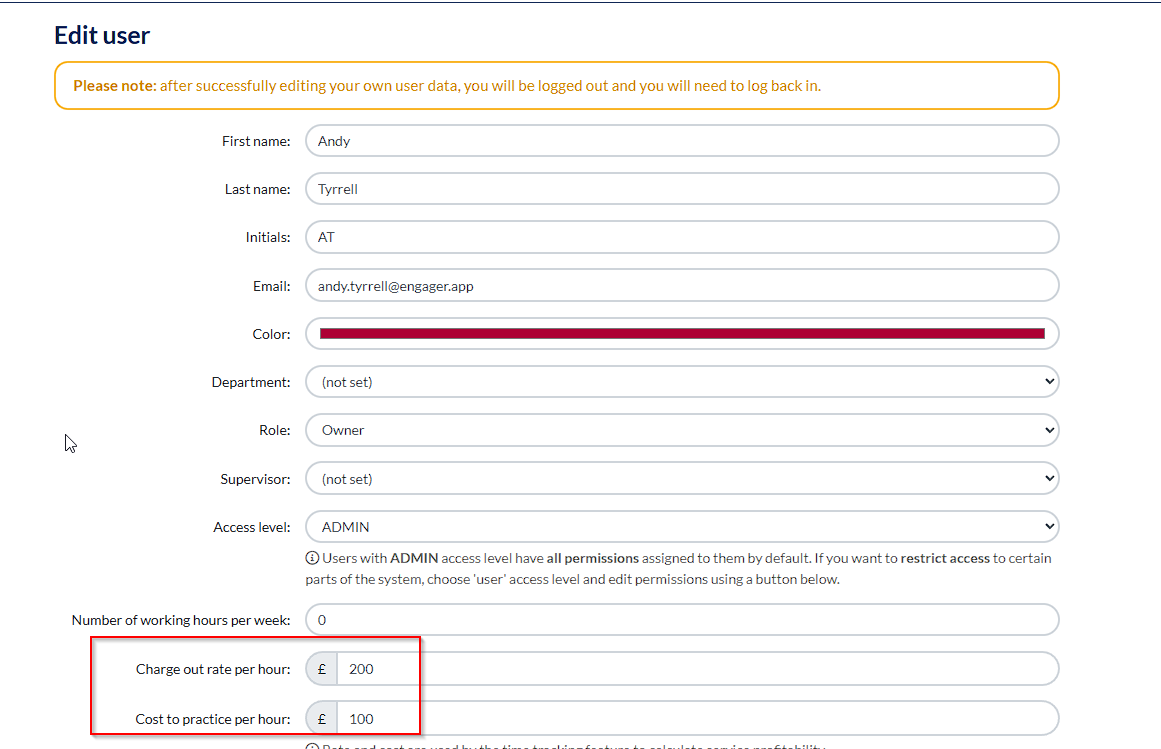
Then you can enter your essential details about the staff member, assign to your new department and even enter their cost to your business vs charge out rate - this comes into effect for those using Time Tracking in the system
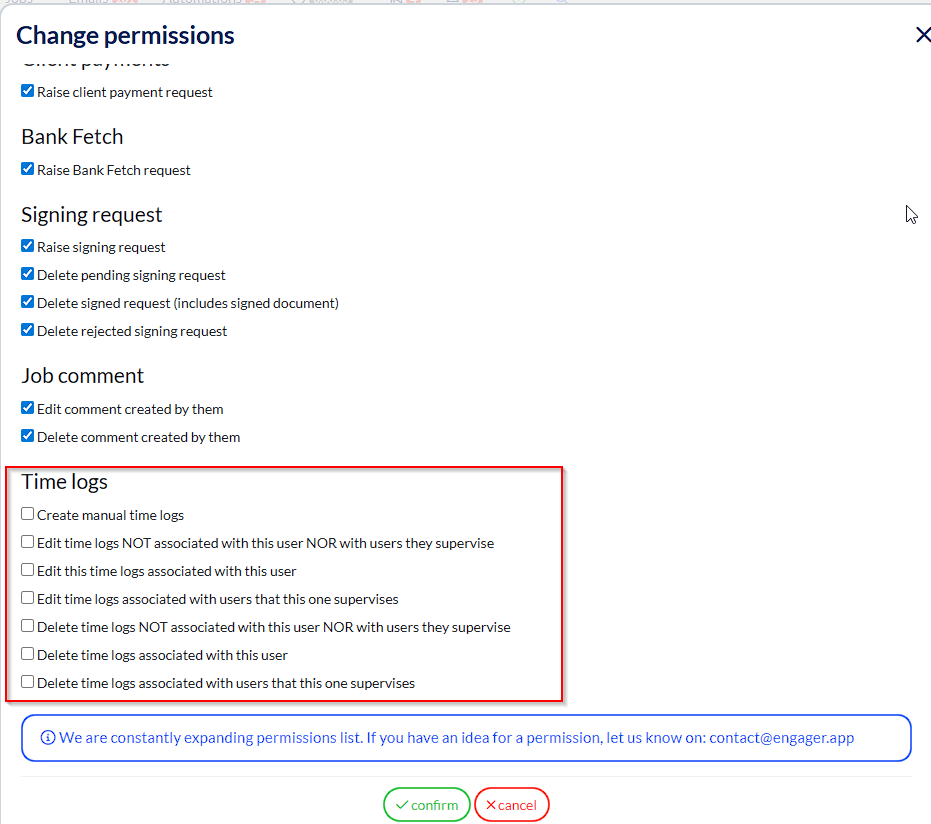
Here we want to focus on Permissions - let’s tell Engager what the staff member can and can’t do. We’ve built an extensive list for you here so have a read through and mark off what you do and don’t want them to do / see
In our example, we’ve got a new Outsourcing Team - I do not want them to be able to ‘delete’ a client, so let’s get that removed as an option right away - simply untick the relevant boxes as you go through.
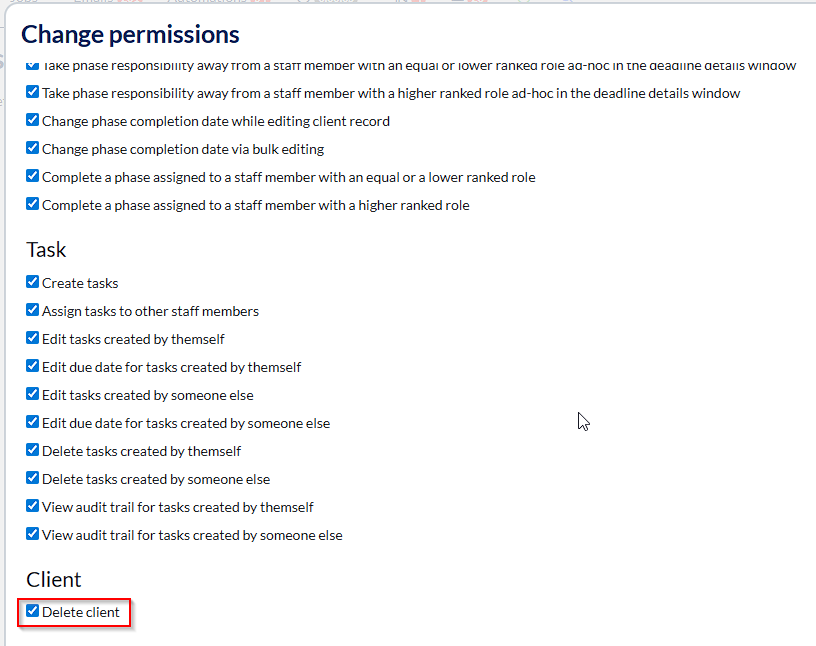
They’re a new department to my practice and so I’d prefer it that the Outsourcing Team not interfere with my time tracking of them / their department, so I’ve removed these permissions below
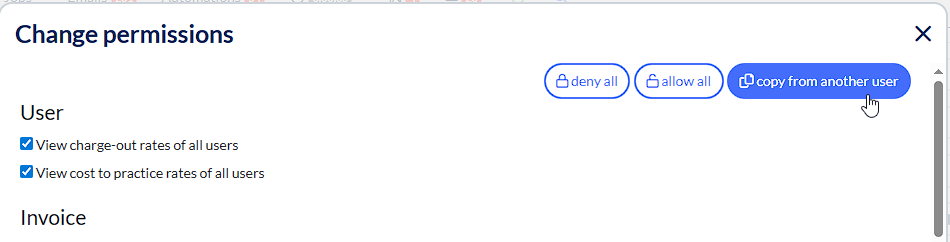
Once you’ve done this for 1 member of the Outsourcing Team, you can duplicate these settings for the next team member, so that you don’t have to go through them again.
In the top right-hand corner of the screen, once you’ve selected ‘add new user you can select ‘copy from another user’

Once you're then happy that the settings are correct, you need to Invite your team member.
Inviting Staff / New Users to Engager
Now that you're happy the settings and permissions are ok, you now need to invite them.
You do this via the Blue 'change password' option
You can set their email for them or you can send them an invite link which expires after 3 days so decide which is going to be more efficient here.
Comments
0 comments
Please sign in to leave a comment.