
One of the most powerful tools within Engager is our client approval process. No more attaching bulky PDFs or workings to an email and worrying about file size limits, no more potential issues with emails being insecure or being diverted to junk
We’ve developed our system to be super secure and convenient for you to send documents and also, for your client to view and approve documents securely and all within one place.
Any document can have a Signing Request so let’s get started.
In this example, we’re going to send a VAT Return for approval
Uploading Documents to the Client Portal
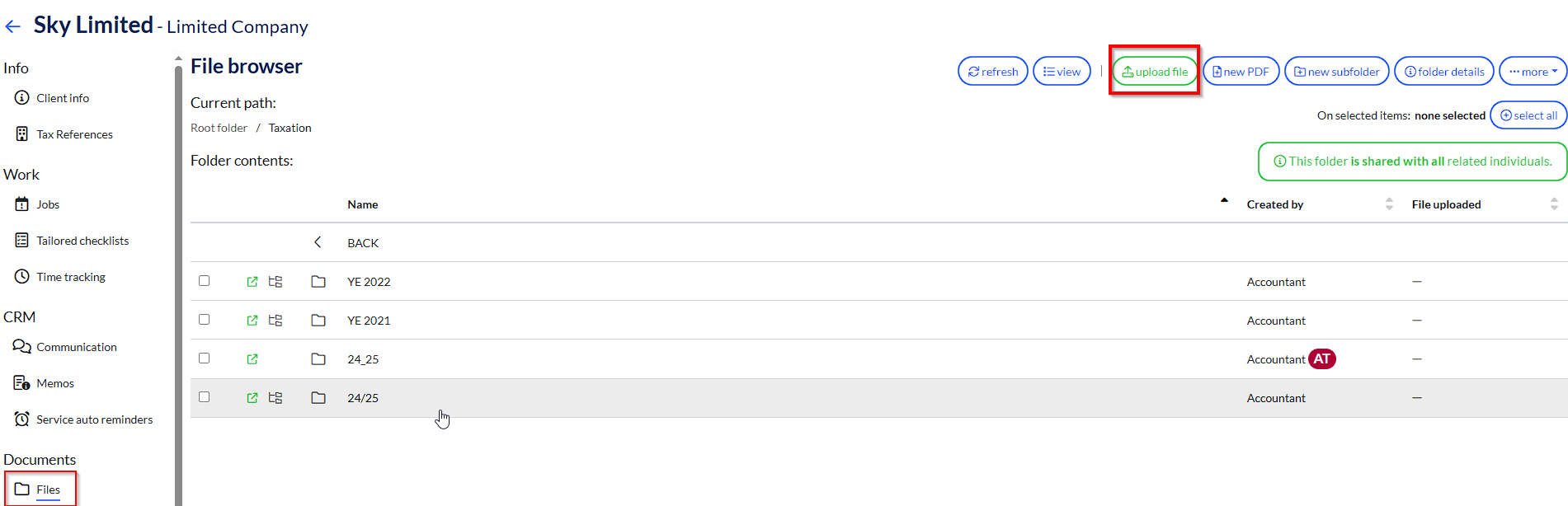
Head on over to your client, Documents - Files - select relevant file - Upload file
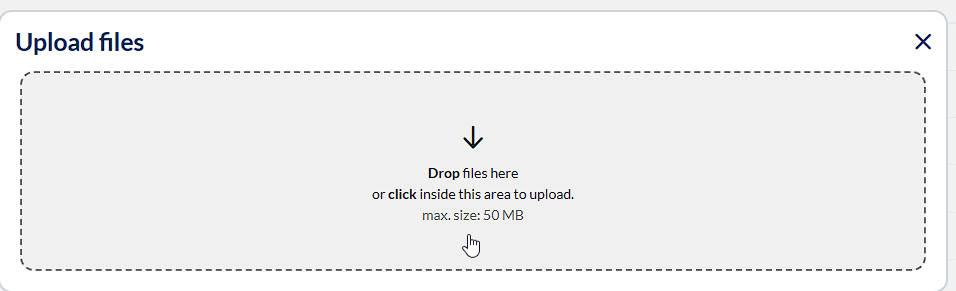
Either drag and drop, or select inside the box to locate and upload the document - If you spot that the file isn’t named to your liking, there could be too many digits after the document name which can happen, we’ve built a handy ‘rename’ tool
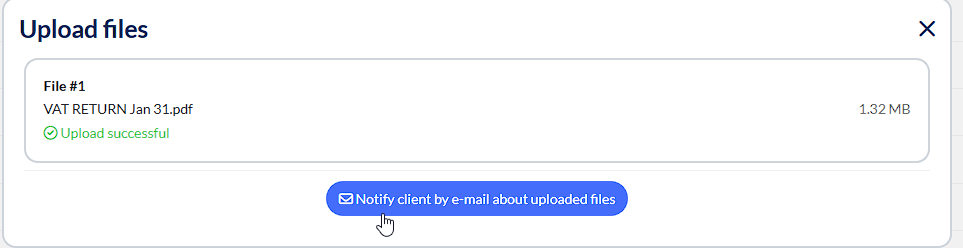
We want the client to be able to review and approve their VAT return, so select ‘notify client’ in blue
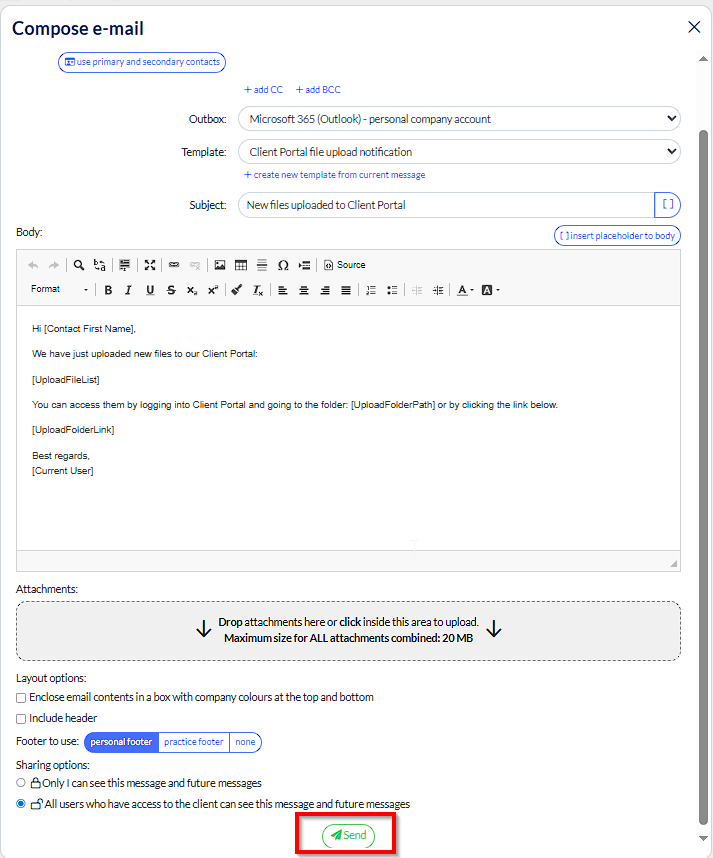
You can tailor your email just before sending
Now to actually request the e-signing of the document, you'll now need to select the select the document for the e-signing request to appear
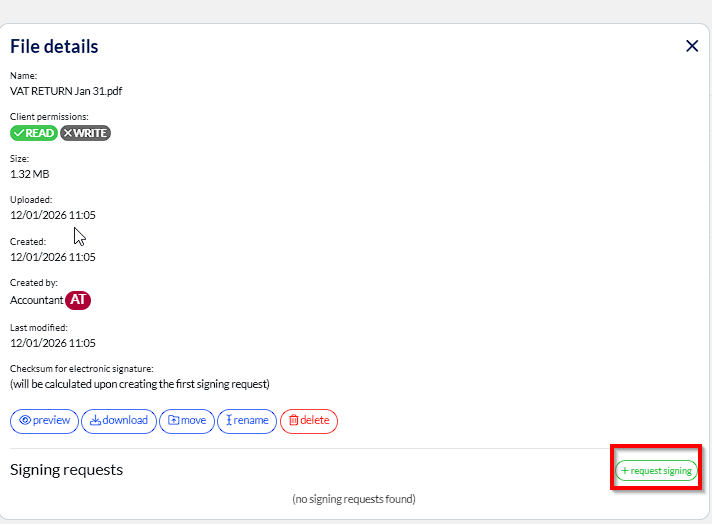
Now that the document has been sent for signing, you can preview the document if needed
If you want to track or reminder clients to sign their documents, head down to the Signings Request
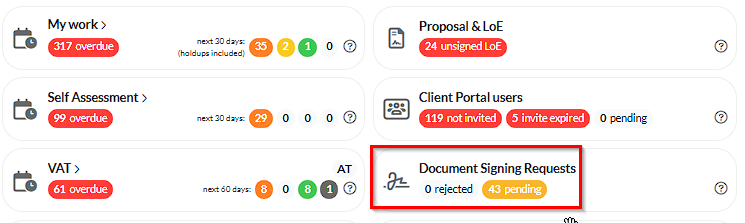
Select 'pending' then you'll see the status of your requests
To resend, you will need to select the document in question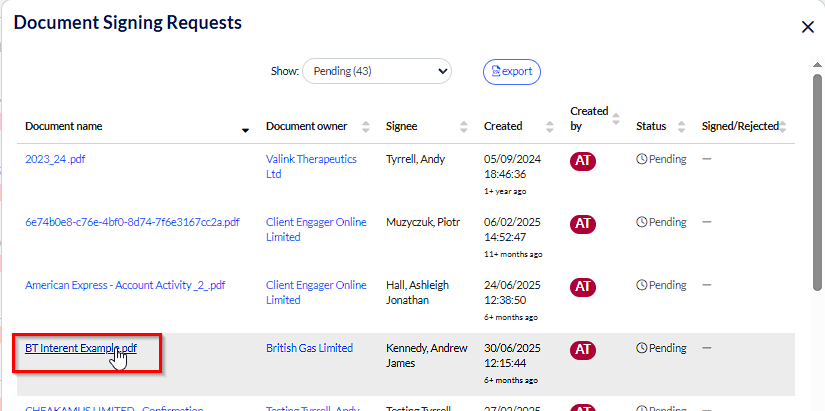
Then, rather handily, you'll see a button to send a reminder in the bottom right of the screen. Look for the email symbol to send the reminder.
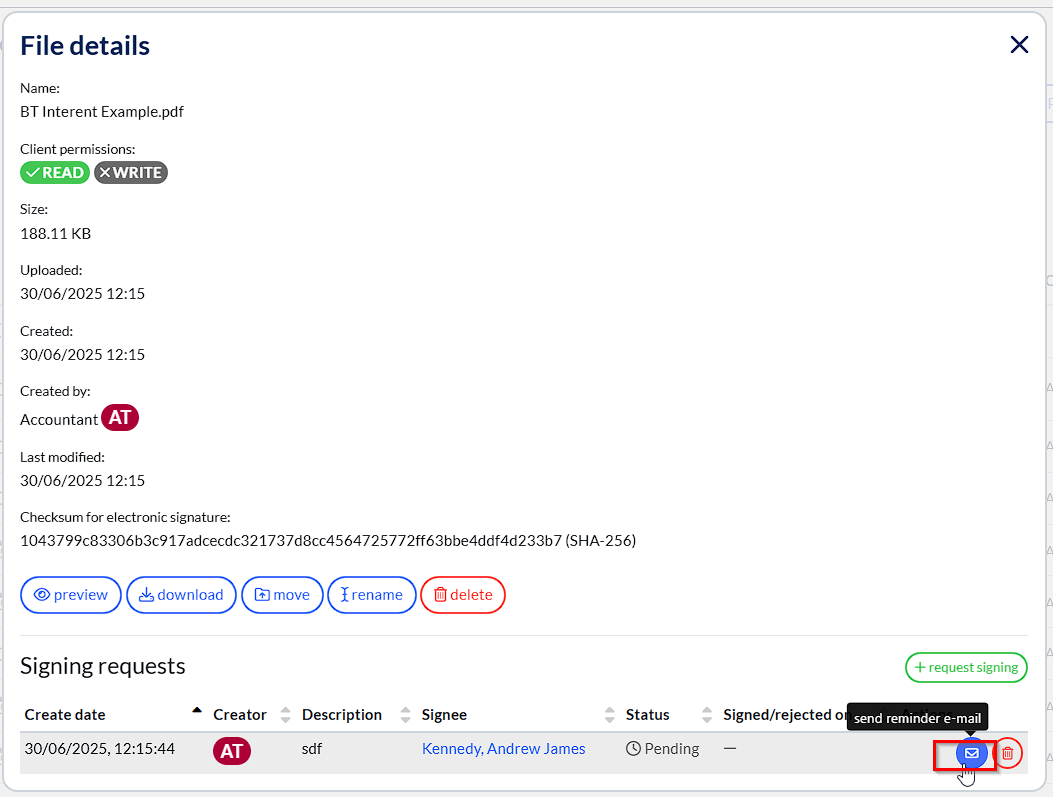
This will then send a fresh email reminder to your client
Comments
0 comments
Please sign in to leave a comment.