
Here we look at how you enable 2FA or two-factor authentication to increase security of your login.
Each user sets up 2FA for their own account. An admin can't turn it on for someone else, so ask each member of your team to follow these steps themselves.
Enabling 2FA for system users
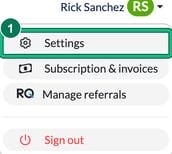
- Select your name at the top right, then select Settings.
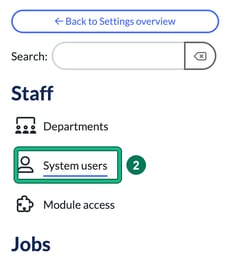
- Under Staff, select System users. The 2FA column shows whether 2FA is turned on for each user. A red cross means it's off.
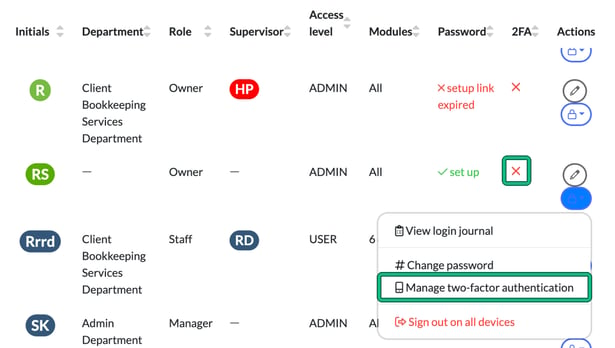
- Find your own row in the list: it has a small me badge under your name. In the Actions column of your row, select the padlock button, then select Manage two-factor authentication.
In Two-Factor Authentication, Current state: shows disabled. Select Click to enable.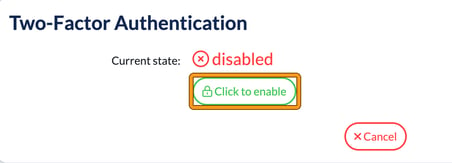
- If you don't have one already, download an authenticator app such as Google Authenticator or Microsoft Authenticator on your smartphone. Both are available from the Google Play Store for Android and the App Store for iOS.
- Under Steps to enable 2FA, scan the QR code with your authenticator app. This links your Engager account to the app.
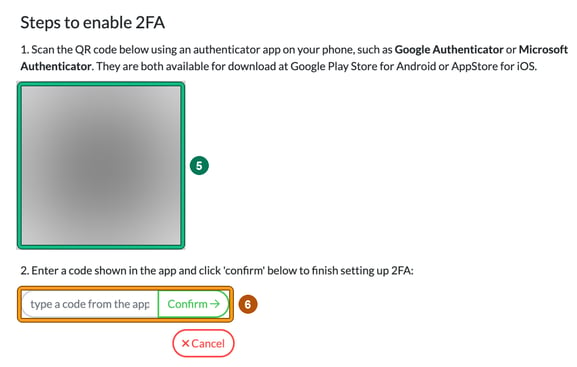
- Enter a code shown in the app into the box, then select Confirm to finish setting up 2FA. If the code isn't accepted, enter the latest code from the app and try again.
2FA for your clients
Clients can turn on 2FA for their Client Portal login: in the portal, they open the gear menu at the top right and select Set up Two-Factor Authentication.
Turning 2FA off
It is highly recommended to keep 2FA enabled at all times to ensure the highest level of security.
If needed, you can turn it off from the same place: on your row in System users, select the padlock button, then Manage two-factor authentication, then Click to disable. You'll be asked to confirm before 2FA is turned off.