
Forms are precise. People, not always! When clients run into trouble submitting a form, it’s usually due to a small mistake.
Common causes of form errors
Most issues come down to user error, like:
- Missing mandatory fields
- Typos or odd characters (e.g. #!)
- Leaving sections blank that aren’t clearly marked as optional
Even something as simple as forgetting a full stop can throw things off.
A simple fix: use ‘N/A’
To make things smoother for your clients, we recommend including a quick note in the email that goes out with your form. Suggest they enter ‘N/A’ for anything that doesn’t apply to them.
This small step can prevent a lot of frustration and ensure the form is submitted successfully every time.
How to add this tip to your form email
If you’d like to include this helpful hint:
- Click your name (top right), select Settings, then on the Communication card select Message templates.
- Find the template called Form request (its category is Forms). Typing “Form request” in Name filter finds it quickly.
- Click the blue edit (pencil) icon in the Actions column. This opens Edit template.
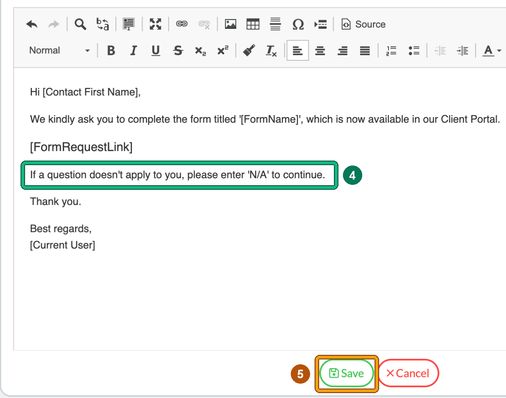
- Add your ‘N/A’ message, e.g. “If a question doesn’t apply to you, please enter ‘N/A’ to continue.”
- Click Save.
The same filter also finds Form request - answers amendment, the email sent when you ask a client to amend their answers.