There are times when you need to re-allocate the workload across the team. Perhaps somebody's off sick or on holiday, or perhaps they leave the company altogether, after resigning.
You're going to want to move the work out of their name and into another member of the team. Simply removing them from the Engager platform won't perform miracles. You'll need to follow these steps to ensure that everything is moved across correctly.
Scenario 1: Team member no longer with the company
Step 1: Remove them as the default phase owner, to prevent future events and assigning of phases.
Review your settings per service provided. You're going to go through each service that member of the team was associated with.
- Head to Settings > Jobs > Services and locate the service. Select the pencil icon in the Actions column on the right-hand side. This opens Edit service.
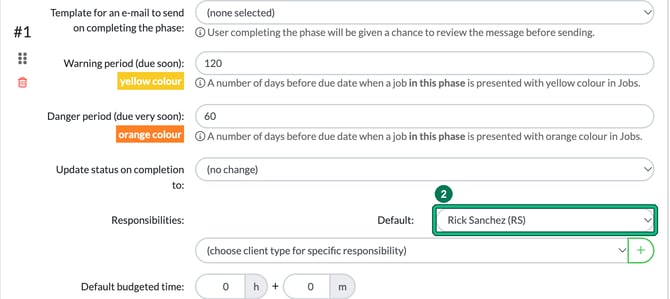
- Scroll down to the phases section and check Responsibilities: Default:. If that staff member appears, move it to a different member of the team. Work through each phase until you're happy that they're all moved over.
Step 2: Bulk updating of existing work
Anything that is currently assigned can be moved in bulk, service by service. Unfortunately there's not a way to migrate everything assigned to one other individual. That sounds like a negative, but it's unlikely that it'll be a straight swap across all services from leaving employee to new or existing employee.
- Head to Clients, select all the clients (tick the header checkbox), then select bulk actions and Edit client or service data. This opens Bulk editing.

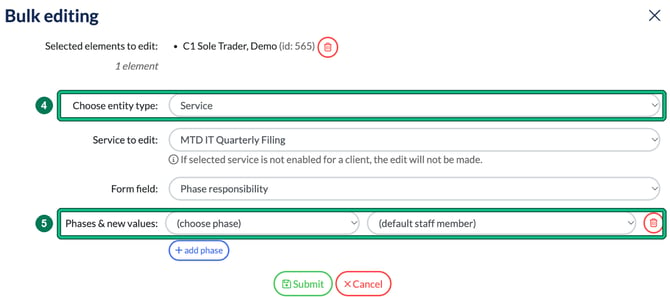
- In Choose entity type:, select Service.
- Choose the service in Service to edit: and set Form field: to Phase responsibility. Then, under Phases & new values:, choose the phase and the new staff member. To change more than one phase of the service in one go, select + add phase for each extra phase. When you're ready, select Submit. If the selected service isn't enabled for a client, the edit won't be made for that client.
You will need to go through each service and phase that the employee was working on.
If you feel that your employee didn't have that much assigned to them, it may be quicker to do this manually, see below.
Scenario 2: Staff member off sick or on annual leave
Manual re-assignment
This is a judgement call, as you could ask your team to pick up their work simply by filtering the jobs in their name and asking them to manage it that way.
If you'd prefer to reassign, then follow the steps below:
- Go to the Jobs menu and, under Shortcuts:, select All work (reset all filters). Then filter to the employee using the Filters options on the left-hand side. It would be advisable to set a crazy Deadline before or equal to, so that it picks up EVERY item.

- Enter the job card by selecting the white space in the card, or the initials.
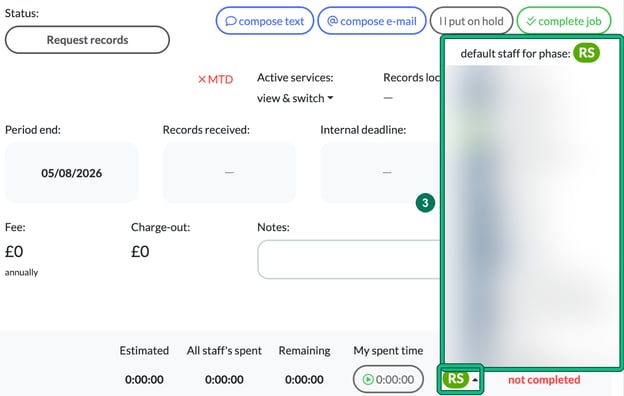
- Then in the Phases, select the initials of the employee, then select the appropriate team member from the list.
Final step for leavers
Sign the employee out of all devices and archive them.
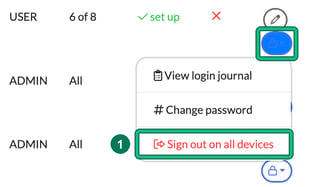
- Head to Settings > Staff > System users. In the Actions column on the right-hand side, select the security (lock) button next to the employee, then select Sign out on all devices.
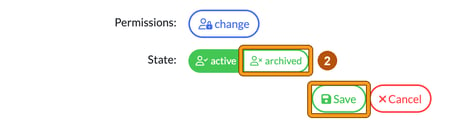
- Then you'll want to edit the user: select the pencil icon in the Actions column to open Edit user. Change the State: to archived, not active, then select Save. Please note that you cannot delete users, you can only archive them.