
With all of the online accounts, subscriptions and platforms we all have these days you should follow a few key steps to keep these all secure.
With the ever increasing sophistication of Cyber crime, from hacking, phishing and spoofing, your accounts are more vulnerable than previously.
Taking the right steps and regularly, will help prevent any issues later down the line. You’re also protecting against any data protection issues and issues with your clients.
Password Resets
Sounds simple, but we’d recommend changing your password every 6 months, and keeping this unique from your regular Gmail / Outlook passwords. Keep it unique for Engager.
It’s very easy to generate a random password online and we’d recommend this over something more traditional.
How to Reset Your Password
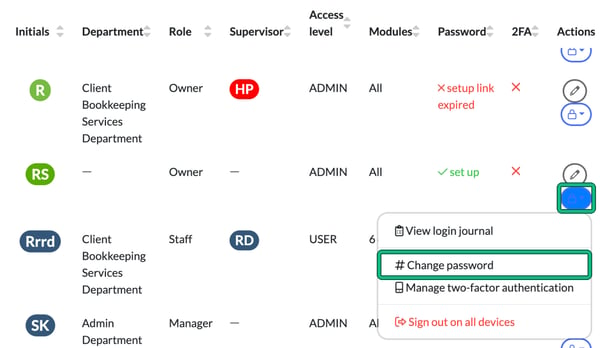
- Head to Settings and then on the left hand side, under Staff, select System users. Find YOU: your own row has a small me badge under your name.
- On the right hand side, in the Actions column of your row, select the padlock button, then select # Change password.
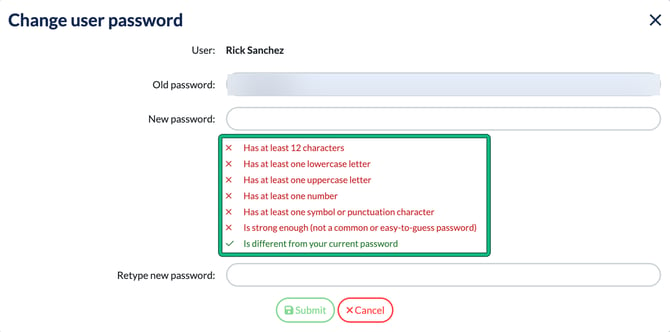
- In Change user password, enter your Old password:, then your New password: and Retype new password:, and select Submit. As you type, Engager checks the new password against its rules. It must:
- have at least 12 characters
- have at least one lowercase letter
- have at least one uppercase letter
- have at least one number
- have at least one symbol or punctuation character
- be strong enough (not a common or easy-to-guess password)
- be different from your current password.
As you can see from the 2FA column in the list of staff here, nobody has turned on 2 Factor Authentication. Tsk tsk, we thoroughly recommend this. Oh hello segway…
2 Factor Authentication
Two-factor authentication (2FA) adds a six-digit code from an authenticator app on your phone to your login, for both system users and clients. You turn it on from the same padlock menu: select Manage two-factor authentication, then Click to enable.
For the full steps, and the video, see Turning on two factor authentication (2FA).