We recommend storing a client's tax account and software logins in the built-in Tax Account Credentials and Software credentials fields in the client's Tax References. You can also use memos for client-specific logins, and quick notes on your own Dashboard for your practice's login details.
With Engager, you may find that you need to store your credentials, passwords and logins.
Tax Account Credentials and Software credentials
Open the client and select Tax References in the left-hand menu (under Info).
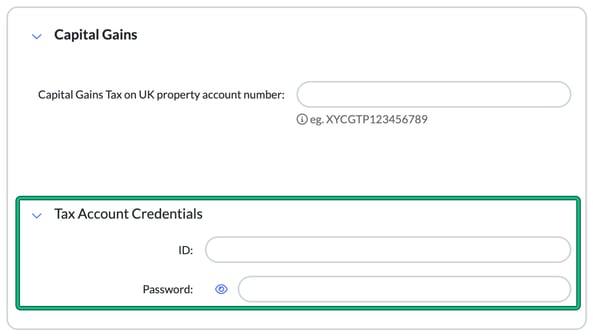
- Tax Account Credentials: inside the card for a tax service (for example Capital Gains) there's a Tax Account Credentials section with ID: and Password: fields. The eye icon shows or hides the password.
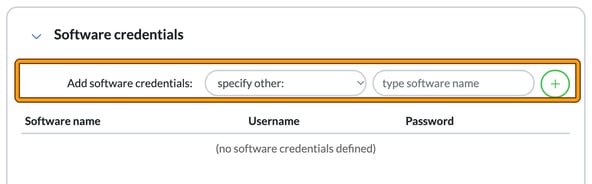
- Software credentials: in this card, use Add software credentials: to choose a software name from the list (or specify other: and type the name), then select +. Each entry is listed with its Software name, Username and Password.
Select Save all on Tax References to keep your changes.
Use a memo for client-specific logins
As an alternative to the Tax References fields, you can use a memo for client-specific logins.
- Locate the client in question and select Memos in the left-hand menu (under CRM).
- On the top right-hand side, select + new memo. This opens New memo, with Title: and Contents:.
- Select Save.
Use a quick note for your practice's login details
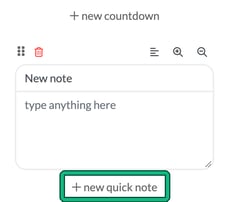
For your practice's own login details, you can add a note to your Dashboard. Quick notes sit on your own Dashboard, in the right-hand column under the countdowns.
You can create any number of notes on your Dashboard, simply by selecting + new quick note. Each one adds a New note card where you can type anything.