
No doubt we all have our own way of keeping track of items that we must get done at some point. We’ve tried everything from post-it notes, random scribblings on note pads with a big square ready to tick off at some point, the latest cloud-based tool, and they can still get missed or neglected as your day progresses and you get swept up in the working week.
As accountants, we’re all very methodical. We love prompts and reminders: anything that gives us that sense of control over a job that must be done.
This is where Tasks come in. You can begin to move on from note pads on your desk, post-its, forwarding & snoozing emails and hoping that they get actioned.
Create Tasks in the system so that they appear in Engager and must be completed like any other statutory deadline.
Tasks are there to be your To Do List and Reminder system and they don’t just have to link to a client or a piece of work. Check out some of our examples below of how Tasks can help improve your practice and also help with stress levels!
Examples
Check RTI submissions every Friday before leaving, and try to correct any that failed on the Government Gateway. You set this to be a weekly task and High Priority. If you have a Payroll Manager, assign it to them directly, or if it’s a team, you can select multiple team members!
Workforce Planning: Monday morning for all managers. In this example, we’ve created a weekly task for our managers to check the upcoming week for any staff holiday / absence and bottlenecks: anything that could derail a working week or month ahead.
Remember, Tasks can act as your reminder or to do list; it doesn’t need to link to a client in Engager.
Sound good? Let’s get these set up.
How to create a task
- Head over to Jobs in your top bar.

- Once in Jobs, select + create task on the right-hand side of the toolbar.

- In Create single or multiple tasks, start entering information about the task / reminder: Name:, Client: (optional), Staff:, Deadline:, Priority:, Fee:, Budgeted time: and Details:. To use it as a recurring task on any schedule you can think of, tick Repeat every: and enter the years, months and days. With the Details: box, why not include some bullet points or number your steps for others to follow. When the fields are complete to your liking, select Save.
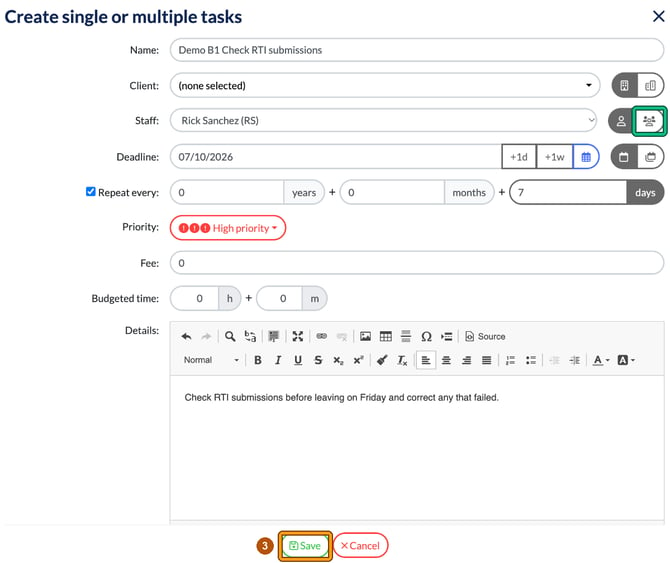
To create the same task for multiple staff members, select the multiple person icon on the right of Staff:. Choose each team member in Select another: and select + add.
- Once saved, the task appears in Jobs and on the dashboard for each person to complete.
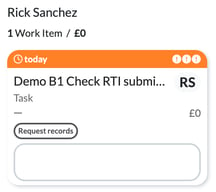
Select the card to open the task. Leave your notes in Notes (they save when you leave the box), track time spent on the job with the timer, and when ready simply select complete.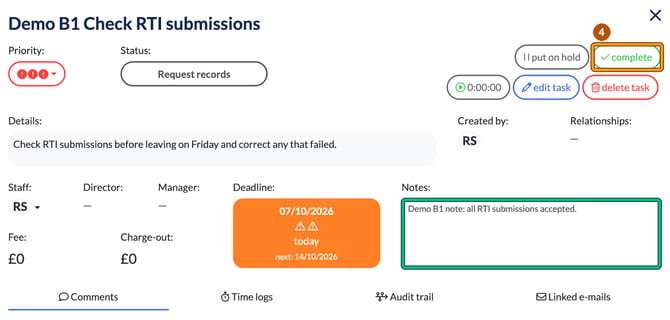
Once a task is completed, its card shows Completed today. If the task repeats, the next one is created straight away.
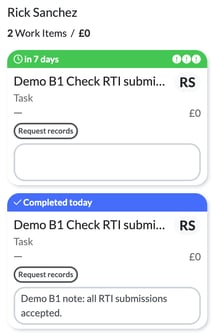
You can even see all of your completed jobs by selecting reports in the Jobs toolbar, then Jobs completed in a given period. Super handy to keep track!
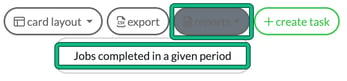
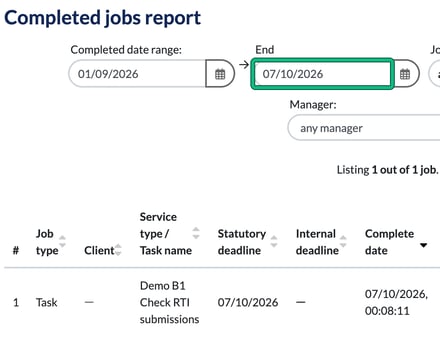
This opens the Completed jobs report. By default the Completed date range covers last month, so change the End date if you want to include anything completed this month. You can also filter by job type, who completed it, manager and client or task name, and export to CSV.
This is great, what else can you do with Tasks?
While adding tasks as prompts and reminders for any manner of application is all very well and good (you could have a task against a client for recurring yearly birthday messages if you really want), what about more practical applications?
How about email? We all live in our inboxes; forwarding them on, snoozing them or delegating / dumping them. I’m sure we’ve all been guilty of replying to a client immediately saying that we’ll get their accounts out to them at the end of the week or month. Well, let’s be more accountable, by creating tasks from emails.
Creating Tasks from email
Let’s use the above example: a client has emailed in with a request to have their accounts ready by the end of the week as they’ve got a meeting with a mortgage advisor, so they want them a little earlier than usual.
You can reply back to the client and then set yourself a Task to complete the accounts before the weekend, if you’re not able to action this right away.
If you don’t have your emails flowing through Engager, why not? See How to integrate and manage your emails in Engager for Gmail and Microsoft 365 (Outlook / M365).
- Select Emails from your top bar and open the relevant email.
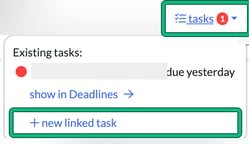
- In the conversation, select tasks on the right-hand side of the screen, then select + new linked task. Any tasks already linked to the conversation are listed under Existing tasks:.
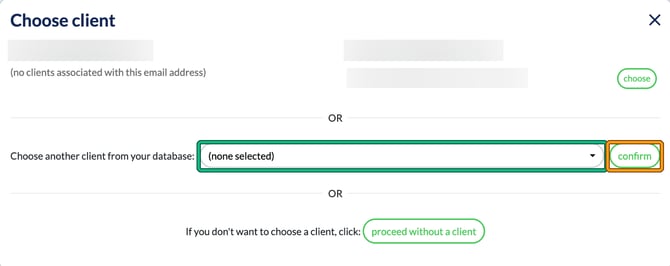
- In Choose client, make sure that you’re assigning the task against the appropriate client. The system will do its best to do this for you: under each email address it lists any matching clients, with a choose button. If the client isn’t linked to that email, pick them from Choose another client from your database: and select confirm. If the task doesn’t need a client, select proceed without a client.
- Complete the details of the task like above, but this time, check out the form: the Name: is filled in with the email subject, and the Details: box holds the email itself, pulled through for you as a prompt! How many times have we forgotten the action required, or a squiggle on a notepad that simply says ‘Dave - Accounts’?
Creating tasks can also be an incredible delegation tool for you and your team, as you can assign your team actions based on emails and the tasks thereafter.
Seeing tasks across your team
When you start using tasks, you’ll see these in your Jobs view, and directly via the Dashboard.
You could even use the Jobs filters to see all tasks across the workforce. For example, set Job types: to include Task and Group by: to staff member to see each person’s tasks in their own column.
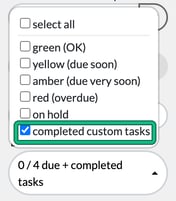
You can also see what tasks have been completed. Completed tasks are included in the default Due state:, back as far as the Oldest completion date for custom tasks:. To see only completed tasks:
- Open Due state: in the Jobs filters and untick select all.
- Tick completed custom tasks.
- To look further back, change Oldest completion date for custom tasks:.
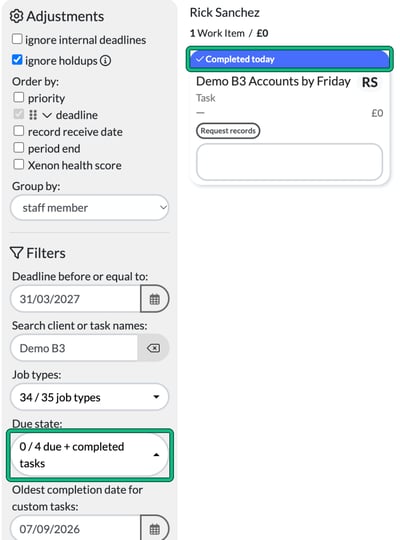
When you’re done, tick select all again to go back to seeing every task.
The options and practical application are endless.