
With the new Companies House requirements for Authorised Corporate Service Providers, it’s now essential to collect and securely store the ID Verification Codes for your clients' directors and individuals.
To make this process smoother, Engager has introduced a dedicated field for storing these Companies House Personal Codes directly within the individual contact record. No need to create custom fields, it's ready to go!
For the wider picture, including segmenting your clients and planning your client communications, see Getting ready for ACSP in Engager.
How to record your client’s Companies House Personal Code
- Head to the client contact.
- Select Step 1: General info.
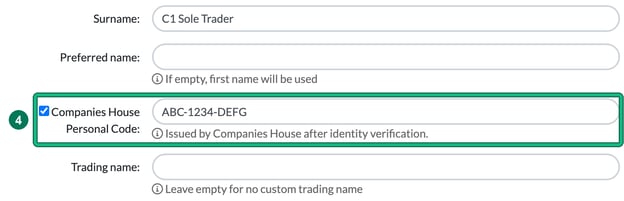
- Navigate down to the Companies House Personal Code: field.
- Enter the code. It’s 11 characters in the format XXX-XXXX-XXXX. You don’t need to worry about the hyphens or capitals: Engager adds them for you when you leave the field.
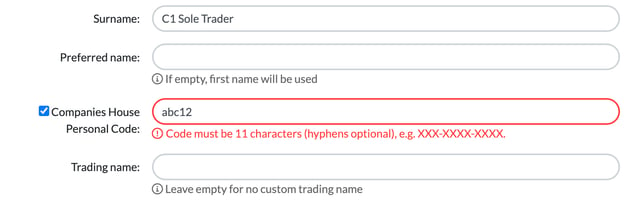
- If the format is incorrect, we’ll flag it so you can correct it before saving: Code must be 11 characters (hyphens optional), e.g. XXX-XXXX-XXXX.
- Select Save.
Reporting on who has and hasn’t had their Companies House Personal Code saved in Engager
As part of your new responsibilities, you will need to know who has and hasn’t had their ID verified and confirmation saved as the code.
So now, once you’ve entered in a few personal codes on the client record, you’ll be able to see these clearly from the Clients screen.
- Go to the Clients tab.
- Select columns.
- Under General info, tick Companies House Personal Code.
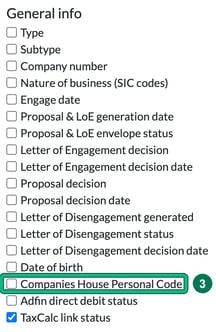
- You’ll then see the code entered against your individual's name.
- If you press the heading of Companies House Personal Code, you’ll quickly be able to sort by completed and not completed, so you can then take action on those that don’t yet have a code next to them.
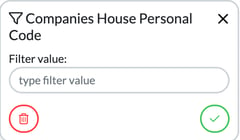
- You can also filter by Companies House Personal Code: select filters > Client info > Companies House Personal Code. To filter on empty values, keep Filter value: empty, then select the green tick.
How to gather Companies House Personal Codes in bulk using Forms
To streamline the collection process, you can use Engager’s Forms to request these codes directly from clients.
How to set it up
- Go to Settings > Client data > Form settings.
- Create a new form with + new form, or edit an existing form with its pencil icon.
- Add a section with + section if the form doesn’t have one, then add a new question with + question. Under Choose question type, choose Based on built-in field, then set Built-in field as question base: to Companies House Personal Code.
- Update the Prompt: wording, or add a Description:, to something helpful like:
“Please provide your Companies House Personal Code for identity verification. You’ll have received this from Companies House.”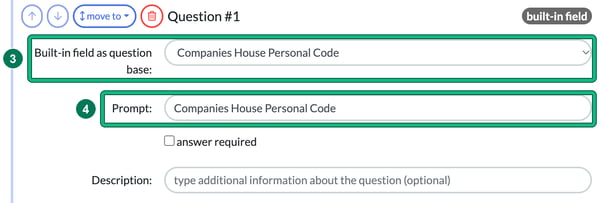
- Set State: to PUBLISHED and select Save.
How to send the form
- Send it individually from the client record > Form requests, or
- Use bulk send via Clients > bulk actions > Create form request.
Once your client submits the form via their portal, the code will be ready for you to approve and populate into their contact record.
Need help?
If you have any questions or run into issues when storing or collecting these codes, please get in touch with our support team at contact@engager.app.