
We have released a new feature to slicken up your processes even more!
Now, when you mark a phase as completed, it can update the overall Status of the job card, saving you time and also ensuring the Status moves on accordingly. No more second-guessing whether the team have updated one and not the other, giving you more confidence with your workflow visibility.
Set the status for each phase
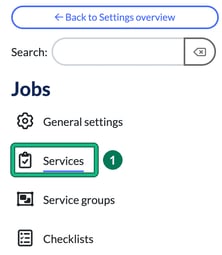
- Head to Settings and, under Jobs, select Services.
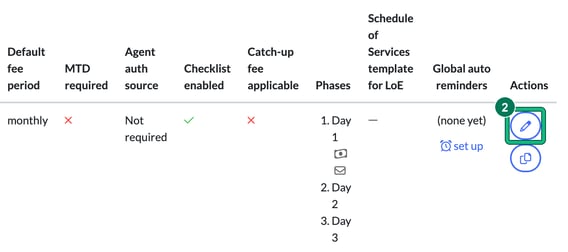
- As we're editing a Service, select the edit pen in the Actions column. This opens Edit service.
- Now scroll down to the phases. Each phase has its own Update status on completion to: field, set to (no change) until you choose a status. Pick the status the job should move to when this phase is completed, then select Save.
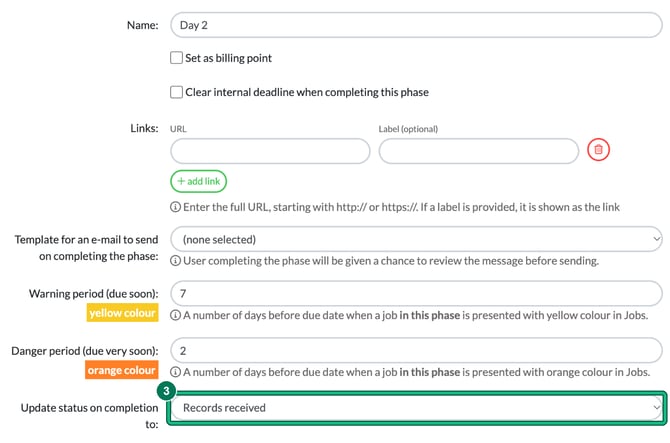
Here are the options that you have available, and please note that these are hard-coded and can't be edited or changed:
- (no change)
- Request records
- Awaiting records
- Part records received
- Records received
- In progress
- Help needed
- Queries sent
- In review
- Review complete
- Sent to client
- Awaiting signature
- Awaiting payment
- Ready to file
- Filed
Each phase also has a Links: field, where you can add a URL with an optional label. If you add a label, it is shown as the link.
What happens when the phase is completed
In this example, we're completing a Phase that is confirming we've received the bank statements / assets and that the Year End accounts can now be started. So I'm going to use Records received.
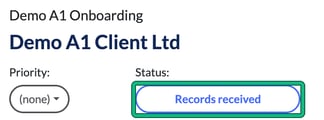
When someone completes that phase on a job (open the job and, under Phases, select complete current), the job's Status: changes to Records received straight away.
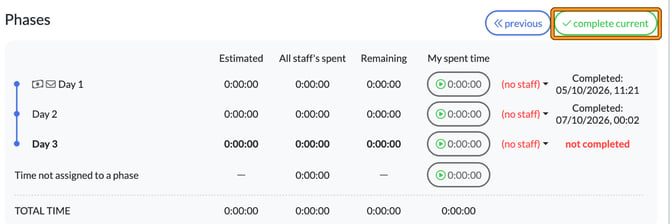
Then once my Phase of 'produce accounts' has been completed, I would want the Status to reflect that the accounts are now in review, so I set that phase to In review.
You can now update all of your Phases to update your Statuses, saving you time and also ensuring accuracy is maintained throughout all of your workflows.
The excellent news is, once set, this also applies to your existing jobs and workflows: you won't have to go back through these to update them. The status changes the next time the phase is completed on each job. Jobs where that phase was already completed keep their current status.