
How to Save a View
- Apply your preferred Job Filters and Adjustments.
- Select Views in the Jobs page toolbar.
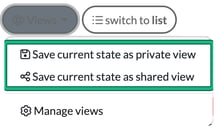
- Choose one of the following options:
- Save current state as private view
- Save current state as shared view
- Enter a name for your view in View name:.
- Select Save View.
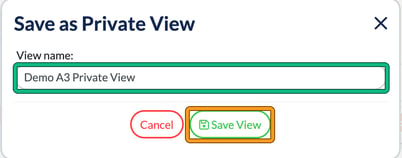
Once saved, the view will be available from the Jobs menu in your top bar, under Views:, and in Views > Manage views.
Shared Views
Shared Views allow multiple team members to access the same job dashboard.
This is particularly useful for:
- Weekly team meetings
- Monday stand-ups
- End-of-month reviews
- Monitoring deadlines
- Resource planning
To create a shared view:
- Apply your preferred filters and layout.
- Select Views.
- Choose Save current state as shared view.
- Name the view and select Save View.
The view will now be available to other members of your team.
Managing Views
To manage your saved views:
- Select Views.
- Select Manage views. This opens View management.
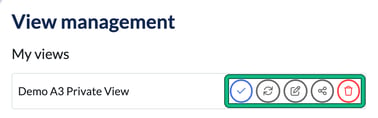
Under My views, each of your views has a row of buttons. From left to right, you can:
- Apply this view
- Overwrite with current state, to update the view with your current settings
- Rename a view
- Share with others, or Make private once it's shared
- Delete a view (you'll be asked to confirm)
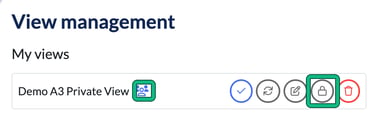
Once a view is shared, a people icon appears next to its name and the share button becomes a lock. If you no longer want a view to be shared, simply select the lock (Make private) to make it private.
You will also see any views created by other team members that have been shared with you, in the Shared views column. Your own shared views stay under My views.