
We know that most people are providing services on different schedules that aren't linked to statutory deadlines within Engager. A great example of this is providing Payroll services, so how do you get these up and working for you?
In this example below, we'll explain a weekly payroll service that has an automated reminder to go to the end client at the beginning of the week.
So, we've agreed that we will provide Payroll for clients on a weekly basis. We will run this 1 week after the event, which is pretty standard.
The first thing to note is that I'm running weekly payroll only. If you have to run other schedules of payroll, you will need to create a NEW Custom Service, as in 1 for 'weekly' and 1 for 'monthly'.
Set up the schedule on the client
- Head to your client.
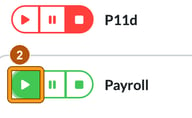
- Enable the Payroll service in Step 5: Services & pricing by selecting the green play button next to Payroll.
- In Step 6: Service details, in the Payroll panel, this is where we set the frequency of our payroll run, and it's a custom frequency that we're looking for. Deadline is 7 days.
We've also set an INTERNAL deadline 2 days beforehand (Auto internal deadline > custom), so that we're aiming to get this done early and not upset our client.
Then set the first Next due: date under Dates, so Engager knows when the first job falls.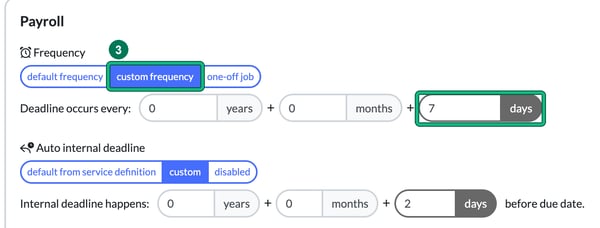
- Select Save.
This will now appear on Jobs for our client, similar to this:
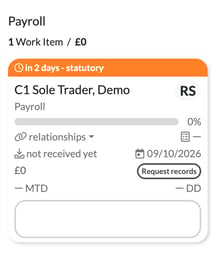
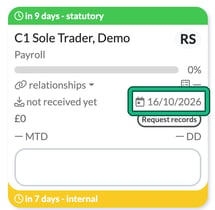
Once you mark this job as complete, it will regenerate for the next schedule. In our example, completing the job due 09/10/2026 created the next one straight away, due 16/10/2026, with its internal deadline 2 days earlier. Don’t rely on the internal deadline showing on the very first job: in our test it appeared from the next job onwards.
Automate the chasing with a Global auto reminder
With Engager, sometimes you have to work backwards for the Global Auto Reminders.
What we want to do is be clever and automate some chasing. We want to get the information back from our client about the employees, hours worked etc, and to begin, we use a Global Auto Reminder.
Please note that if you want to do this, you will need to create the above again as a CUSTOM SERVICE, as your reminders will have a different schedule and set of rules to your standard MONTHLY payroll.
- Head to your Weekly Payroll service in Settings > Jobs > Services.
- In the Global auto reminders column, select set up, then + new to open Create auto reminder.
- Under When to do it?, enter an example of your desired deadline as the sample due date. In the example below, we've selected a Friday, at the end of the week.
- Set 4 days before statutory deadline.
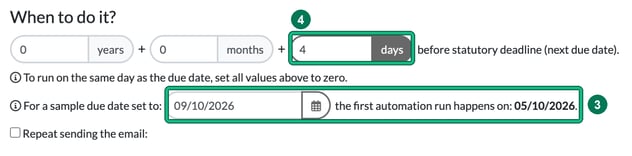
Looking at the example above, the system will fire out a request for payroll information on the Monday, meaning you should receive it back and be able to complete your payroll run in time for the Friday, which is the client's deadline.
If your clients are great at getting back to you, then leave the settings as above. If however they're not, why not set the above request to repeat each day up until the deadline? Tick Repeat sending the email: and set it to every 1 day.
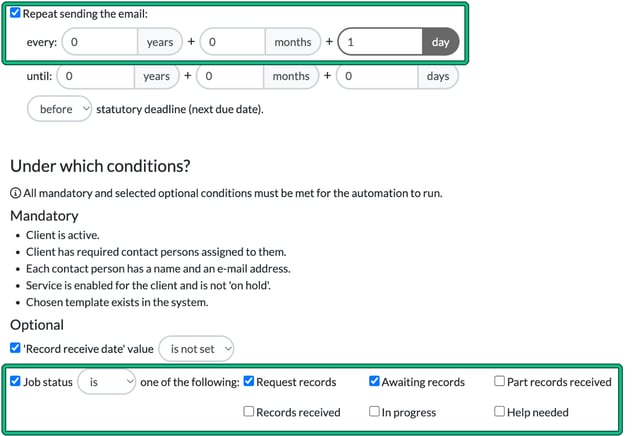
Remember that the automation is being led by the JOB STATUS, under Under which conditions?. If it reads like the above, then we'll send the email into the queue for you to review and approve sending. So there's a little bit of maintenance for you to change the job status to Records received to turn OFF the function. Setting the records received date on the job also stops it, because the 'Record receive date' value is not set condition is ticked by default.