
This is your way of welcoming one of your new clients into your firm. Each company will have their own way of doing things, so you can use our ideas below or keep to your current way of doing this. A good thing here though, is if you haven’t reviewed your onboarding process, get some time in and do so.
These are your first impressions, so a welcome email and then 17 other emails all sent out in 24 hours is going to be overwhelming and quite frankly annoying for the client. Additionally, your Calls to action are being lost along the way.
In our example, we decided to use a combination of Phases and Checklists to keep the onboarding process flowing and also be a better experience for the client.
Create your onboarding service
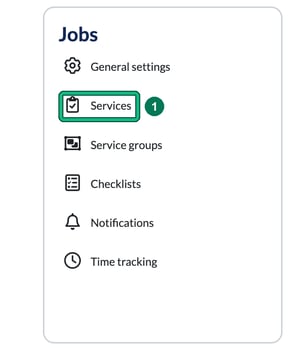
- Head over to Settings and, under Jobs, select Services.
- We’re creating a NEW Service here, so select + add custom service. This opens New service.

- As it’s more of an internal process, we’d recommend setting Internal only to yes. Services marked as Internal only are not included in LoE or fee tables sent to a client.
- And make sure Checklist enabled is set to yes (it is by default). When this is disabled, all checklists defined under Jobs > Checklists are ignored.

If you have features that form part of your Onboarding process that are chargeable, then obviously change this and then start building your fees and pricing further down the form, under Default fee period and Pricing formula for the default fee period. An example of this could be you register your client for PAYE / VAT etc.
If that’s the case, perhaps consider creating individual NEW custom services for these, to separate them from your INTERNAL onboarding.
- Now give it a name in Full name. Engager fills in a Short name for you, which is used when screen space is limited.

Phases
This is where you can start to build out your individual steps of onboarding clients. In the Phases section of the service, select add phase here for each one. Remember, you can also assign actions to certain team members under Responsibilities and trigger emails to the client once a phase has been completed with Template for an e-mail to send on completing the phase. Super handy: the person completing the phase gets a chance to review the message before it’s sent. Just make sure you’ve built your custom emails first. If you’ve not done this before, see 8 of 10: Enhance Communication with Custom Email Templates.
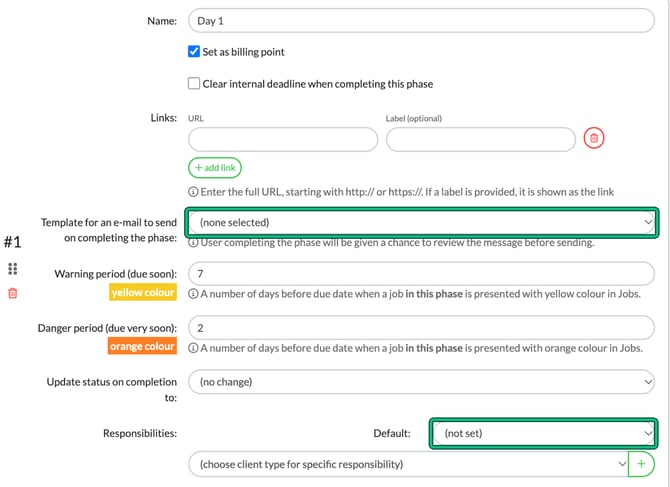
Remember what we said earlier, we don’t want to overwhelm clients as their first experience. We get it, we want to get all things done quickly, so we naturally have a habit of sending out multiple requests in one go.
But this means you’re doing all your emailing and contact points in one go, and we don’t recommend doing this. It’s fine to have these as your process, but we’d perhaps consider spreading these out, and this is where we can look to use Checklists inside of our Phases.
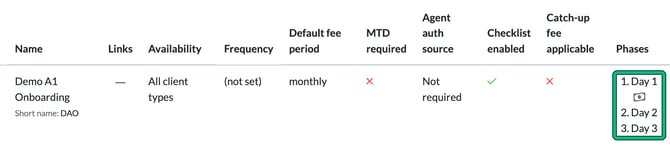
So we switched it up: our Phases became Days, and inside these days there will be a Checklist of actions to do. This ensures that it’s a smoother journey for the end client.
When you’ve added your phases, select Save. Your phases then show in the Phases column on the Services page.
Build your onboarding checklist
Once you’ve defined your Onboarding journey and added your Phases to represent days, we need to build our Onboarding Checklist.
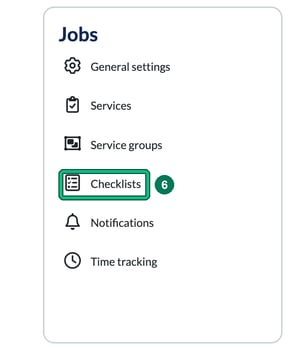
- Head to your Settings and, under Jobs, select Checklists. This opens Service Checklists, with an entry for each service.
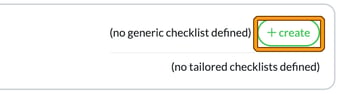
- Find your onboarding service and select + create. If the service already has a generic checklist, you’ll see edit instead.
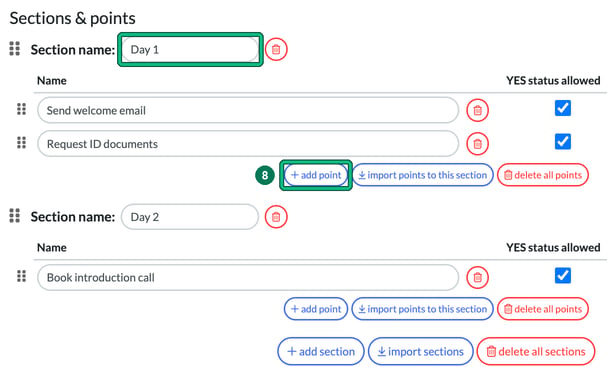
- In Edit checklist, under Sections & points, select + add section and enter a Section name for each day, to match your phases. Then select + add point for each action in that day. You can also import points to this section or import sections.
- Select Save new version from points above. You’ll be asked to Set a name for a new checklist version; the name is optional. Select Save.

Turn the service on for your client
Now you’ve created the Checklist, let’s get this turned on as a Service.
- Locate a new client or Prospect, then you’re looking for Step 5: Services & pricing in the client form.

- Enable the service: select the play button beside your onboarding service so it turns green.

- Head to Step 6: Service details.

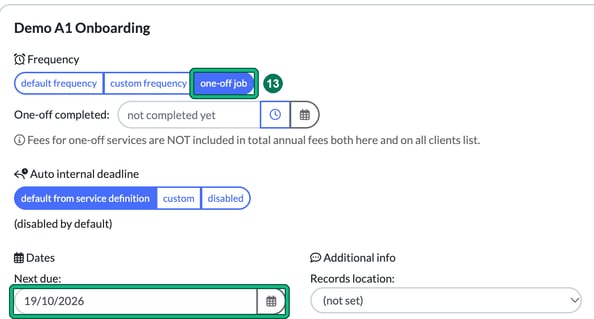
- Then we need to tell the system that it’s a one-off job and enter the date that you want to complete the onboarding for the client. On your onboarding service, under Frequency, select one-off job. Under Dates, enter the date in Next due.
- Select Save at the foot of the client form. If an Incomplete client data message lists missing details for another service, you can select Yes to save.
Working through the onboarding job
This should now appear on your Jobs page (select Jobs in the top menu) like below:
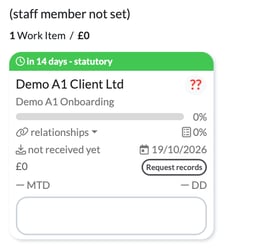
Click INTO the job card (select the body of the card; selecting the client name opens the client instead), then you’ll see the Phases one by one and who they have been assigned to.
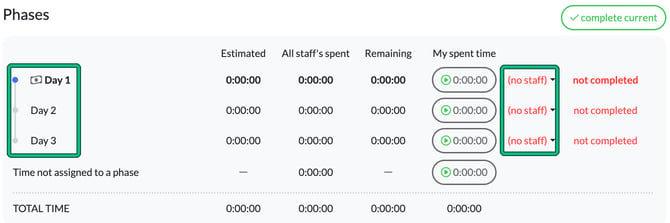
But for this example, let’s take a look at the Checklists as well: under Checklist, hit the +.
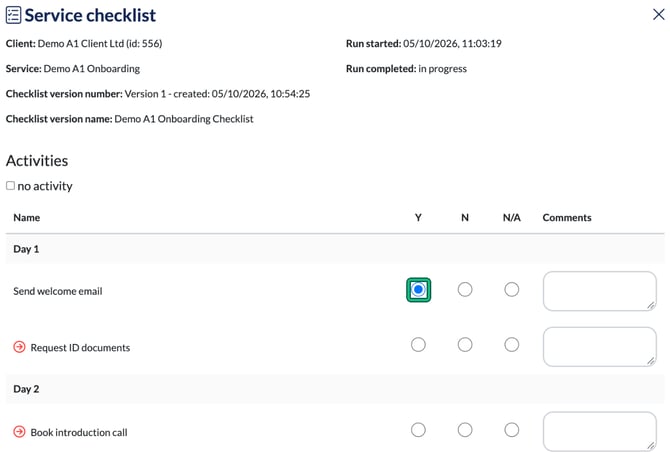
This opens the Service checklist. Under Activities, answer each point Y, N or N/A as you go, with Comments if you need them, and save.
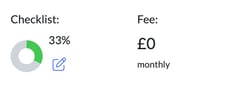
You can now see where we are at with what has been actioned on within the job so far, by looking at the checklist.
Remember, when you’re following the steps and working out of the job card, you can simply fire out emails to the client as you go with compose e-mail, then update the checklist, keeping everything in one place.

So there you go!
Why not consider adding in a phase for 3, 6, 9 & 12 months as well? A catch up with your account manager is a great way to retain and instil loyalty, and also provide a next level service to your clients.
People don’t want reactive accountants anymore. Using Phases is a great way to get ahead of any niggles and show massive value to your clients.
As always, have a play, tweak as you go and find what works.
Don’t forget that you can assign phases to other team members and also trigger your custom emails to your client when completing the Phase.