The toolbar at the top of your Clients list lets you choose columns, filter, see fee breakdowns, import and export data, and tailor how the list displays.
There's so much to explore within Engager, and there's even more on the Clients tab: lots of subtle options that you may not have seen before. So let's go through these options and how they can help you.
The Clients toolbar
- Select Clients across the top. You have various tools along the top of the list: bulk actions, columns, filters, fees, data and misc.

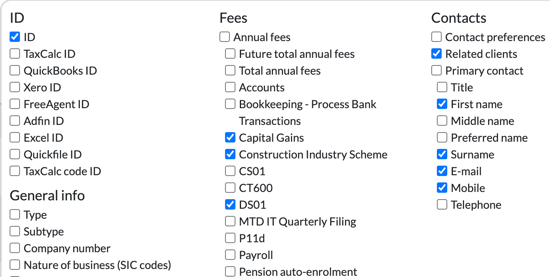
- Select columns. This gives you the ability to choose which columns to see in the client list. The tick boxes are grouped under headings such as ID, General info, Address, Staff, Services, Fees, Contacts and Custom fields.
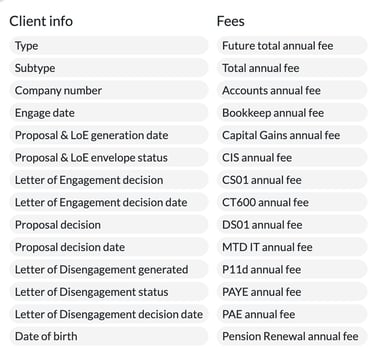
- Select filters. This gives you the ability to filter information, similar to Excel, on fields grouped under Client info, Services, Fees, Primary contact and Custom fields. Super handy if you want to use Engager to start creating visual reports to then bulk message from.
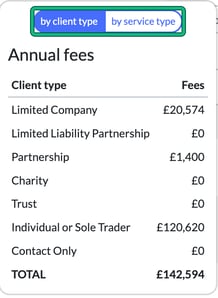
- Select fees. If you are recording fees in Engager, Annual fees shows you a breakdown of fees. Switch between by client type and by service type.
- Select data to import or export client data.
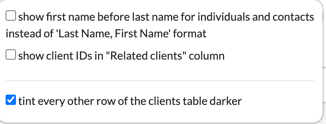
- Under misc you can tailor how certain information displays: show first name before last name for individuals and contacts, show client IDs in the Related clients column, and tint every other row of the clients table darker.