- Click on the job you're working on. Clicking any white space on the card on the Jobs board opens the job.
- Status: this is the "status" area, so you can mark where in the deadline you are up to (for example Awaiting records).
- Here you can send texts (compose text) and emails (compose e-mail), put on hold a job if it can't move forward for any reason, and mark the whole job complete (complete job). If the job has a checklist, it needs to be finished before you can complete the job.
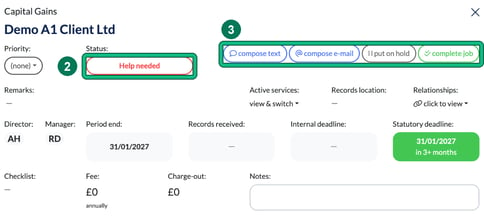
- Manager: this is the person that manages the client. The Director: is shown next to it.
- Period end: this pulls through from Companies House or is based on known things like tax year, VAT period etc.
- Records received: here you can set the date you received the records from your client. Click on the box with the line in it, pick the date (it starts at today), then select the tick to confirm.

- Internal deadline: you may wish to prioritise this work before the statutory deadline. By setting an internal deadline, the system will use this as the deadline instead.
- Statutory deadline: this is based on the service deadline set in the settings.
- Notes: here you can add notes to the job. They auto save!
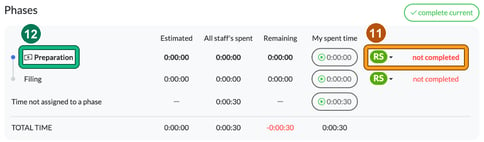
- Phases: here you can complete a phase (complete current) or go back a phase if required (previous, shown once a phase has been completed).
- Each phase shows the user responsible and its status, i.e. complete and when, or not completed.
- The bank note indicates that when you complete this phase, the system will remind you to invoice the client. If an envelope is shown, it means that when this phase is completed, the system will ask if you want to send a status update email to the client.
- Invoice: here you can raise an invoice if required, linked to a bookkeeping solution such as QBO.
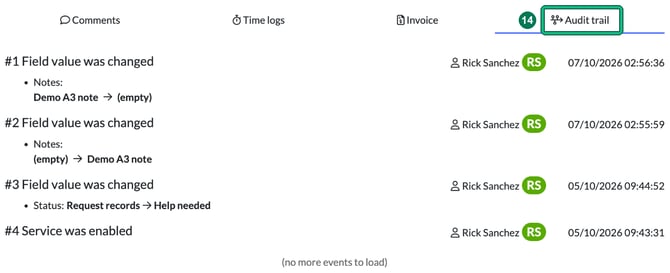
- Audit trail: here you can see who has done what and when for this job.
English - United Kingdom
