Keep the email address. If the LTD's primary contact has exactly the same first name, surname and email address as the person on the Individual or Sole Trader sheet, the import links the company to that individual.
When you're importing your clients, you may face a situation whereby the same email address is being used by the LTD and a contact / director. Using the same email on the LTD's primary contact as on the individual isn't rejected as a duplicate: Engager matches the two on first name, surname and email together, and that is what links them.
How to set up the import file
- On the Individual or Sole Trader sheet, enter the person with their First Name, Surname and Email address.
- On the Limited Company sheet, enter exactly the same Primary contact first name, Primary contact surname and Email address for the LTD. When you generate the import file, the notes on these fields say they will be used to automatically link clients to their contacts.
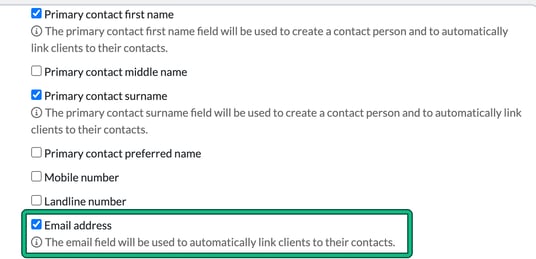
- Don't delete the email address from the LTD. Matching on first name and surname alone isn't enough: without the email, Engager doesn't link the LTD to the individual on the Individual or Sole Trader sheet. Instead it creates a separate Contact Only record for the LTD's contact, so the same person ends up in Engager twice.
Check the import
During the import, it's important to acknowledge and fix any error messages. Eventually, it should return a GREEN message: "Success: Your data is valid". Before you select Save data, check the Limited Company table: a correctly matched row shows "Primary contact person set to individual being imported", followed by the individual's name. A row without the matching email doesn't.
Once imported, because they shared exactly the same first name, surname and email address, the system has automatically linked the 2 entities together, without manual manipulation. The LTD's Related individuals & contacts lists the imported individual, with no duplicate. This is how the system should work.
If they don't link automatically
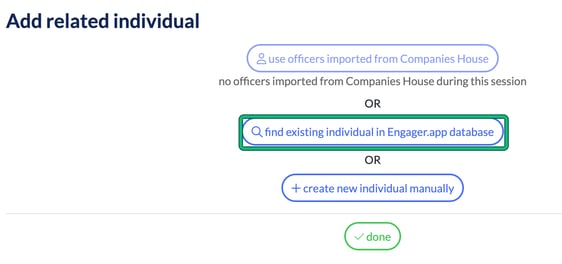
If for whatever reason yours do NOT link automatically, simply locate the LTD and, in the client form, go to Step 3: Related individuals & contacts. Select + add, then in Add related individual select find existing individual in Engager.app database and choose the person. Under "For current business, this individual is:", choose primary contact, then select done.