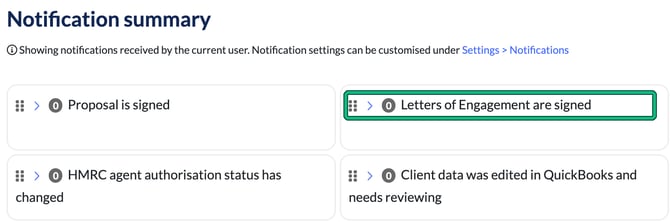
We have a fantastic notification system that lets you know when a client has signed their Letter of Engagement (LOE).
It's a great moment and it's a huge win for your business, so we receive a few requests asking for an email to be generated back to you alongside the Notification.
At Engager we're trying to keep your inbox to clients comms only and so we'd recommend getting accustomed to the Notifications feature: both the alert and the Grouped Summary. Don't forget, you can add more users onto the Notification settings also, so everybody gets the alert.
Workaround for those that want an email
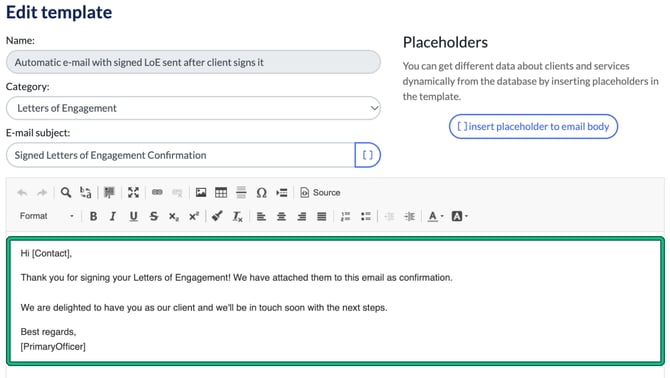
What we would recommend as a work-around would be to include a note in your automatic email, Automatic e-mail with signed LoE sent after client signs it: something that leads the client to respond to you once done, such as 'If you're happy to go ahead, please Review and Sign and let me hear by replying to this email'.
It's not pretty but it works for a lot of people and you'll get the email back as required.
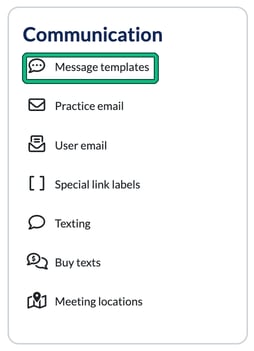
Set this up in Settings > Communication > Message templates.
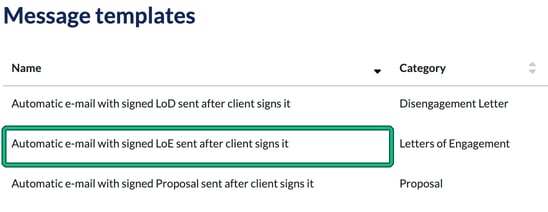
Locate the Automatic e-mail with signed LoE sent after client signs it email, open it with the edit (pencil) button and insert your message there.
Notification Best Practice: check throughout the day
Spend a little extra time reviewing all notification settings to make sure you're working efficiently and taking action when needed. You'll find them in Settings > Jobs > Notifications.
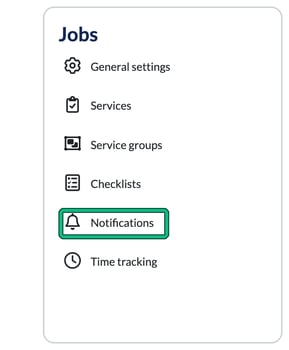
From here you'll have control over who gets informed about what, so take your time adding your staff to the most important notifications. As an example, I would want ALL staff to know if a client has signed their LOE.
Under Recipients to include, open Letters of Engagement are signed, select your chosen staff from the (choose additional recipient) drop down, select + and then Save.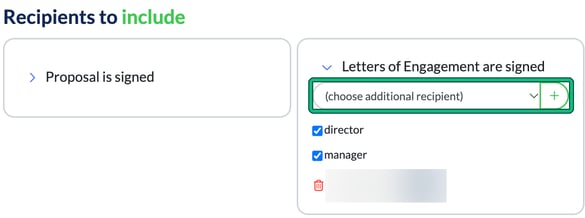
I've lost track of my notifications: 'I'm worried about missing something'
We've got you covered. We've built you a handy summary page for all notifications, grouped by relevant notification type, from LOEs signed, Documents sent or even a Task has been assigned to you to complete.
Click on your Notification Bell icon.
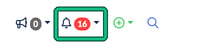
Then towards the bottom, you'll see show grouped summary.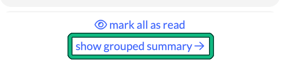
And voila, here's your summary!